Add New Tile to Dashboard
Overview
This guide shows how to add a new tile to the dashboard application with optimized data loading for mobile devices. By using mobile-shared-data-from with mobile-qbe-filter, you can reuse data already downloaded by other mobile applications while maintaining efficient memory usage through QBE filtering.
📋 Version Requirement: The
mobile-shared-data-frommechanism was introduced in Maximo Application Suite (MAS) version 9.2.0. Ensure your environment is running MAS 9.2.0 or later to use this feature.
📚 For comprehensive details on cross-app data sharing, see the Cross-App Datasource Sharing Guide which covers multiple fallback sources, schema requirements, and advanced patterns.
What is a Dashboard Tile?
Dashboard tiles are visual components that display key metrics and counts on the dashboard page. Each tile shows a title, a numeric value, and an optional unit label, with navigation to the related app.
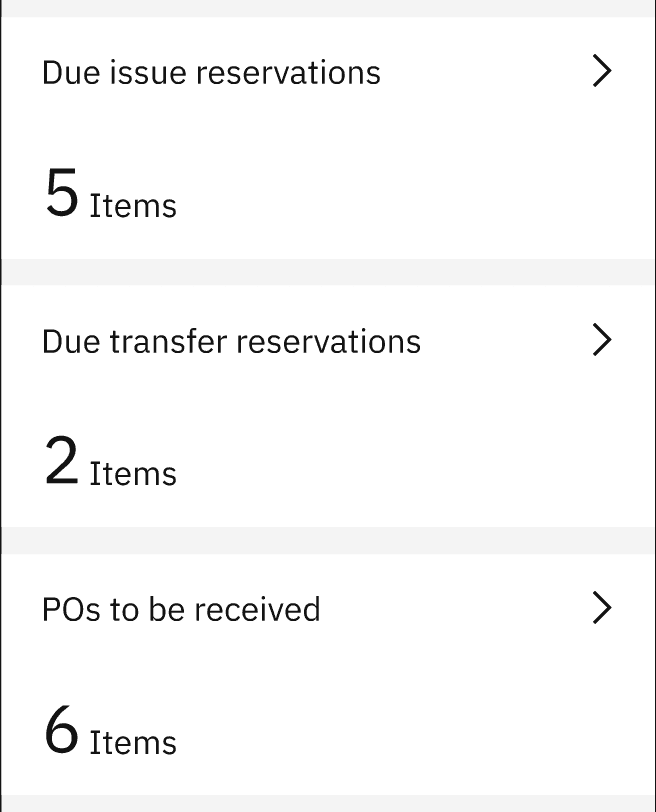
Example dashboard showing multiple tiles: “Due issue reservations” (5 Items), “Due transfer reservations” (2 Items), and “POs to be received” (6 Items)
Use Cases:
- Adding work order count tiles to dashboard
- Creating asset status tiles
- Building inspection count tiles
- Displaying material request counts
- Showing purchase order status
Prerequisites:
- Understanding of datasources
- Knowledge of mobile QBE filters
- Familiarity with cross-app datasource sharing
- Familiarity with dashboard application structure
Why Use mobile-shared-data-from with mobile-qbe-filter?
Benefits:
- ✅ Memory Efficient: Prevents duplicate data downloads across apps
- ✅ Faster Loading: Reuses data already downloaded by other mobile apps
- ✅ Filtered Data: QBE ensures only relevant records are counted
- ✅ Reduced Network Usage: No additional server calls needed
Example Scenario:
The Inventory Receiving app already downloads purchase orders. Instead of downloading the same purchase orders again for the dashboard, we can reuse that data with mobile-shared-data-from and filter it with mobile-qbe-filter to show only POs that haven’t been received.
Implementation
Step 1: Identify the source datasource from another mobile app
First, identify which mobile application already downloads the data you need for your tile. Common sources:
- Technician App (
techmobile): Work orders - Inspection App (
inspection): Inspection results - Material Request App (
materialrequest): Material requests - Service Request App (
srmobile): Service requests - Inventory Receiving App (
irmobile): Purchase orders - Inventory Transfer App (
itmobile): Reservations - Inventory Counting App (
icmobile): Count books
Step 2: Create datasource with mobile-shared-data-from and mobile-qbe-filter
Define a datasource that references the source app’s datasource using mobile-shared-data-from and applies mobile-qbe-filter for memory optimization.
XML Configuration (app.xml):
<maximo-datasourceid="dspolist"download-page-size="900"page-size="1"offline-immediate-download="true"object-structure="MXAPIPO"controller="DataController"selection-mode="none"saved-query="IROPENPOMOBILE"
Key Points:
mobile-qbe-filter="{{'receipts_maxvalue': '=NONE'}}": Filters to show only POs not receivedmobile-shared-data-from: References the source app (irmobile) and datasource (executionPODS)page-size="1": Minimal page size since we only need the countcontroller="DataController": Required for computed attributes likecomputedTotalRecordsinclude-counts="true": Enables count computation<qbe>element: Additional QBE filtering (optional, complements mobile-qbe-filter)
Step 3: Add dashboard tile to page
Use the datasource in your dashboard tile. This will create a tile component that displays the count value.
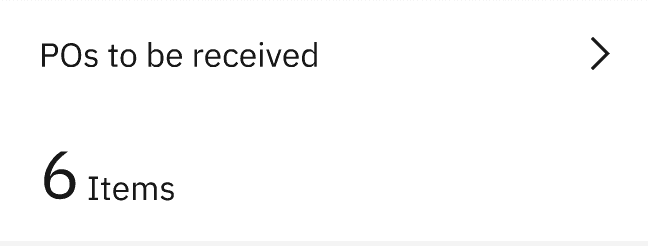
Example tile showing “POs to be received” with count of 6 Items
XML Configuration:
<page id="dashboardpage" title="Dashboard" controller="DashboardController"><dashboard id="dsdash1" use-with-mobile="true"><!-- POs to be received tile --><dashboard-value-tileid="dsdash1_t6"datasource="dspolist"size="smallwide"value-field="computedTotalRecords"
Complete Example
Here’s a complete example showing two tiles for purchase order status:
app.xml:
<?xml version="1.0" encoding="UTF-8"?><maximo-application id="dashboardmobile" title="Dashboard" version="9.2.4.0"><!-- Tile 1: POs not received --><maximo-datasourceid="dspolist"download-page-size="900"page-size="1"offline-immediate-download="true"
mobile-qbe-filter Examples for Memory Management
The mobile-qbe-filter attribute filters the shared data to reduce memory usage. Here are common patterns:
Example 1: Filter by Exact Value
mobile-qbe-filter="{{'receipts_maxvalue': '=NONE'}}"
Example 2: Filter by Status (Exclude Multiple)
mobile-qbe-filter="{{'status_maxvalue': '!=COMP,CAN,CLOSE,WAPPR'}}"
Example 3: Filter by Priority Range
mobile-qbe-filter="{{'wopriority': '<=2'}}"
Example 4: Multiple Filters Combined
mobile-qbe-filter="{{'status_maxvalue': '!=COMP,CAN,CLOSE', 'wopriority': '<=3'}}"
Example 5: Filter with Specific Status Values
mobile-qbe-filter="{{'status_maxvalue': '!=COMPLETED, CAN, REVIEW', 'historyflag': '!=true'}}"
Finding Source Datasources
To find available datasources from other mobile apps, check their app.xml files in the mobile applications repository.
Common Source Datasources:
| App | App ID | Datasource ID | Object Structure | Description |
|---|---|---|---|---|
| Technician | techmobile | todaywoassignedDS | mxapiwodetail | Assigned work orders |
| Inspection | inspection | assignedworktolist | mxapiinspectionres | Inspection results |
| Material Request | materialrequest | activeMRDS | mxapimr | Material requests |
| Service Request | srmobile | srDS | mxapisr | Service requests |
| Inventory Receiving | irmobile | executionPODS | MXAPIPO | Purchase orders |
| Inventory Transfer | itmobile | reservationsListDS | MXAPIINVRES | Issue reservations |
| Inventory Transfer | itmobile | reservationsList4TransDS | MXAPIINVRES | Transfer reservations |
| Inventory Counting | icmobile | countBookListDS | mxapicntbook | Count books |
Validation & Testing
How to verify:
Check data sharing is working:
- Install both source app (e.g., Inventory Receiving) and dashboard app
- Open source app first and let it download data
- Open dashboard app
- Verify tile displays count without additional network calls
- Check browser DevTools Network tab
Test mobile-qbe-filter:
- Verify tile shows only filtered records
- Check count matches filter criteria
- Compare with source app’s filtered count
Test offline mode:
- Load source app while online
- Enable airplane mode
- Open dashboard app
- Verify tile displays data from shared source
Monitor memory usage:
- Open DevTools Memory tab
- Verify no duplicate data in memory
- Check page-size limits are respected (page-size=“1” for count-only tiles)
Common Issues:
Issue: Tile shows 0 or no data
- Cause: Source app not installed or data not downloaded
- Solution: Ensure source app is installed and has downloaded data first
Issue: “Object structure mismatch” error
- Cause: Datasource uses different object-structure than source
- Solution: Verify object-structure matches exactly (case-sensitive)
Issue: Wrong app-id or datasource-id
- Cause: Incorrect reference to source datasource
- Solution: Check source app’s app.xml for correct IDs
Issue: mobile-qbe-filter not working
- Cause: Incorrect filter syntax or field names
- Solution: Verify field names exist in object structure schema
Issue: computedTotalRecords not showing
- Cause: Missing controller=“DataController” or include-counts=“true”
- Solution: Add both attributes to datasource
Best Practices
✅ Do:
- Use
mobile-shared-data-fromto reuse data from other mobile apps - Apply
mobile-qbe-filterto limit records for memory management - Set
page-size="1"for count-only tiles (no need to load all records) - Use
controller="DataController"for computed attributes - Set
include-counts="true"to enable count computation - Add
computedTotalRecordsattribute to schema for tile display - Test with source app installed and data downloaded
- Document which source apps are required
❌ Don’t:
- Reference non-existent app-id or datasource-id
- Use different object-structure than source datasource
- Forget to install source app during testing
- Skip mobile-qbe-filter (loads all shared data unnecessarily)
- Forget to add computed attributes to schema when required
- Set large page-size for count-only tiles
Memory Optimization Tips:
- Always use
mobile-qbe-filterto limit records - Filter out completed/closed records when not needed
- Use
page-size="1"for tiles that only display counts - Set appropriate
download-page-sizebased on expected data volume - Test on actual mobile devices to verify memory usage
Related Resources
Prerequisites:
- Datasources Guide - Understanding datasources
- FAQ - How to filter with datasource
- Dynamic Mobile QBE Filter - Dynamic filtering
Related Practices:
- Client-side Datasource Filtering - In-memory filtering
- Add Dashboard Tile - Advanced - Complex scenarios with DataController
Next Steps:
- Add Dashboard Tile - Advanced - For scenarios requiring all records or complex processing
Summary
This simple configuration approach is ideal when:
- ✅ Another mobile app already downloads the data you need
- ✅ You can filter data with mobile-qbe-filter (no complex logic needed)
- ✅ You only need to display counts (use page-size=“1”)
- ✅ Memory optimization is a priority
- ✅ You want to avoid duplicate data downloads
For scenarios requiring all records or complex data processing with DataController, see the Advanced Configuration Guide.