Configure a predefined/default filter in application
Overview
This configuration allows you to set default filter values that automatically apply when users open a list, reducing the need for manual filtering and improving user experience. By using QBE (Query By Example) attributes in your datasource definition, you can pre-filter data to show only relevant records based on business requirements.
Use Cases:
- Display only specific work types by default (e.g., show only “Corrective Maintenance” work orders)
- Filter lists to show records for the current user’s location or organization
- Pre-apply status filters to show only active or pending records
- Set default date ranges for time-sensitive data views
Prerequisites:
- Basic understanding of Maximo datasources and object structures
- Access to modify application XML files
- Knowledge of the field names in your target object structure
- Understanding of QBE operators (in, =, !=, <, >, etc.)
Implementation
Step 1: Add QBE definition to datasource (Declarative Approach)
The declarative approach uses XML to define the default filter directly in the datasource configuration. This is the recommended method as it keeps the filter definition visible in the app.xml and doesn’t require custom JavaScript code.
Location in app.xml:
Find your datasource definition (or datasource-override) and add the qbe structure within it.
XML Configuration:
<maximo-datasource-override id="todaywoassignedDS" object-structure="MXAPIWODETAIL"><!-- Define the QBE filter with one or more fields --><qbe id="listQbe"><!-- Filter work orders to show only Corrective Maintenance (CM) --><qbe-fieldname="worktype"operator="in"value="['CM']"id="fieldlistQbe"
QBE Operators:
in- Match any value in the array (e.g.,['CM', 'EM'])=- Exact match (e.g.,'APPR')!=- Not equal to<,>,<=,>=- Comparison operators for numbers and dateslike- Wildcard search (use%for wildcards)
Important Notes:
- QBE supports both EXACT and WILDCARD searches
- For multiple values, use the
inoperator with an array:['CM', 'EM', 'PM'] - String values must be enclosed in quotes within the array
- The
idattribute on qbe-field is required for proper component identification
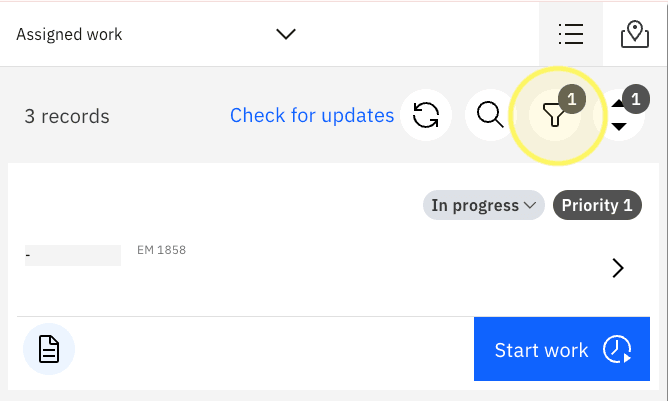
Expected Result: When the list loads, it will automatically display only work orders with work type “CM” (Corrective Maintenance).
Step 2: Set QBE programmatically (Alternative Approach)
Alternatively, you can set QBE filters programmatically during datasource initialization. This approach is useful when filter values need to be calculated dynamically or depend on runtime conditions.
JavaScript Implementation:
/*** Custom Application Logic* Sets default QBE filters when datasources are initialized*/class AppCustomizations {/*** Called when the application is initialized* @param {Object} app - The application instance*/
Important Notes:
- The
setQBEmethod takes three parameters: field name, operator, and value(s) - For the
inoperator, pass an array of values - For other operators, pass a single value
- Multiple
setQBEcalls can be chained to create complex filters - This approach executes before the datasource loads data
Expected Result: The list will display only work orders with work type “CM” or “EM” when it loads.
Validation & Testing
How to verify the configuration works:
Test default filter application:
- Open the application and navigate to the filtered list
- Expected Result: The list displays only records matching the QBE criteria (e.g., only CM work orders)
Test filter persistence:
- Refresh the page or navigate away and return
- Expected Result: The default filter is reapplied automatically
Test user filter override:
- Use the filter UI to change or clear the default filter
- Expected Result: User can modify or remove the default filter as needed
Test with multiple QBE fields:
- Add multiple qbe-field elements or setQBE calls
- Expected Result: All filter conditions are applied (AND logic)
Common Issues:
Issue: Filter doesn’t apply when list loads
- Cause: Field name doesn’t match the object structure attribute name
- Solution: Verify the exact field name in the object structure definition
Issue: Syntax error in QBE value
- Cause: Incorrect array syntax or missing quotes
- Solution: For
inoperator, use['value1', 'value2']format with proper quotes
Issue: Programmatic QBE not working
- Cause: Datasource name doesn’t match or timing issue
- Solution: Verify datasource.name matches exactly and use
onDatasourceInitializedlifecycle method
Issue: Filter shows no results
- Cause: QBE criteria too restrictive or values don’t exist in data
- Solution: Test with broader criteria first, then narrow down
Best Practices
✅ Do:
- Use the declarative XML approach for static, predictable filters
- Use descriptive IDs for qbe and qbe-field elements
- Test filter values against actual data to ensure results are returned
- Document the business reason for default filters in comments
- Consider user experience - don’t over-filter and hide too much data
❌ Don’t:
- Don’t hardcode user-specific values in default filters (use dynamic approach instead)
- Don’t create filters that return empty results for most users
- Don’t forget to include the field in the datasource schema
- Don’t use complex wildcard patterns that impact performance
- Don’t mix declarative and programmatic approaches for the same datasource
Performance Considerations:
- Default filters reduce the initial data load, improving performance
- Use indexed fields in QBE filters for faster query execution
- Avoid wildcard searches at the beginning of strings (e.g.,
%value) - Consider the data volume - filters should reduce results to manageable sizes
Security Considerations:
- Ensure users have permission to view the filtered data
- Don’t use filters to enforce security - use proper Maximo security groups
- Be aware that users can modify or remove default filters
- Consider data privacy when setting organization or location filters
Related Resources
Prerequisites:
- Understanding Datasources - Learn about datasource configuration
- Maximo Object Structures - Understanding object structure fields
Related Practices:
- Client-side datasource filtering - Filter data after loading
- Modify default queries - Customize datasource queries
- Update app saved query - Work with saved queries
- Combine static and dynamic filters - Advanced filtering techniques
Next Steps:
- Dynamic mobile filter - Create filters based on runtime conditions
- Add query to SR app - Advanced query configuration
External Documentation:
Additional Notes
Version Compatibility:
- QBE functionality is available in all versions of Maximo Mobile Framework
- The declarative XML approach is the standard method across all versions
- Programmatic setQBE method is available in MAF 8.2 and later
Mobile Considerations:
- Default filters help reduce data sync requirements in mobile applications
- Consider offline scenarios - filters should work with locally cached data
- Mobile users benefit from pre-filtered lists to reduce scrolling and search time
- Test filters on mobile devices with limited connectivity
Advanced Tips:
- Combine multiple qbe-field elements for complex AND conditions
- Use the programmatic approach to set filters based on user profile or preferences
- Clear existing QBE filters with
datasource.clearQBE()before setting new ones - Access current QBE state with
datasource.getQBE()for debugging - Use QBE with saved queries for powerful filtering combinations
Troubleshooting:
- Enable datasource logging:
this.app.log.d('QBE', datasource.getQBE()) - Check browser console for QBE-related errors during datasource initialization
- Verify field names match exactly (case-sensitive) with object structure
- Test QBE values in Maximo’s Query Builder to validate syntax
- Use browser developer tools to inspect the actual REST API query being generated