Saving additional attributes when adding Attachments
Overview
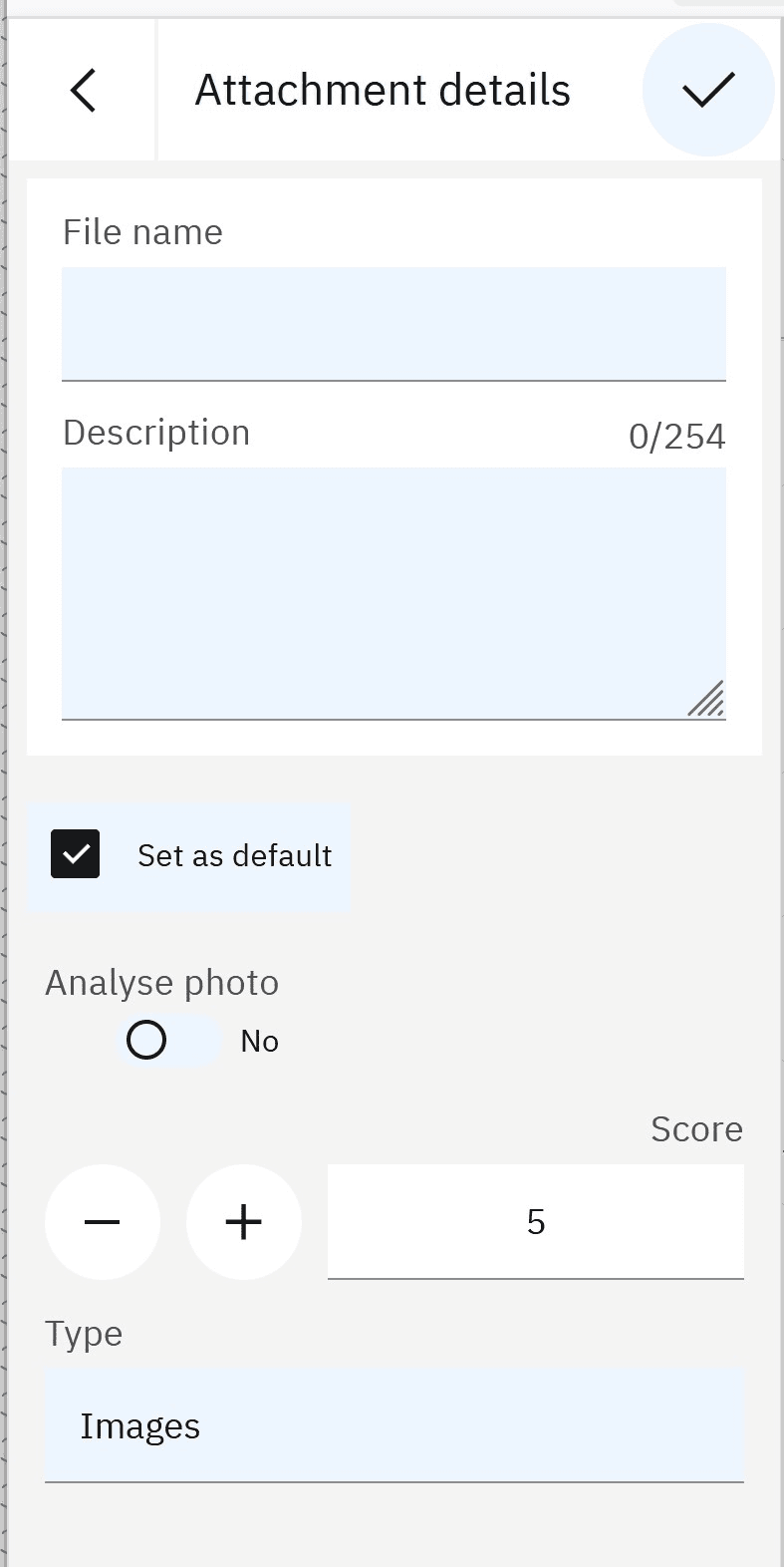
This configuration enables you to add custom input controls to the attachment upload dialog, allowing users to capture additional DOCLINK attributes (like default flags, analysis requirements, scores, or document types) at the time of attachment upload. This eliminates the need for separate editing steps after upload and ensures consistent metadata capture.
Use Cases:
- Mark attachments as default/primary during upload (e.g., default CAD drawing for an asset)
- Flag attachments for automated processing (e.g., photos requiring AI analysis)
- Capture document classification or scoring during upload
- Set custom metadata fields required by business processes
Prerequisites:
- Application must use the
touchtheme - Basic understanding of Graphite XML components and event handlers
- Access to modify application XML and controller files
- Custom attributes must be valid DOCLINK fields in the object structure
Implementation
Step 1: Enable custom options in the attachment list
The allow-naming attribute must be set to true on the attachment-list component to enable the custom options feature. This allows the attachment dialog to display additional controls beyond the standard file selection and description fields.
XML Configuration:
<attachment-listid="attachmentList1"datasource="attachmentds"allow-naming="true"file-name-required="false"file-desc-required="false"show-folder-list="false"hide-when-empty="false"is-editable="true"
Expected Result: The attachment list is now configured to support custom controls in the upload dialog.
Step 2: Add custom controls using the custom-options slot
Define one or more custom controls within the custom-options slot. Supported control types are: text-input, number-input, checkbox, and toggle. Each control must specify an event handler and the target DOCLINK attribute name.
XML Configuration:
<attachment-listid="attachmentList1"datasource="attachmentds"allow-naming="true"file-name-required="false"file-desc-required="false"show-folder-list="false"hide-when-empty="false"is-editable="true"
Important Notes:
- Controls appear below the description field (or below folder list if enabled)
- Use
on-changeandon-change-argfor text-input, number-input, and checkbox - Use
on-toggleandon-toggle-argfor toggle controls - The
*-argattribute specifies the DOCLINK attribute name to update
Expected Result: When users click to add an attachment, they will see the custom controls in the upload dialog.
Step 3: Implement event handlers in the controller
Create event handlers for each custom control. Each handler receives two parameters: the attribute name and the event object. The handler must call event.onUpdate(attributeName, value) to save the value with the attachment.
JavaScript Implementation:
/*** Handler for checkbox control - sets default flag* @param {string} attr - The DOCLINK attribute name (e.g., 'isdefault')* @param {Object} event - Event object with value property*/setAsDefault(attr, event) {const TAG = 'AttachmentCustomOptions';this.app.log.i(TAG, 'setAsDefault: ', attr + '=' + event?.value);
Important Notes:
- Toggle controls use
event.target.checked(boolean) - Other controls use
event.value(string or number) - Always call
event.onUpdate(attr, value)to persist the value - The attribute and value are included in the save payload automatically
Expected Result: When users upload an attachment, the custom attribute values are saved to the DOCLINK record in Maximo.
Step 4: Ensure attributes are in the object structure
Verify that all custom attributes used in the controls are included in the attachment datasource’s object structure. Both persistent and non-persistent DOCLINK attributes are supported.
Location in app.xml: Find your attachment datasource definition and ensure the schema includes your custom attributes:
<maximo-datasource id="attachmentds" object-structure="MXAPIDOCLINKS"><schema><attribute name="docinfoid" id="attr_001"/><attribute name="description" id="attr_002"/><attribute name="urlname" id="attr_003"/><!-- Custom attributes for custom-options --><attribute name="isdefault" id="attr_004"/><attribute name="inferreq" id="attr_005"/><attribute name="score" id="attr_006"/>
Expected Result: The datasource can properly save and retrieve the custom attribute values.
Validation & Testing
How to verify the configuration works:
Test custom controls display:
- Navigate to a page with the configured attachment list
- Click the “Add attachment” button
- Expected Result: The upload dialog displays all custom controls below the description field
Test value capture:
- Fill in the custom control values (check boxes, enter text, adjust numbers)
- Select a file and complete the upload
- Expected Result: The attachment is saved successfully
Test value persistence:
- After upload, query the DOCLINK record in Maximo
- Check the custom attribute values in the database
- Expected Result: The values match what was entered in the custom controls
Test with different control types:
- Upload multiple attachments with different control values
- Verify each control type (checkbox, toggle, number, text) saves correctly
- Expected Result: All control types persist their values properly
Common Issues:
Issue: Custom controls don’t appear in the upload dialog
- Cause: The
allow-namingattribute is not set totrue - Solution: Add
allow-naming="true"to the attachment-list component
- Cause: The
Issue: Values are not saved with the attachment
- Cause: Missing
event.onUpdate()call in the event handler - Solution: Ensure each handler calls
event.onUpdate(attr, value)
- Cause: Missing
Issue: Attribute not found error when saving
- Cause: Custom attribute is not in the object structure schema
- Solution: Add the attribute to the datasource schema definition
Issue: Toggle control doesn’t work correctly
- Cause: Using
event.valueinstead ofevent.target.checked - Solution: Toggle controls must use
event.target.checkedfor the boolean value
- Cause: Using
Best Practices
✅ Do:
- Use meaningful labels that clearly describe what each control does
- Set appropriate default values for controls to guide users
- Validate attribute names match exactly with DOCLINK fields in Maximo
- Use number-input with min/max constraints for bounded values
- Add logging in event handlers for troubleshooting
❌ Don’t:
- Don’t use custom attributes that aren’t in the object structure
- Don’t forget to call
event.onUpdate()in every handler - Don’t mix up event signatures (toggle vs. other controls)
- Don’t add too many custom controls (keep UI simple and focused)
- Don’t use this feature without the
touchtheme
Performance Considerations:
- Custom controls add minimal overhead to the upload process
- Keep the number of custom controls reasonable (3-5 maximum recommended)
- Avoid complex validation logic in event handlers
Security Considerations:
- Ensure users have appropriate permissions to update the custom DOCLINK attributes
- Validate input values if they affect security-sensitive fields
- Consider using domain validation in Maximo for restricted value lists
Related Resources
Prerequisites:
- Understanding Datasources - Learn about datasource configuration
- Graphite Components Overview - Basic Graphite component knowledge
Related Practices:
- Performance considerations for mobile doclinks - Optimize attachment handling
- Default record data options - Set default values for records
External Documentation:
Additional Notes
Version Compatibility:
- This feature requires Maximo Mobile Framework with
touchtheme support - Verify your MAF version supports the
custom-optionsslot - Some older versions may have limited control type support
Mobile Considerations:
- Custom controls are optimized for touch interfaces
- Test on actual mobile devices to ensure proper rendering
- Consider screen size when adding multiple controls
Advanced Tips:
- Use page state to dynamically show/hide controls based on other selections
- Combine with
show-folder-listto organize attachments by folder and metadata - Implement custom validation by checking values before calling
event.onUpdate() - Use the
record-marker-field-namefeature to visually highlight default attachments
Troubleshooting:
- Enable debug logging:
this.app.log.d(TAG, 'Debug message')in handlers - Check browser console for JavaScript errors during upload
- Verify object structure includes all custom attributes using Maximo Integration Framework
- Test with a simple single control first, then add complexity