Graphite Dialog Components Guide
Graphite Dialog Components Guide
Table of Contents
- Overview
- Common Lifecycle Events
- Common Properties
- Programmatic Access
- Dialog Component
- Lookup Component
- Lookup with Filter Component
- Sliding Drawer Component
- Best Practices
- Troubleshooting
Overview
Dialog components in Graphite provide powerful modal interaction patterns for user interfaces. These components enable you to present focused content, gather user input, and facilitate data selection without navigating away from the current context. This guide covers four essential dialog components that form the foundation of modal interactions in Graphite applications.
The Four Dialog Components:
Dialog - A versatile modal window for displaying content with customizable action buttons and decorations. Perfect for confirmations, forms, and focused content presentation.
Lookup - A specialized modal for searching and selecting items from a datasource. Supports both mobile list views and desktop table views with advanced features like barcode scanning, filtering, and multi-select.
Lookup with Filter - An enhanced lookup component that provides a filter element for refining search results. This is driven by a
datasourcewhere an attribute is flagged asfilterable. Also supports hierarchical data navigation for drill-down scenarios.Sliding Drawer - A side-panel modal that slides in from the start or end of the screen. Provides a non-intrusive way to display supplementary content while maintaining context with the main view.
Common Characteristics:
All dialog components in Graphite share several key characteristics:
- They must be declared within a
<dialogs>container element - They support controller binding for advanced behavior and lifecycle management
- They provide event callbacks for open, close, and action events
- They can be opened programmatically via
page.showDialog()orapp.showDialog() - They support validation callbacks to prevent closing with unsaved changes
- They integrate seamlessly with Graphite’s state management and datasource system
When to Use Each Component:
- Use Dialog when you need a general-purpose modal for confirmations, alerts, or custom forms
- Use Lookup when users need to search and select from a list of items with rich filtering and search capabilities
- Use Lookup with Filter when you need advanced filtering capabilities driven by datasource attributes, or when working with hierarchical data that requires drill-down navigation
- Use Sliding Drawer when you want to show supplementary content without completely blocking the main view
Common Lifecycle Events
All dialog components support controller binding, allowing you to hook into key lifecycle moments and respond to user interactions. When you bind a controller to a dialog component, you can implement event handler methods that are automatically called at specific points in the component’s lifecycle.
Binding a Controller
To bind a controller to any dialog component, use the controller attribute:
<dialog id="myDialog" title="Sample Dialog" controller="MyDialogController"><!-- dialog content --></dialog><lookup id="myLookup" datasource="itemsDS" controller="MyLookupController"><!-- lookup configuration --></lookup><sliding-drawer id="myDrawer" header-text="Details" controller="MyDrawerController">
// src/controllers/MyDialogController.jsexport default class MyDialogController {// Implement lifecycle event handlers here}
Shared Lifecycle Events
The following lifecycle events are available across all dialog components:
1. on-open-action Event
When it fires: Immediately after the dialog/lookup/drawer opens and becomes visible to the user.
Use this when you need to:
- Initialize component state or load data when it opens
- Set focus on a specific field
- Log analytics events for views
- Perform setup that depends on the component being visible
Event Handler Signature:
onOpenAction(event) {// event contains the component context and any arguments passed via on-open-action-arg}
Example - Loading data when opening:
<dialog id="editDialog"title="Edit Item"controller="EditDialogController"on-open-action="loadItemData"on-open-action-arg="{item.id}"><field label="Name" value="{dialog.state.itemName}" /></dialog>
export default class EditDialogController {loadItemData(itemId) {// Fetch item details when dialog opensconst datasource = this.dialog.findDatasource('itemDS');datasource.load({ id: itemId });}}
Common Scenarios:
- Form initialization: Pre-populate form fields with existing data
- Dynamic content loading: Fetch data from an API when the component opens
- User tracking: Record that a user opened a specific component for analytics
- Focus management: Set initial focus to the first input field
2. on-close-action Event
When it fires: When the component is closed, either by clicking the close button, pressing ESC, or calling closeDialog() programmatically.
Use this when you need to:
- Clean up resources or state when the component closes
- Reset form fields to their default values
- Log analytics events for dismissals
- Perform cleanup operations
Event Handler Signature:
onCloseAction(event) {// event contains the component context and any arguments passed via on-close-action-arg}
Example - Cleanup on close:
<lookup id="itemLookup"datasource="itemsDS"controller="ItemLookupController"on-close-action="cleanupSelection"><!-- lookup configuration --></lookup>
export default class ItemLookupController {cleanupSelection() {// Reset temporary selection statethis.lookup.state.tempSelection = null;console.log('Lookup closed, temporary state cleared');}}
Common Scenarios:
- State cleanup: Clear temporary state that was only needed while the component was open
- Resource release: Cancel pending API requests or timers
- Analytics: Track how users exit components (close vs. save)
- Validation reset: Clear validation errors when the component closes
3. validate Event
When it fires: Before the component closes (via any method), allowing you to prevent closure if validation fails.
Use this when you need to:
- Validate form data before allowing the component to close
- Check for unsaved changes and prompt the user
- Ensure required fields are filled
- Perform complex validation logic
Event Handler Signature:
validate() {// Return false to prevent component from closing// Return true or undefined to allow closing}
Example - Comprehensive validation:
<dialog id="formDialog"title="User Registration"controller="FormDialogController"validate="validateForm"primary-action-text="Register"><field label="Email" value="{dialog.state.email}" /><field label="Password" value="{dialog.state.password}" /></dialog>
export default class FormDialogController {validateForm() {const { email, password } = this.dialog.state;// Email validationif (!email || !email.includes('@')) {this.app.toast('Please enter a valid email address');return false;}
Common Scenarios:
- Form validation: Ensure all required fields are filled and valid
- Unsaved changes detection: Warn users before losing unsaved work
- Business rule validation: Enforce complex business rules before submission
- Async validation: Check with server before allowing close (return a Promise)
Common Properties
The following properties are shared across multiple dialog components:
Universal Properties
These properties are available on all dialog components (Dialog, Lookup, Lookup with Filter, Sliding Drawer):
| Property | Type | Required | Default | Description |
|---|---|---|---|---|
id | string | Yes | - | Unique identifier for the component |
controller | string | No | - | Controller class name for the component |
on-open-action | event | No | - | Handler called when component opens |
on-open-action-arg | string | No | - | Argument passed to open action handler |
on-close-action | event | No | - | Handler called when component closes |
on-close-action-arg | string | No | - | Argument passed to close action handler |
validate | event | No | - | Validation handler called before closing |
file | include | No | - | External file containing component content |
hidden | boolean | No | false | Hides the component element |
sigoption | string | No | - | Security option to control visibility |
license | string | No | - | License requirement to control visibility |
Action Button Properties
These properties are available on Dialog and Lookup components:
| Property | Type | Default | Description |
|---|---|---|---|
primary-action-text | string | - | Label for the primary button |
on-primary-action | event | - | Handler for primary button click |
on-primary-action-arg | string | - | Argument passed to primary action handler |
primary-button-disabled | boolean | false | Disables the primary button |
secondary-action-text | string | - | Label for the secondary button |
on-secondary-action | event | - | Handler for secondary button click |
on-secondary-action-arg | string | - | Argument passed to secondary action handler |
Datasource Properties
These properties are available on Lookup and Lookup with Filter components:
| Property | Type | Required | Description |
|---|---|---|---|
datasource | string | Yes | The name of the datasource to use |
show-search | boolean | No | Shows a search box when true |
search-placeholder | string | No | Placeholder text for the search field |
show-count | boolean | No | Shows item record count when true |
Programmatic Access
All dialog components can be opened and closed programmatically from controllers or event handlers. This provides flexibility for dynamic component management based on application logic.
Opening a Dialog Component
Use page.showDialog() or app.showDialog() to open any dialog component programmatically:
// From a page controllerexport default class MyPageController {openEditDialog(item) {this.page.showDialog('editDialog', {item: item,mode: 'edit'});}
Method Signature:
page.showDialog(componentId, options, context)app.showDialog(componentId, options, context)
Parameters:
componentId(string): The ID of the component to openoptions(object, optional): Options object passed to the componentcontext(object, optional): Additional context information
Accessing Options in Controller:
export default class MyComponentController {onOpenAction(options) {// Access the options passed to showDialogconst item = options.item;const mode = options.mode;// Use the options to initialize component statethis.dialog.state.currentItem = item;this.dialog.state.editMode = mode;
Closing a Dialog Component
Close a component programmatically using the component instance:
export default class MyComponentController {cancelOperation() {// Close from within the controller// Works for dialog, lookup, and drawerthis.dialog.closeDialog();// orthis.lookup.closeDialog();// orthis.drawer.closeDialog();
You can also close components from outside using the UserInteractionManager:
import UserInteractionManager from '@maximo/graphite-framework/util/UserInteractionManager';// Close a specific component by IDUserInteractionManager.get().closeDialog('myComponentId');
Finding a Dialog Component
Access a dialog instance from a page:
export default class MyPageController {getComponentState() {// Find the component by IDconst dialog = this.page.findDialog('editDialog');// Access component stateconst currentState = dialog.state;return currentState;
State Management
All dialog components support state management through the <state> component:
<dialog id="myDialog" title="Sample Dialog"><states><state name="userName" type="string" value="" /><state name="userAge" type="number" value="0" /><state name="isValid" type="boolean" value="false" /></states><field label="Name" value="{dialog.state.userName}" /><field label="Age" value="{dialog.state.userAge}" />
Access and modify state from the controller:
export default class MyComponentController {onOpenAction() {// Read stateconst currentName = this.dialog.state.userName;// Update statethis.dialog.state.userName = 'John Doe';this.dialog.state.userAge = 30;this.dialog.state.isValid = true;
Dialog Component
The Dialog component is the most versatile modal window in Graphite, providing a centered modal overlay with customizable content, action buttons, and window decorations.
Component-Specific Lifecycle Events
In addition to the common lifecycle events, Dialog supports these specific events:
on-primary-action Event
When it fires: When the user clicks the primary action button (typically “OK”, “Save”, “Submit”).
Example:
<dialog id="createDialog"title="Create New Item"controller="CreateDialogController"primary-action-text="Create"on-primary-action="createItem"><field label="Name" value="{dialog.state.newItemName}" required="true" /></dialog>
export default class CreateDialogController {async createItem() {if (!this.dialog.state.newItemName) {this.app.toast('Name is required');return false; // Prevent dialog from closing}const datasource = this.page.findDatasource('itemsDS');await datasource.addNew({ name: this.dialog.state.newItemName });
on-secondary-action Event
When it fires: When the user clicks the secondary action button (typically “Cancel”, “Back”).
on-tertiary-action Event
When it fires: When the user clicks the tertiary action button (optional third button).
Component-Specific Properties
Properties unique to the Dialog component:
| Property | Type | Default | Description |
|---|---|---|---|
title | string (required) | - | Title displayed in the dialog header |
sub-title | string | - | Subtitle displayed below the title |
size | “sm” | “lg” | default | Dialog size (small or large) |
danger | boolean | false | Shows primary button as danger button |
passive | boolean | false | Removes action buttons from dialog |
busy | boolean | false | Shows loading spinner in dialog content |
background-color | “ui-background” | “ui-01” | - | Content area background color |
padding | “default” | “none” | “default” | Content padding (touch theme only) |
sm-auto-height | boolean | false | Sets dialog height to auto |
fill-parent | boolean | false | Stretches content to fill all space |
tertiary-action-text | string | - | Label for the tertiary button |
tertiary-kind | “secondary” | “ghost” | “secondary” | Tertiary button style |
primary-kind | “primary” | “secondary” | “ghost” | “tertiary” | “primary” | Primary button style |
primary-icon | string | - | Icon for primary button (touch theme only) |
secondary-icon | string | - | Icon for secondary button (touch theme only) |
tertiary-icon | string | - | Icon for tertiary button (touch theme only) |
async-primary-action | boolean | false | Indicates primary action is asynchronous |
async-secondary-action | boolean | false | Indicates secondary action is asynchronous |
async-tertiary-action | boolean | false | Indicates tertiary action is asynchronous |
close-button-hidden | boolean | false | Hides the close button |
secondary-button-hidden | boolean | false | Hides the secondary button |
secondary-button-disabled | boolean | false | Disables the secondary button |
Slots:
header-buttons: Custom buttons to place in the dialog headerai: AI label component
Example:
<dialogs><dialog id="confirmDelete"title="Confirm Deletion"sub-title="This action cannot be undone"size="sm"danger="true"primary-action-text="Delete"secondary-action-text="Cancel"controller="DeleteController"
Lookup Component
The Lookup component is a specialized modal for searching and selecting items from a datasource. It supports both mobile list views and desktop table views with advanced features like barcode scanning, filtering, multi-select, and hierarchical drill-down navigation.
Component-Specific Lifecycle Events
In addition to common events, Lookup supports:
on-item-click Event
When it fires: When a user clicks on an item in the lookup list/table.
Example:
<lookup id="itemLookup"datasource="itemsDS"controller="ItemLookupController"on-item-click="handleItemSelection"on-item-click-arg="{item}"></lookup>
export default class ItemLookupController {handleItemSelection(item) {console.log('Selected item:', item);// Process the selected itemthis.page.state.selectedItem = item;}}
on-reset-action Event
When it fires: When the user clicks the “Clear changes” action.
on-empty-state-action Event
When it fires: When the user clicks the action button in the empty state.
Component-Specific Properties
Properties unique to the Lookup component:
| Property | Type | Default | Description |
|---|---|---|---|
lookup-heading | string | - | Title for the lookup |
lookup-subheading | string | - | Subtitle for the lookup |
lookup-description | string | - | Description for the lookup |
lookup-attributes | object | - | Array of attributes to display |
size | “sm” | “lg” | “default” | “default” | Lookup dialog size |
border | boolean | - | Outlines list with border when true |
height | string | - | Height in pixels for the list |
tight | boolean | - | Compact list display |
width | string | - | Width of the list as percentage |
can-filter | boolean | - | Enables filtering on the table |
can-sort | boolean | true | Enables column sorting |
can-reorder-columns | boolean | - | Enables column reordering |
has-column-config | boolean | - | Shows Manage Columns option |
use-radio-button-single-select | boolean | true | Uses radio buttons for single select |
enable-barcode-scanner | boolean | - | Shows barcode scan button |
enable-nfc-scanner | boolean | true | Shows NFC scanner option |
readers | string | - | Barcode format types |
timeout | number | - | Timeout for barcode scan |
reset-datasource | boolean | - | Resets datasource state on open |
no-data-message | string | - | Custom message when no data loaded |
no-data-sub-message | string | - | Custom sub-message when no data loaded |
empty-state-icon | “error” | “error404” | “empty” | “not-authorized” | “no-result” | “success” | "" | "" | Icon for empty state |
hide-empty-state-action | boolean | false | Hides empty state action button |
empty-state-action-label | string | - | Label for empty state action |
enable-percentage-column-width | boolean | - | Divides column widths equally |
hide-clear-filters | boolean | false | Hides clear all filters button |
has-list | boolean | - | Renders list with selected items |
list-header-label | string | - | Label for list header |
list-header-button-label | string | - | Button label for list header |
list-lookup-attributes | object | - | Attributes for selected items list |
enable-list-drag-and-drop | boolean | - | Enables drag and drop on list |
list-data | object | - | Array of objects for list display |
pre-defined-filter | object | - | Pre-filter the lookup table |
hierarchy-drill-in | boolean | - | Enables drill-in hierarchy view (also available on standard Lookup) |
clear-same-level-only | boolean | false | Clear button only uncheck same level (hierarchy mode) |
disable-parent-selection | boolean | false | Prevents selecting parents with children (hierarchy mode) |
clear-selection-on-search | boolean | false | Clears selection when searching |
background-color | “ui-background” | “ui-01” | - | Dialog background color |
padding | “default” | “none” | - | Dialog padding |
Slots:
actions: Action buttons for the title baritem: Custom item rendering in datalistselected-item: Custom selected item row renderinglookup-subheading: Custom sub header contentlookup-description: Custom description content
Allowed Children: maximo-datasource, json-datasource, button, list-item, lookup-table-column, toolbar-actions
Example:
<dialogs><lookup id="assetLookup"datasource="assetsDS"lookup-heading="Select Asset"lookup-subheading="Choose from available assets"show-search="true"can-filter="true"can-sort="true"enable-barcode-scanner="true"
Lookup with Filter Component
The Lookup with Filter component is an enhanced lookup that provides a filter element for refining search results. This is driven by a datasource where an attribute is flagged as filterable. It also supports hierarchical data navigation with drill-down capabilities, making it ideal for complex data structures.
Key Features:
- Filter-driven search based on datasource attributes marked as
filterable - Hierarchical drill-down navigation
- Supports both flat and tree-structured data
Component-Specific Lifecycle Events
In addition to common events, Lookup with Filter supports:
on-item-click Event
When it fires: When a user clicks on an item. In hierarchical mode, fires when the last child is selected.
on-drill-in Event
When it fires: When the datalist is initialized or the drill-in button is clicked.
Event Arguments:
item: The current item being drilled into (null/undefined for root level)- Access to datasource and component state through controller
Use Cases:
- Loading hierarchical data dynamically
- Filtering child records based on parent selection
- Implementing lazy-loading for large datasets
- Building breadcrumb navigation
Basic Example:
<lookup-with-filter id="locationLookup"datasource="locationsDS"hierarchy-drill-in="true"controller="LocationLookupController"on-drill-in="handleDrillIn"on-drill-in-arg="{item}"></lookup-with-filter>
export default class LocationLookupController {handleDrillIn(item) {if (!item) {// Root level - load top-level locationsthis.loadRootLocations();} else {// Load children of the selected itemthis.loadChildLocations(item);}
Enabling Drill-Down
To enable drill down functionality, the datasource tied to the component must have an attribute designed to define the child relationship.
<attribute name="assetchildren" child-relationship="assetchildren" id="w7d2z"/>
The default behavior displays a chevron icon on the right side of each element that contains children.
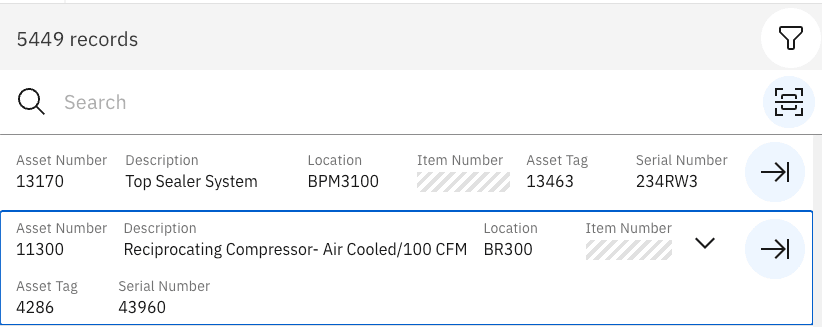
For simple layouts use properties and values defined in the lookup itself. Set lookup-attributes property to define element attributes to be displayed.
<lookup-with-filter [...] lookup-attributes="{['assetnum', 'description']}" tree-label-attribute="assetnum" child-attribute="assetchildren"/>
For more complex layouts, use the list-item component to define the layout of each element.
<list-item id="n2yd922"><box><label label="{item.description}" id="rxnjp22"/></box></list-item>
In order to leverage the hierarchy experience, lookup-with-filter component must be configured with hierarchy-drill-in="true"
<lookup-with-filter id="locationLookup" datasource="locationsDS" hierarchy-drill-in="true" />
This configuration enables the user to navigate inside of each element regardless of the amount of existing levels.
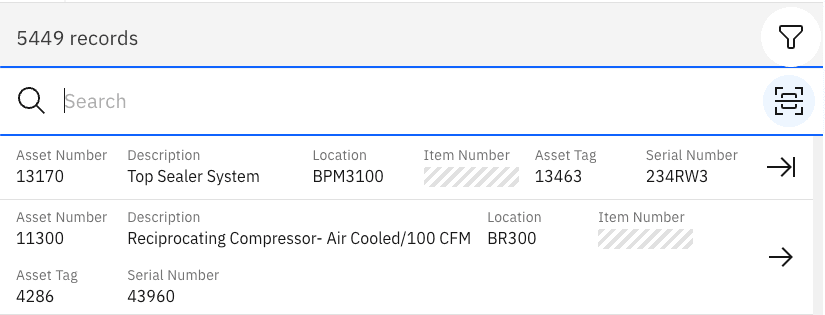
For hierarchical flow, set another list-item with tree-label-attribute to display the information about the previously selected parent.
<list-item id="maxlib_a3y42" tree-label-attribute="assetnum"/>
Child level items can have their own layout, a new list-item component binding the child-attribute should be defined to display each child element.
<list-item child-attribute="assetchildren" id="n2yd922"><label label="{item.description}" id="rxnjp22"/></list-item>
Important Properties for Drill-Down:
hierarchy-drill-in: Must be set totrueto enable drill-down functionalitychild-attribute: Specifies which attribute contains child records (for nested data)tree-label-attribute: Defines which attribute to display as the item labellast-child-drill-in: Set tofalseto prevent drilling into leaf nodes (items with no children)has-filter: Enables filter button for combining search with drill-down
Component-Specific Properties
Properties unique to Lookup with Filter:
| Property | Type | Default | Description |
|---|---|---|---|
lookup-heading | string | - | Title for the lookup |
lookup-subheading | string | - | Subtitle for the lookup |
lookup-attributes | object | - | Array of attributes to display |
column-picker-label | string | - | Label for the lookup |
width | string | - | Width of the list as percentage |
has-filter | boolean | - | Enables the filter button for datasource-driven filtering |
hierarchy-drill-in | boolean | - | Enables drill-in hierarchy view (also available on standard Lookup) |
last-child-drill-in | boolean | false | Allows drilling into last child |
tree-name | string | - | Tree heading for hierarchy mode |
tree-label-attribute | string | - | Attribute for tree label |
child-attribute | string | - | Attribute used to drill down |
enable-barcode-scanner | boolean | - | Shows barcode scan button |
enable-nfc-scanner | boolean | true | Shows NFC scanner option |
readers | string | - | Barcode format types |
timeout | number | - | Timeout for barcode scan |
reset-datasource | boolean | - | Resets datasource state on open |
Slots:
actions: Action buttons for the title baritem: Custom item rendering
Allowed Children: Any component (*)
Example:
<dialogs><lookup-with-filter id="hierarchyLookup"datasource="hierarchyDS"lookup-heading="Select Location"hierarchy-drill-in="true"has-filter="true"tree-name="Location Tree"tree-label-attribute="name"child-attribute="children"
Sliding Drawer Component
The Sliding Drawer component provides a side-panel modal that slides in from the start or end of the screen. It’s perfect for displaying supplementary content while maintaining context with the main view.
Component-Specific Properties
Properties unique to Sliding Drawer:
| Property | Type | Default | Description |
|---|---|---|---|
header-text | string | - | Text displayed as header |
sub-title | string | - | Text displayed as subtitle |
align | “start” | “end” | - | Alignment of the drawer |
content-padding | boolean | - | Shows padding around drawer contents |
dock-on-expand | boolean | - | Docks background when true, underlays when false |
enabled-docked-button | boolean | - | Docks primary/secondary buttons at end |
header-chevron | boolean | - | Replaces close icon with chevron |
validate-on-exit | string | - | Datasource(s) to check for changes on exit |
close-icon-label | string | - | Close button tooltip label |
close-icon-aria-label | string | - | Aria label for close button |
is-primary-button-disabled | boolean | false | Disables footer primary button |
full-height | boolean | true | Drawer body takes full height when true |
Slots:
header-button: Button for additional header functionalityprimary-button: Primary button at drawer endsecondary-button: Secondary button at drawer end
Allowed Children: Any component (*)
Example:
<dialogs><sliding-drawer id="detailsDrawer"header-text="Item Details"sub-title="View and edit item information"align="end"content-padding="true"dock-on-expand="true"controller="DetailsDrawerController"on-open-action="loadDetails">
Best Practices
1. Use Meaningful Component IDs
Choose descriptive IDs that clearly indicate the component’s purpose:
<!-- Good --><dialog id="confirmDeleteDialog" title="Confirm Deletion"><lookup id="assetSelectionLookup" datasource="assetsDS"><sliding-drawer id="itemDetailsDrawer" header-text="Details"><!-- Avoid --><dialog id="dlg1" title="Dialog"><lookup id="l" datasource="ds">
2. Leverage State for Dynamic Content
Use component state instead of direct DOM manipulation:
// Good - Use statethis.dialog.state.errorMessage = 'Invalid input';this.dialog.state.showError = true;// Avoid - Direct DOM manipulationdocument.getElementById('errorDiv').textContent = 'Invalid input';
3. Implement Proper Validation
Always validate user input before processing:
validate() {const requiredFields = ['name', 'email', 'phone'];for (const field of requiredFields) {if (!this.dialog.state[field]) {this.app.toast(`${field} is required`);return false;}}
4. Handle Async Operations Properly
Use async-primary-action for asynchronous operations:
<dialog id="saveDialog"async-primary-action="true"on-primary-action="saveData">
async saveData() {try {const datasource = this.page.findDatasource('itemsDS');await datasource.save();this.app.toast('Saved successfully');return true;} catch (error) {this.app.toast('Save failed: ' + error.message);return false; // Keep dialog open on error
5. Clean Up Resources
Always clean up in the close handler:
onCloseAction() {// Clear temporary statethis.dialog.state.tempData = null;// Cancel pending operationsif (this.pendingRequest) {this.pendingRequest.abort();}
6. Choose the Right Component
- Use Dialog for simple confirmations and forms
- Use Lookup when users need to search and select from flat data
- Use Lookup with Filter for hierarchical data navigation
- Use Sliding Drawer for supplementary content that doesn’t require full focus
7. Provide Clear Action Labels
Use action-oriented labels that describe what will happen:
<!-- Good --><dialog primary-action-text="Save Changes" secondary-action-text="Cancel"><lookup primary-action-text="Select Items" secondary-action-text="Cancel"><!-- Avoid --><dialog primary-action-text="OK" secondary-action-text="No">
8. Consider Mobile vs Desktop
Use size and padding properties appropriately:
<!-- Small dialog for simple confirmations --><dialog size="sm" title="Confirm"><!-- Large lookup for complex selection --><lookup size="lg" datasource="itemsDS"><!-- Drawer with proper padding --><sliding-drawer content-padding="true" header-text="Details">
9. Use Controllers for Complex Logic
Keep XML clean by moving logic to controllers:
<!-- Good - Logic in controller --><dialog id="myDialog"controller="MyDialogController"on-primary-action="handleSave"><!-- Avoid - Inline logic --><dialog id="myDialog"on-primary-action="{app.findDatasource('ds').save().then(() => app.toast('Saved'))}">
10. Declare All Dialogs in the Dialogs Container
Always wrap dialog components in a <dialogs> element:
<application id="myApp"><dialogs><dialog id="dialog1" title="Dialog 1" /><lookup id="lookup1" datasource="ds1" /><sliding-drawer id="drawer1" header-text="Drawer" /></dialogs><page id="mainPage"><!-- page content -->
Troubleshooting
Issue: Component Won’t Close After Primary Action
Symptom: Clicking the primary button doesn’t close the component.
Causes & Solutions:
- Validation returning false:
// Check your validate methodvalidate() {// Make sure this returns true when validation passesreturn this.isFormValid();}
- Primary action handler returning false:
// Ensure your handler returns true or undefinedonPrimaryAction() {this.saveData();return true; // Explicitly return true to close}
- Async operation not awaited:
<!-- Add async-primary-action attribute --><dialog async-primary-action="true" on-primary-action="saveData">
Issue: Component State Not Updating UI
Symptom: Changing component state doesn’t update the displayed values.
Solution: Ensure you’re using proper binding syntax:
<!-- Correct - Use binding --><field value="{dialog.state.userName}" /><!-- Incorrect - Static value --><field value="dialog.state.userName" />
Issue: Controller Methods Not Being Called
Symptom: Lifecycle event handlers aren’t executing.
Causes & Solutions:
- Controller not properly bound:
<!-- Ensure controller attribute is set --><dialog id="myDialog" controller="MyDialogController">
- Method name mismatch:
// Method name must match the event name// For on-open-action="loadData"loadData() { // Correct// ...}onLoadData() { // Incorrect - won't be called// ...}
- Controller file not exported:
// Ensure default exportexport default class MyDialogController {// ...}
Issue: Component Opens But Content Is Empty
Symptom: Component appears but shows no content.
Causes & Solutions:
- Missing datasource data:
onOpenAction() {// Ensure datasource is loadedconst ds = this.page.findDatasource('itemsDS');if (!ds.state.hasData) {await ds.load();}}
- Binding to undefined state:
<!-- Initialize state with default values --><states><state name="userName" type="string" value="" /></states>
Issue: Lookup Not Showing Search Results
Symptom: Typing in the lookup search box doesn’t filter results.
Causes & Solutions:
- Datasource attributes not marked as searchable:
<json-datasource id="itemsDS"><schema><attribute name="name" searchable="true" /><attribute name="description" searchable="true" /></schema></json-datasource>
- show-search not enabled:
<lookup id="myLookup"datasource="itemsDS"show-search="true">
Issue: Sliding Drawer Not Docking Properly
Symptom: Drawer overlays content instead of docking.
Solution: Enable dock-on-expand:
<sliding-drawer id="myDrawer"dock-on-expand="true"header-text="Details">
Issue: Multiple Components Interfering
Symptom: Opening one component affects another component’s state.
Solution: Use unique state names and IDs:
<!-- Each component should have unique state --><dialog id="editDialog"><states><state name="editUserName" type="string" /></states></dialog><dialog id="createDialog"><states>
Issue: Validation Not Showing Error Messages
Symptom: Validation fails but user doesn’t see error messages.
Solution: Provide user feedback in validation:
validate() {if (!this.dialog.state.email) {// Show toast or set error statethis.app.toast('Email is required');this.dialog.state.emailError = 'Email is required';return false;}return true;}
Issue: Lookup Not Pre-selecting Items
Symptom: Passing preselectedValues doesn’t select items.
Solution: Ensure you’re passing the correct format:
// For single selectthis.page.showDialog('myLookup', {preselectedValues: [itemId]});// For multi-selectthis.page.showDialog('myLookup', {preselectedValues: [id1, id2, id3]});
Issue: Barcode Scanner Not Working
Symptom: Barcode scanner button doesn’t appear or doesn’t scan.
Causes & Solutions:
- Scanner not enabled:
<lookup id="myLookup"enable-barcode-scanner="true"readers="{['QR', 'code_128_reader']}">
- Wrong reader type specified:
<!-- Use correct reader types --><lookup readers="{['QR', 'ean_reader', 'code_128_reader']}">
Issue: Drill-Down Navigation Not Working
Symptom: Clicking on items doesn’t navigate to child records, or drill-in event doesn’t fire.
Causes & Solutions:
- Missing
child-attributefor nested data:
<!-- For pre-loaded nested data, specify the child attribute --><lookup-with-filter id="locationLookup"datasource="locationsDS"hierarchy-drill-in="true"child-attribute="children"tree-label-attribute="location"></lookup-with-filter>
on-drill-inhandler not loading data:
// ❌ Wrong - not loading datahandleDrillIn(item) {console.log('Drilling into:', item);// Missing datasource load!}// ✅ Correct - loads child dataasync handleDrillIn(item) {const datasource = this.app.findDatasource('hierarchyDS');
- Data structure doesn’t indicate children:
// ❌ Wrong - no way to know if item has children{id: '1',name: 'Parent Item'}// ✅ Correct - includes child indicator{id: '1',