BDI Status Dialog
Overview
The Alternative Configuration tab provides the ability to validate and apply an alternative configuration to an Asset.
Detailed Explanation
The Alternative Configuration tab lists all of the Model/Configurations which are candidates to be applied to the current asset.
It gives the user the ability to validate a different configuration by using the “selected” checkboxes and the "Validate Configuration" button.
The ‘Status for Selected Configuration’ and Problems table will then display data relevant to the configuration that was selected and validated.
The user can also change the configuration(s) applied to the asset by clicking the “Apply Configuration” button. The selected configurations will then be applied resulting in a change to the current configuration of the Asset.
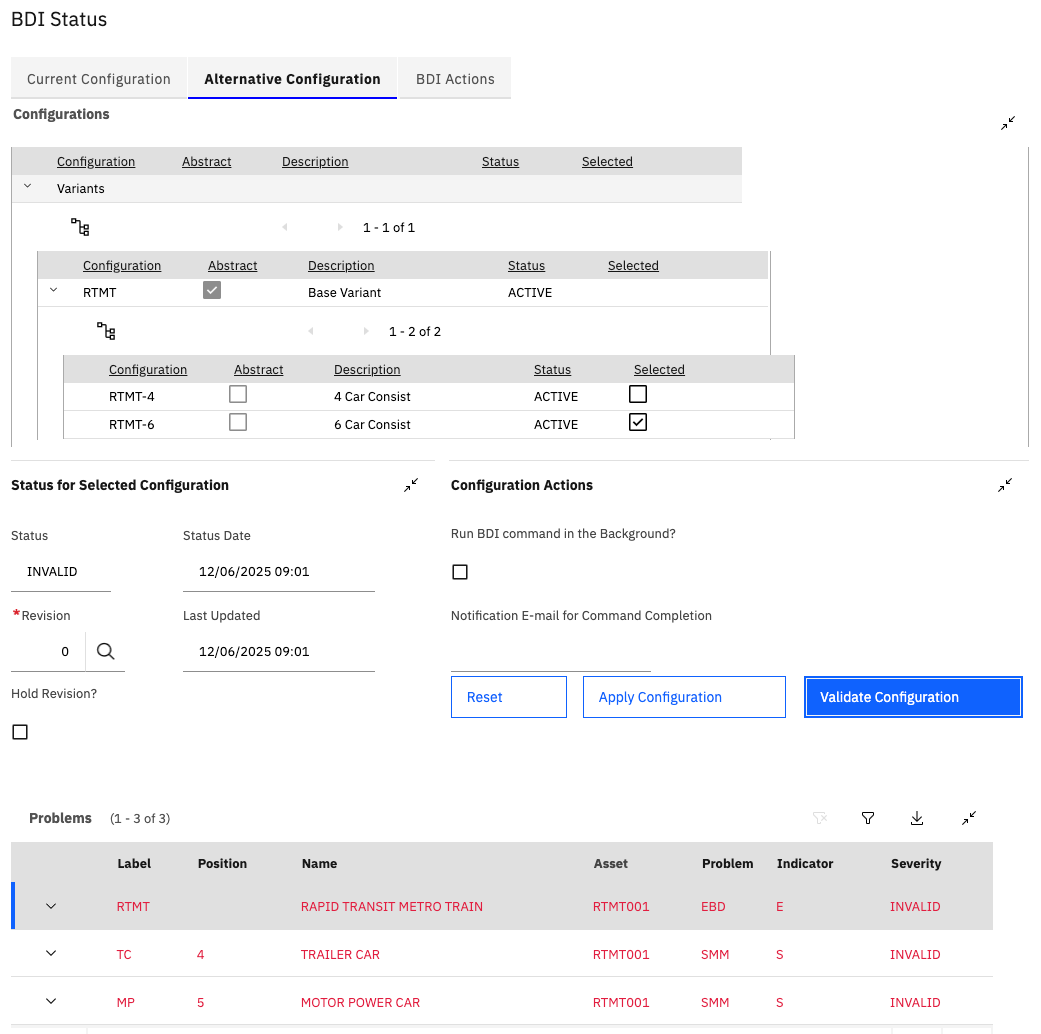
In the screenshot shown, the current configuration of the train is: RTMT-4 (4 Car Consist).
The user has chosen to validate the Asset against the RTMT-6 (6 Car Consist).
The Problems table displays that there are 3 problems:
- SMM (Missing Mandatory Position): TRAILER CAR in position 4 is not installed.
- SMM (Missing Mandatory Position): MOTOR POWER CAR in position 5 is not installed.
- EBD (Overdue Maintenance): A PM deadline has been exceeded.
If the user chooses to apply the RTMT-6 Variant to the Asset they will need to install the two missing cars and complete the overdue maintenance in order to reach a valid (OK) configuration status.
The empty positions for the two missing cars will be created automatically when the RtMT-6 variant is applied.
Changing the Model of an Asset
In addition to changing the configuration (Variant) applied to an Asset it is also possible to change the Model.
In order to do this the CM Item associated with the end-item asset must first be changed to that of the target Model.
The Assets (CM) application provides an action "Change CM Item" to make this change.
Once the CM Item is changed the "Configurations" window will display the Model associated with the new CM Item and the user can choose to apply a new Model and associated Variant configuration.