Operators Maintenance Program
Overview
The Operators Maintenance Program (OMP) application is a critical component of Maximo for Aviation that enables aircaft operators or maintainers to define, manage, and maintain their aircraft maintenance programs.
An OMP represents the approved maintenance program and should define all required maintenance tasks, their frequencies, and applicability to specific aircraft in the fleet.
The OMP application provides comprehensive functionality for:
- Creating and managing operator-specific maintenance programs
- Defining maintenance tasks and their intervals (calendar and meter-based) within the related Master Task Card application.
- Establishing aircraft effectivity and applicability rules
- Organizing tasks into maintenance checks
- Managing task frequencies and thresholds
- Tracking part number relationships and requirements
- Implementing complex effectivity logic including modification status
The OMP serves as the master definition for all scheduled maintenance activities and integrates with Work Package planning, Master Task Cards, and aircraft configuration management.
Key Capabilities:
- Multiple OMP versions for different aircraft models or configurations
- Flexible effectivity rules including serial number ranges and modification status
- Calendar and meter-based task intervals
- Check-based task grouping for efficient maintenance planning
- Advanced effectivity expressions using boolean logic
- Integration with Master Task Cards and Part Number Master
- Support for pre-modification and post-modification task applicability
OMP Lifecycle
- Creation - Define new OMP with basic information and model association
- Effectivity Setup - Define which aircraft the OMP and tasks apply to
- Task Definition - Add Master Task Cards as OMP tasks. These are the individual maintenance tasks that are required . This often originates from the Maintenance Planning Document (MPD))
- Check Organization - Group tasks into maintenance checks
- Submit for Approval - Status of the OMP is changed to SUBMIT prior to activation.
- Activation - Apply OMP to aircraft in the fleet (defined on the Effectivity tab)
- Maintenance - Update tasks, frequencies, and effectivity as needed using temporary revisions to individual tasks.
- Version Control - Manage OMP revisions and changes over time, eg if new MPD revisions are released.
A well-structured OMP ensures regulatory compliance, optimizes maintenance scheduling, and provides a clear framework for all preventive maintenance activities.
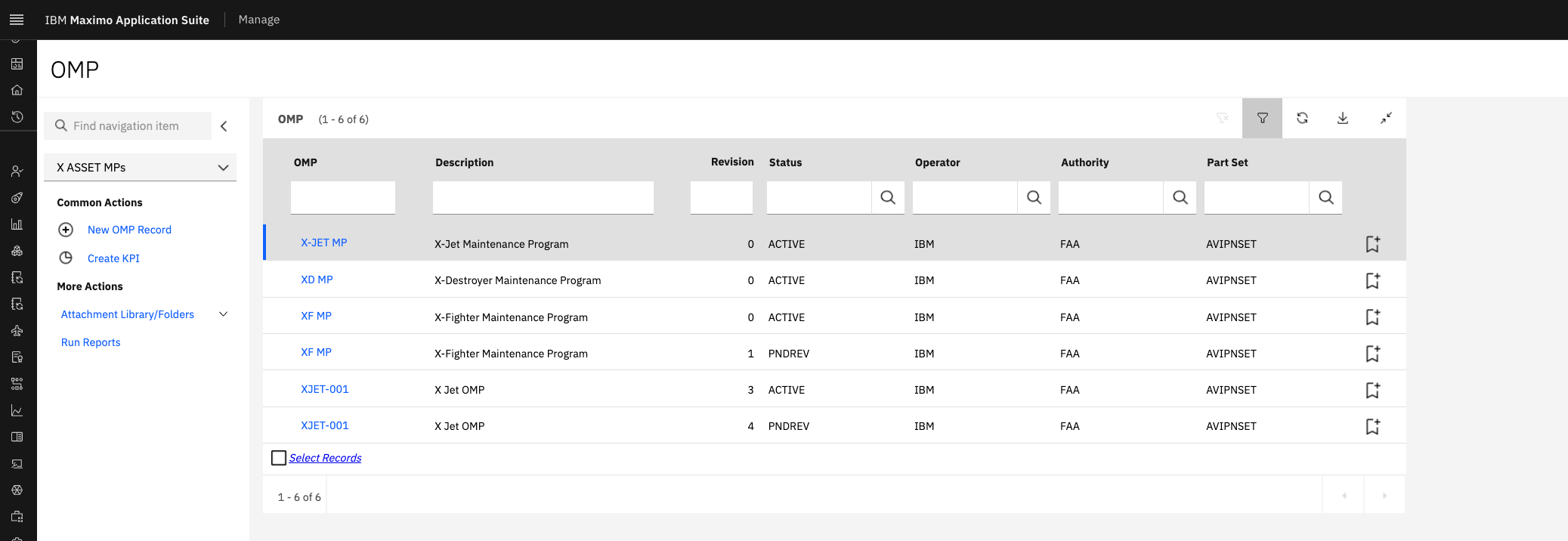
The OMP List page lists all OMP records together with revision and status. OMP records with a status of REVISED or INACTIVE are hidden by default.
OMP List Page
OMP Main Page
The OMP Main Page displays key OMP information and serves as the navigation hub for detailed configuration. It also displays a list of the OMP Tasks (Master Task Cards) which are included as part of the maintenance program definition. Once the OMP is activated individual Task Cards will be created for each Aicraft covered by the OMP (depending on applicability).
OMP Header Information:
| Field | Description |
|---|---|
| OMP | Unique identifier for the maintenance program |
| Revision | Version or revision number of the OMP |
| Description | Description of the OMP purpose and scope |
| Operator | The operating organization that owns this maintenance program |
| Status | Current status (Active, Draft, Pending Revision or Submitted for Approval) |
| Authority | The authority responsible for approving maintenance organizations |
| Approval Date | Date when the OMP was approved and made active |
| Expiration Date | Date when the OMP expires (if applicable) |
| Expiration Warning Date | Date when the warning of pending OMP expiratin will be displayed (via BDI problem code) |
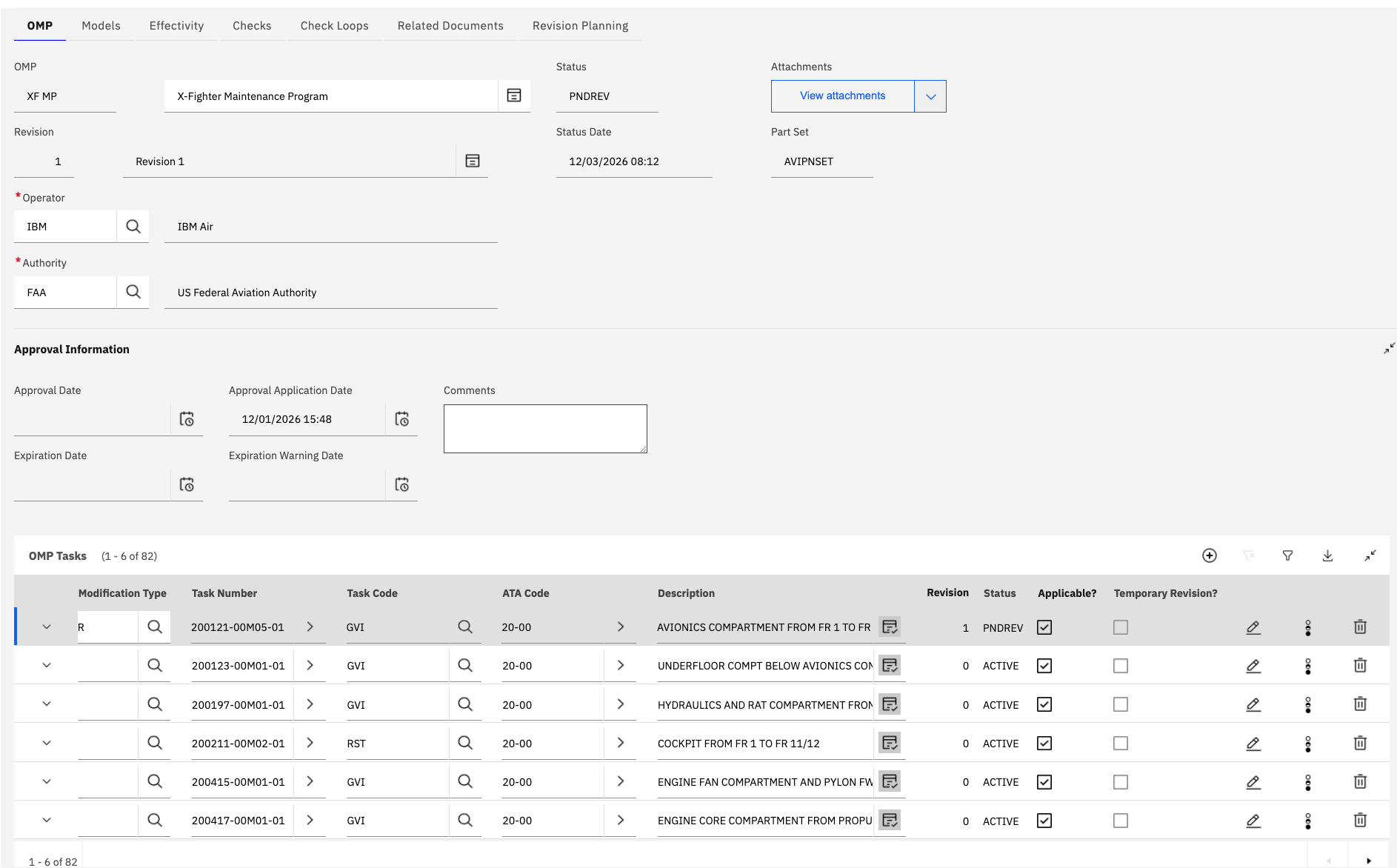
OMP Applicaton Primary Tabs
- Models - Aircraft models associated with this OMP
- Effectivity - Aircraft to which the OMP is applicable
- OMP Tasks - Master Task Cards included in the maintenance program
- Checks - Grouped collections of tasks for maintenance planning
Creating a New OMP:
- Navigate to the OMP application
- Click New OMP or use the + button
- Enter a unique OMP Number
- Provide a descriptive name for the program
- Select the operator organization
- Select the authority organization
- Save the new OMP record
Once saved, the OMP Number cannot be changed as it part of the primary key of the record.
OMP Status Management:
- Draft - OMP is being developed and not yet active
- Submit - OMP has been submitted for approval. It becomes readonly at this stage.
- Active - OMP is currently in use and applied to aircraft. Temporary revisions can be made to individual tasks.
- Inactive - OMP is no longer active but retained for historical purposes
- Pending - OMP has been revised and this new revision can be modified.
Best Practices:
- Use clear, descriptive OMP Numbers that indicate the aircraft type and version
- Document the purpose and scope in the description field
- Maintain version control through revision numbers
- Review and update OMPs regularly to reflect regulatory changes
- Coordinate OMP changes with maintenance planning and operations
Models
The Models section defines which aircraft models are associated with the OMP. This relationship is fundamental as it determines which Master Task Cards can be added to the OMP and ensures that maintenance tasks are appropriate for the aircraft type.
Model Association:
- Links the OMP to specific aircraft models in the system
- Determines which Master Task Cards are eligible for inclusion
- Supports multiple models within a single OMP (for fleet commonality)
- Enables model-specific task variations when needed
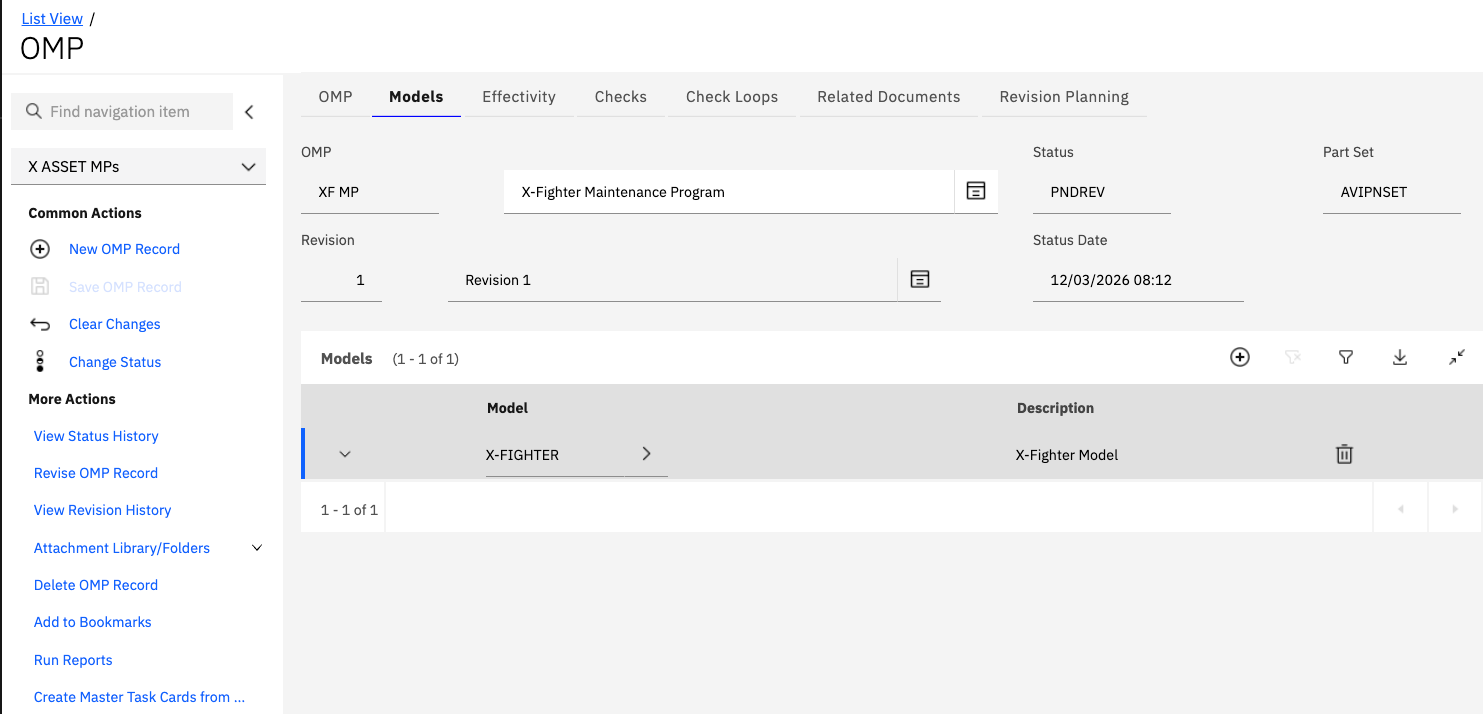
Adding Models to an OMP:
- Navigate to the Models tab on the OMP Main Page
- Click Add Row to add a new model association
- Select the aircraft model from the lookup
- Save the model association
Model Information:
| Field | Description |
|---|---|
| Model | Aircraft model designation (e.g., 737-800, A320-200) |
| Description | Full description of the aircraft model |
The model relationship is used to filter Master Task Cards when adding OMP tasks. Only task cards related to the associated models will be available for selection. This relationship is established using the Part Numbers defined within the Aircraft Model or related sub models (via installation points).
Model-Based Task Filtering:
- Master Task Cards must be related to the model through Part Number relationships
- Task cards must have the same "Operator" value as the OMP
- Task cards cannot be associated with another active OMP
Multi-Model OMPs: When an OMP covers multiple aircraft models (common in fleets with similar aircraft):
- Define all applicable models in the Models section
- Use effectivity rules to specify which tasks apply to which models
- Leverage the MODEL() function in advanced effectivity expressions
- Consider model-specific task variations where necessary
Effectivity
The Effectivity section defines the list of aircraft to which the OMP is applicable. This is a critical component that determines which aircraft in the fleet are governed by this maintenance program. For active OMPs, the "Applied" checkbox indicates whether the OMP is currently active against each individual aircraft.
Effectivity Management:
- Defines which specific aircraft are covered by the OMP
- Tracks whether the OMP is currently applied to each aircraft
- Indicates if an Aircraft has been designated a "Sample Aircraft". Sample Aircraft may have differing frequncies (Threshold or Interval) at the individual OMP Task level.
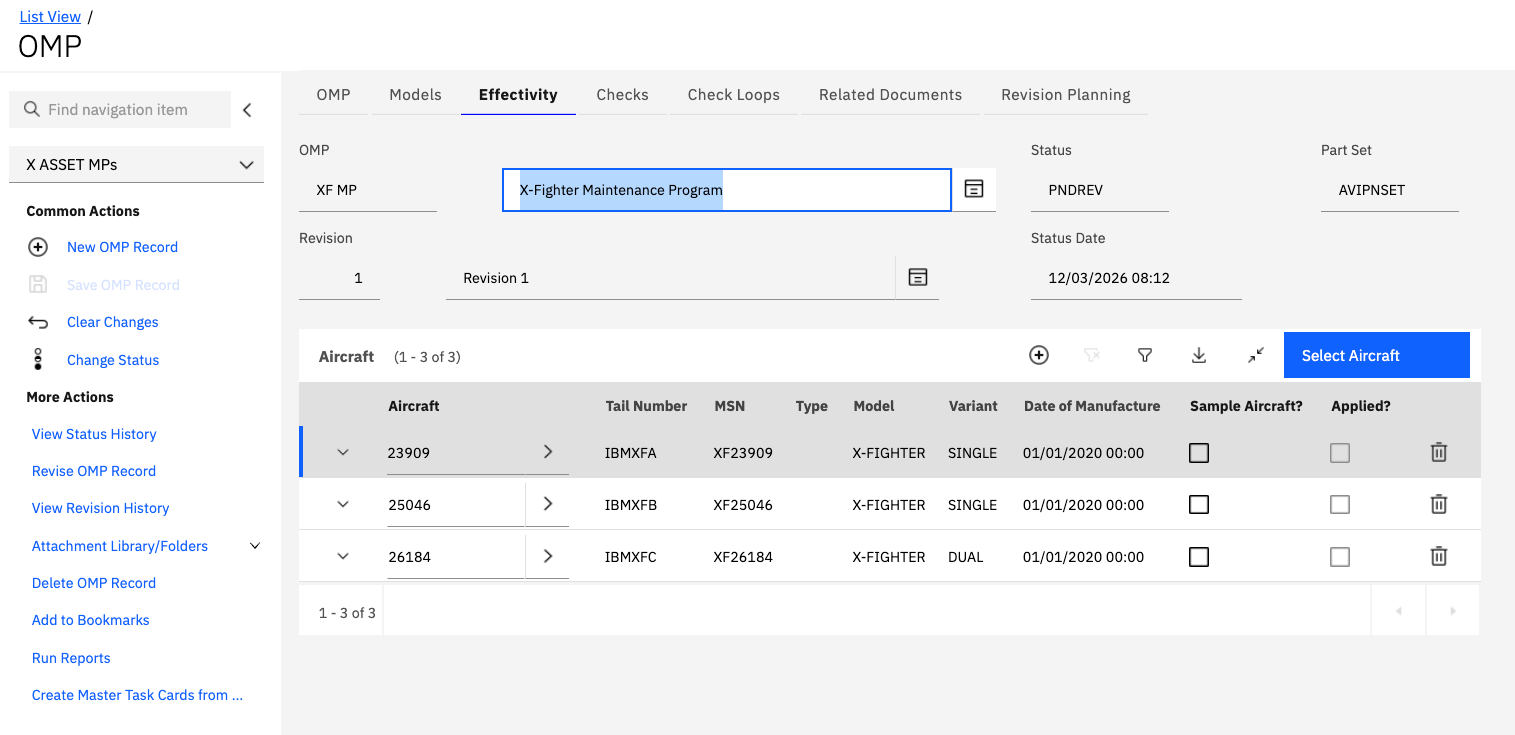
Effectivity Fields:
| Field | Description |
|---|---|
| Aircraft | Aircraft number (ASSETNUM) |
| Tail Number | Aicraft tail number/ registration |
| MSN | Manufacturer serial number (MSN) |
| Model | Aircraft Model |
| Variant | Aircraft Variant |
| Date of Manufacture Date | Date of Aircraft Manufacture |
| Sample Aicraft | Checkbox indicating if the Aircraft has been designated a sample aircraft |
| Applied | Checkbox indicating if OMP is currently active against the aircraft |
Adding Aircraft to OMP Effectivity:
- Navigate to the Effectivity tab on the OMP Main Page
- Click "Select Aicraft" button and then select one or more aicraft from the resulting dialog.
- Save the OMP record
Only Aircraft with the same Model as listed on the OMP Models tab will be
available for selection.
Only Aircraft with the same Operator as the Operator on the OMP itself will be
available for selection.
Applying an OMP to Aircraft: When the "Applied" checkbox is checked:
- The OMP becomes the active maintenance program for that aircraft
- All OMP tasks are evaluated for applicability to the aircraft
- Preventive maintenance schedules are generated based on OMP tasks
- Work packages can be created using the OMP structure
- The aircraft's maintenance requirements are governed by this OMP
Only one OMP can be applied to an aircraft at anyone time. Applying a new OMP
typically supersedes the previous OMP and may require careful transition
planning.
For this reason if an Aircraft is added to an OMP after the OMP is activated
it will not be automatically applied.
Manual activation of the OMP can be performed using the BDI Status dialog in
the Aircraft application.
This is performed on the Alternative Configuration tab of the BDI Status
dialog by selecting the OMP and clicking the "Apply Configuratation" button.
Best Practices:
- Verify aircraft model matches OMP models before applying
- Document reasons for OMP changes in notes or comments
- Plan OMP transitions carefully to avoid maintenance gaps
- Coordinate with maintenance planning when applying new OMPs
- Review effectivity regularly to ensure accuracy
OMP Tasks
OMP Tasks are Master Task Cards that have been added to the Operators Maintenance Program. These tasks define the specific maintenance activities that must be performed on aircraft covered by the OMP.
Master Task Cards must be related to the Model (via Part Number relationship) and have the same "Operator" value in order to be added to the OMP. Additionally, they cannot be associated with another active OMP.
Master Task Card / OMP Tasks Characteristics:
- Include interval, threshold and other frequency information
- Define part number applicability at either the Airframe or Component Level
- Can be organized into maintenance checks
OMP Tasks inherit their basic definition from Master Task Cards but include additional OMP-specific information such as frequency intervals, thresholds, and aircraft effectivity.
Adding Tasks to an OMP:
- Navigate to the OMP Main tab
- Click Add OMP Task or Add Row
- Search for and select Master Task Cards that meet the criteria:
- Related to the OMP's associated models via Part Number relationship.
- Same operator value as the OMP
- Not already assigned to another active OMP
- Save the OMP 5 optionally set aircraft effectivity rules using either MSN or Modification Status applicability.
OMP Task Information:
| Field | Description |
|---|---|
| Modification Type | N, R, D Indicates if the Task is (N)ew, (R)evised or (D)eleted in the current OMP revision |
| Task Number | Task Number |
| Description | Task description from the Master Task Card |
| Task Code | Type of maintenance task (General Visual Inspection, Service, etc.) |
| Revision | The ATA Code to which the task relates |
| Estimated Hours | Labor hours required to complete the task |
| Frequency | Interval information (see Frequency section) |
| Effectivity | Aircraft applicability (see Effectivity section) |
Task Selection Criteria: The system enforces the following rules when adding tasks to an OMP:
- Model Relationship - Task must be related to one of the OMP's models through part number associations
- Operator Match - Task's operator field must match the OMP's operator
- Availability - Task cannot be assigned to another active OMP
- Status - Task must be in an active or approved status
Using Master Task Cards as the foundation for OMP tasks ensures consistency across the maintenance program and enables centralized task management.
Frequency
The Frequency section defines interval and threshold information for each OMP task. Frequencies can be meter-based (flight hours, cycles, etc.) or calendar-based (days, months, years), and multiple frequency types can be specified for a single task.
Frequency Types:
- Meter-Based - Driven by aircraft usage meters (hours, cycles, landings)
- Calendar-Based - Driven by elapsed time (days, months, years)
- Combined - Task due when either meter or calendar threshold is reached
- Whichever Occurs First - Most common approach for critical tasks
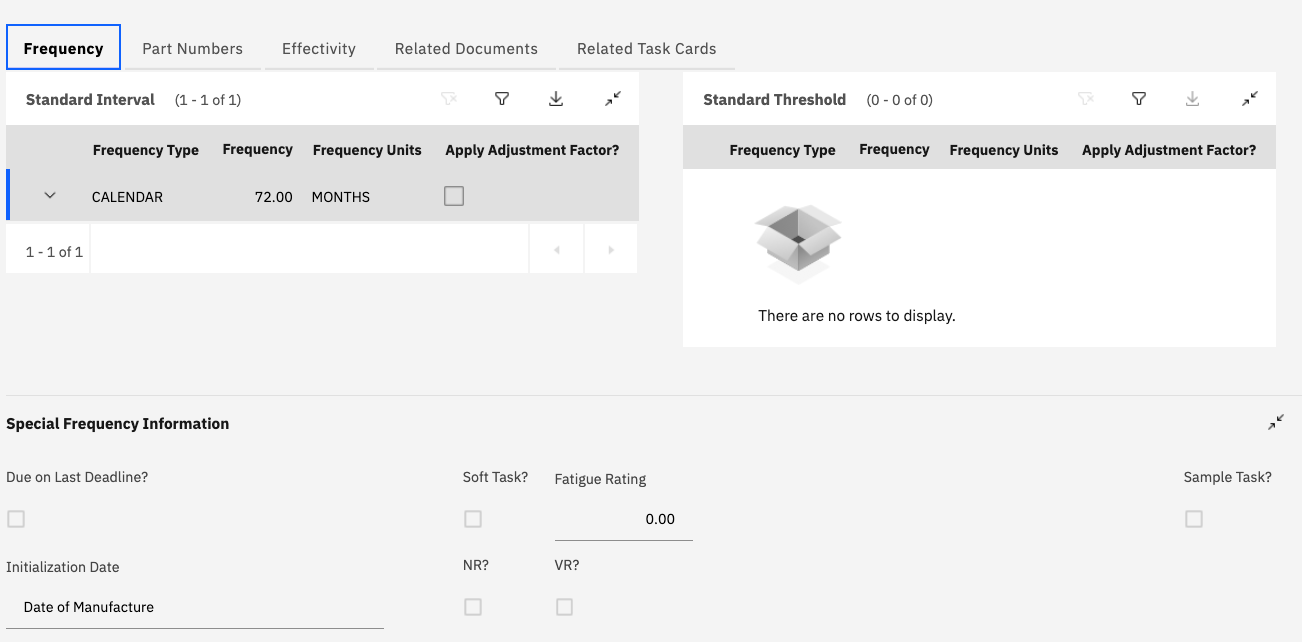
Frequency Fields:
| Field | Description |
|---|---|
| Meter | The meter type (Flight Hours, Cycles, Calendar Days, etc.) |
| Interval | The numeric interval value |
| Frequency | Combined interval and meter (e.g., "500 FH", "12 MO") |
| Threshold | Warning threshold before task becomes due |
| Tolerance | Allowable extension beyond due point |
| Initial Interval | First interval after aircraft delivery or modification |
Defining Task Frequency:
- Navigate to the Frequency tab within an OMP Task
- Click Add Row to add a frequency definition
- Select the meter type from the dropdown
- Enter the interval value
- Specify threshold (warning point before due)
- Define tolerance (allowable extension)
- Set initial interval if different from recurring interval
- Save the frequency definition
Frequency Examples:
| Task Type | Frequency Definition | Description |
|---|---|---|
| Daily Inspection | 1 Calendar Day | Performed every day |
| A-Check | 500 Flight Hours or 90 Days | Whichever occurs first |
| C-Check | 5000 Flight Hours or 18 Months | Major inspection interval |
| Landing Gear | 10000 Cycles | Based on landing cycles |
| Calendar Item | 24 Months | Every 2 years regardless of usage |
Threshold and Tolerance:
- Threshold - Advance warning point (e.g., 50 hours before due)
- Tolerance - Allowable extension (e.g., +10 hours after due)
- Used for maintenance planning and scheduling flexibility
- Helps optimize maintenance windows and resource utilization
Tolerance values must comply with regulatory requirements and manufacturer recommendations. Exceeding tolerance may result in non-compliance.
Initial vs. Recurring Intervals:
- Initial Interval - First interval after aircraft delivery, overhaul, or modification
- Recurring Interval - Standard interval for subsequent occurrences
- Initial intervals are often shorter to detect early issues
- System automatically switches to recurring interval after first completion
Multiple Frequency Definitions: A single task can have multiple frequency definitions:
- Flight Hours AND Calendar Days (whichever occurs first)
- Different intervals for different aircraft configurations
- Escalating intervals based on aircraft age or usage
- Regional or operational variations
Part Numbers
The Part Numbers section lists all part numbers associated with the selected OMP Task or Master Task Card. This information is critical for:
- Identifying components affected by the maintenance task
- Ensuring correct parts are available for maintenance
- Tracking part number applicability and interchangeability
- Supporting material planning and procurement
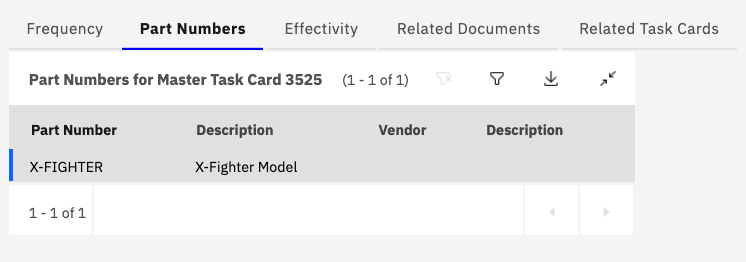
Part Number Information:
| Field | Description |
|---|---|
| Part Number | Manufacturer part number |
| Description | Part description |
| Manufacturer | Part manufacturer |
| Quantity | Quantity required for the task |
| Unit of Measure | Unit (EA, SET, KIT, etc.) |
| Consumable | Whether part is consumed during task |
| Alternate Parts | List of acceptable alternate part numbers |
Part Number Relationships:
- Links tasks to specific components or assemblies
- Defines which parts are inspected, serviced, or replaced
- Supports task applicability based on installed parts
- Enables part-specific maintenance requirements
Using Part Number Information:
- Material Planning - Identify parts needed for upcoming maintenance
- Procurement - Generate purchase requisitions for required parts
- Inventory Management - Ensure adequate stock levels
- Task Applicability - Determine if task applies based on installed parts
- Configuration Control - Track part number changes and modifications
Part number relationships are inherited from the Master Task Card but can be reviewed and verified within the OMP task context.
Best Practices:
- Verify part numbers are current and accurate
- Maintain alternate part number lists for flexibility
- Coordinate with supply chain for critical or long-lead items
- Update part numbers when engineering changes occur
- Document part number changes in task revision history
Effectivity
The Effectivity section for OMP tasks defines the list of aircraft to which the selected task is applicable. This is more granular than OMP-level effectivity and allows for task-specific applicability rules. Users can change MSN (Manufacturer Serial Number) effectivity to be a serial range using standard format (comma-separated or double-dot notation to indicate a range).
Task Effectivity Features:
- Aircraft-specific task applicability within the OMP
- Serial number range support for efficient effectivity definition
- Modification status-based applicability (PRE MOD / POST MOD)
- Advanced boolean expressions for complex effectivity logic
- Integration with Technical Publication embodiment status
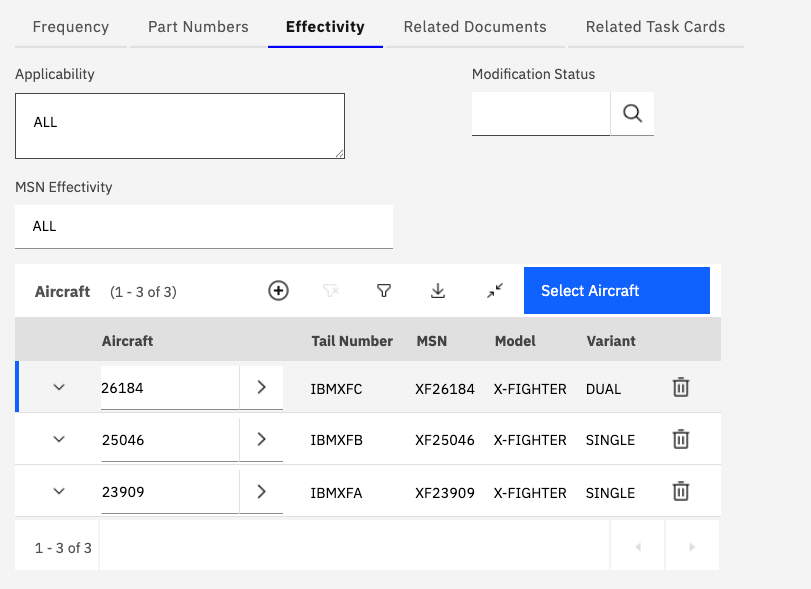
Effectivity Fields:
| Field | Description |
|---|---|
| Aircraft | Specific aircraft registration or tail number |
| Serial Number | Manufacturer serial number or range |
| Effectivity Type | Individual, Range, or Expression |
| Modification Status | PRE MOD, POST MOD, or ADVANCED |
| Technical Publication | Reference to modification or service bulletin |
| Effectivity Expression | Boolean expression for advanced logic |
| Status | Active, Inactive, or Pending |
Serial Number Range Formats:
- Individual - Single serial number:
12345 - Comma-Separated - Multiple individual serial numbers:
12345, 12346, 12350 - Range Notation - Continuous range:
12345..12360(includes all serial numbers from 12345 to 12360) - Combined - Mix of individual and ranges:
12345, 12350..12360, 12365
Modification Status Applicability:
Modification Status can be used to specify PRE MOD or POST MOD applicability. The task applicability is then determined in relation to whether the selected Technical Publication is embodied against the aircraft or not.
- PRE MOD - Task applies to aircraft BEFORE the modification is embodied
- POST MOD - Task applies to aircraft AFTER the modification is embodied
- ADVANCED - Complex boolean expression determines applicability
PRE MOD Example:
Task: "Inspect hydraulic pump mounting bracket"
Modification Status: PRE MOD
Technical Publication: SB-737-29-1234
Applicability: Task applies only to aircraft that have NOT embodied SB-737-29-1234
POST MOD Example:
Task: "Inspect modified hydraulic pump mounting bracket"
Modification Status: POST MOD
Technical Publication: SB-737-29-1234
Applicability: Task applies only to aircraft that HAVE embodied SB-737-29-1234
Advanced Effectivity Expressions:
If Modification Status is set to ADVANCED, a boolean expression can be specified which incorporates the following functions:
| Function | Description | Example |
|---|---|---|
| PREMOD | Aircraft does not have modification embodied | PREMOD("SB-737-29-1234") |
| POSTMOD | Aircraft has modification embodied | POSTMOD("SB-737-29-1234") |
| MODEL | Aircraft model matches specified value | MODEL("737-800") |
| ACTYPE | Aircraft type matches specified value | ACTYPE("737") |
| VARIANT | Aircraft variant matches specified value | VARIANT("ER") |
| CONFIG | Aircraft configuration matches specified value | CONFIG("PASSENGER") |
| ROLE | Aircraft role matches specified value | ROLE("CARGO") |
| STRINGVALUE | Custom string attribute matches value | STRINGVALUE("WINGLETS", "YES") |
| INTVALUE | Custom integer attribute matches value | INTVALUE("SEATS", 180) |
| SERIALRANGE | Serial number falls within specified range | SERIALRANGE("12345..12360") |
Advanced Expression Examples:
Example 1: POST MOD with Model Restriction
POSTMOD("SB-737-29-1234") AND MODEL("737-800")
Task applies only to 737-800 aircraft that have embodied SB-737-29-1234.
Example 2: Serial Range with Configuration
SERIALRANGE("12345..12360") AND CONFIG("PASSENGER")
Task applies to aircraft with serial numbers 12345 through 12360 that are configured for passenger operations.
Example 3: Multiple Modifications
POSTMOD("SB-737-29-1234") AND PREMOD("SB-737-29-5678")
Task applies to aircraft that have embodied SB-737-29-1234 but have NOT embodied SB-737-29-5678.
Example 4: Complex Logic with Multiple Conditions
(MODEL("737-800") OR MODEL("737-900")) AND
POSTMOD("SB-737-29-1234") AND
SERIALRANGE("12345..12360, 12400..12450")
Task applies to 737-800 or 737-900 aircraft with specific serial number ranges that have embodied the modification.
Example 5: Configuration-Based with String Value
CONFIG("CARGO") AND STRINGVALUE("CARGO_DOOR", "INSTALLED")
Task applies to cargo-configured aircraft that have a cargo door installed.
Example 6: Role and Variant Combination
ROLE("MILITARY") AND VARIANT("MARITIME_PATROL") AND INTVALUE("HARDPOINTS", 6)
Task applies to military maritime patrol variant aircraft with 6 hardpoints.
Advanced effectivity expressions must be carefully tested to ensure they produce the intended results. Incorrect expressions can lead to tasks being applied to wrong aircraft or not applied when needed.
Boolean Operators:
- AND - Both conditions must be true
- OR - Either condition must be true
- NOT - Negates the condition
- Parentheses () - Groups conditions for proper evaluation order
Best Practices for Effectivity:
- Use serial ranges instead of individual entries when possible for efficiency
- Test advanced expressions thoroughly before activating
- Document the intent of complex effectivity logic
- Review effectivity when modifications are embodied
- Coordinate with engineering for modification-based effectivity
- Maintain clear records of effectivity changes
- Verify task applicability after aircraft modifications
Effectivity Validation: The system validates effectivity expressions to ensure:
- Syntax is correct
- Referenced functions are valid
- Technical Publications exist in the system
- Serial number ranges are properly formatted
- Boolean logic is properly structured
Checks
Checks are task cards of type CHECK that are used to group OMP tasks of similar frequencies into larger maintenance events. This grouping is essential for efficient maintenance planning and execution within the Work Package application. Checks provide a structured way to organize multiple tasks that are performed together during scheduled maintenance events.
Check Characteristics:
- Task card with type = CHECK
- Groups multiple OMP tasks with similar intervals
- Used for maintenance planning and work package creation
- Represents major maintenance events (A-Check, C-Check, etc.)
- Defines check content (list of included tasks)
- Supports hierarchical check structures
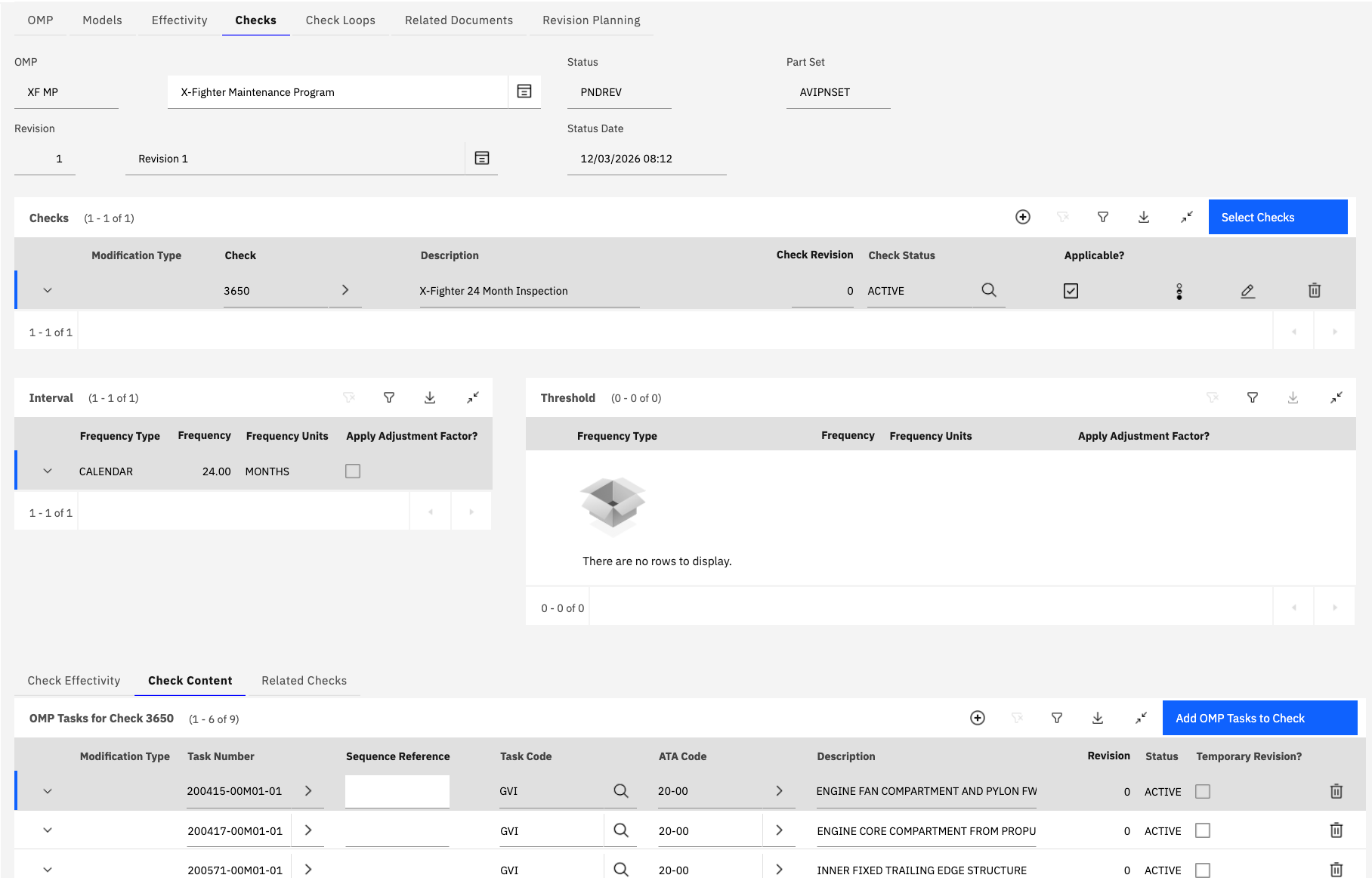
Common Check Types:
| Check Type | Typical Interval | Description |
|---|---|---|
| Daily Check | 1 Day | Daily inspection and servicing |
| Weekly Check | 7 Days | Weekly inspection tasks |
| A-Check | 500-800 FH | Light maintenance check |
| B-Check | 4-6 Months | Intermediate maintenance check |
| C-Check | 18-24 Months | Heavy maintenance check |
| D-Check | 6-10 Years | Major overhaul and inspection |
| Phase Check | Varies | Phased maintenance program segment |
Check Information:
| Field | Description |
|---|---|
| Check ID | Unique identifier for the check |
| Description | Detailed description of the check |
| Check Type | Category of check (A, B, C, D, Phase, etc.) |
| Interval | Frequency at which check is performed |
| Duration | Estimated time to complete the check |
| Location | Where check is typically performed |
| Check Content | List of OMP tasks included in the check |
Creating a Check:
- Navigate to the Checks tab on the OMP Main Page
- Click Add Row or New Check
- Enter a unique Check ID
- Provide a descriptive name
- Select the check type
- Define the check interval
- Save the check
Check Content:
The Check Content section lists all OMP tasks that form part of the check. This defines which maintenance tasks are performed during the check event.
Managing Check Content:
- Select a check from the Checks list
- Navigate to the Check Content tab
- Review the list of tasks currently included in the check
- Add or remove tasks as needed
- Verify task frequencies align with check interval
- Save changes
Check Content Fields:
| Field | Description |
|---|---|
| Task Card | OMP task identifier |
| Description | Task description |
| Task Type | Type of maintenance task |
| Frequency | Task interval |
| Estimated Hours | Labor hours for the task |
| Sequence | Order in which task is performed |
| Zone | Aircraft zone where task is performed |
Add OMP Tasks to Check:
The "Add OMP Tasks to Check" function opens a dialog that allows you to search for OMP tasks in the current OMP and add them as check content. Various criteria can be entered to filter and find appropriate tasks.
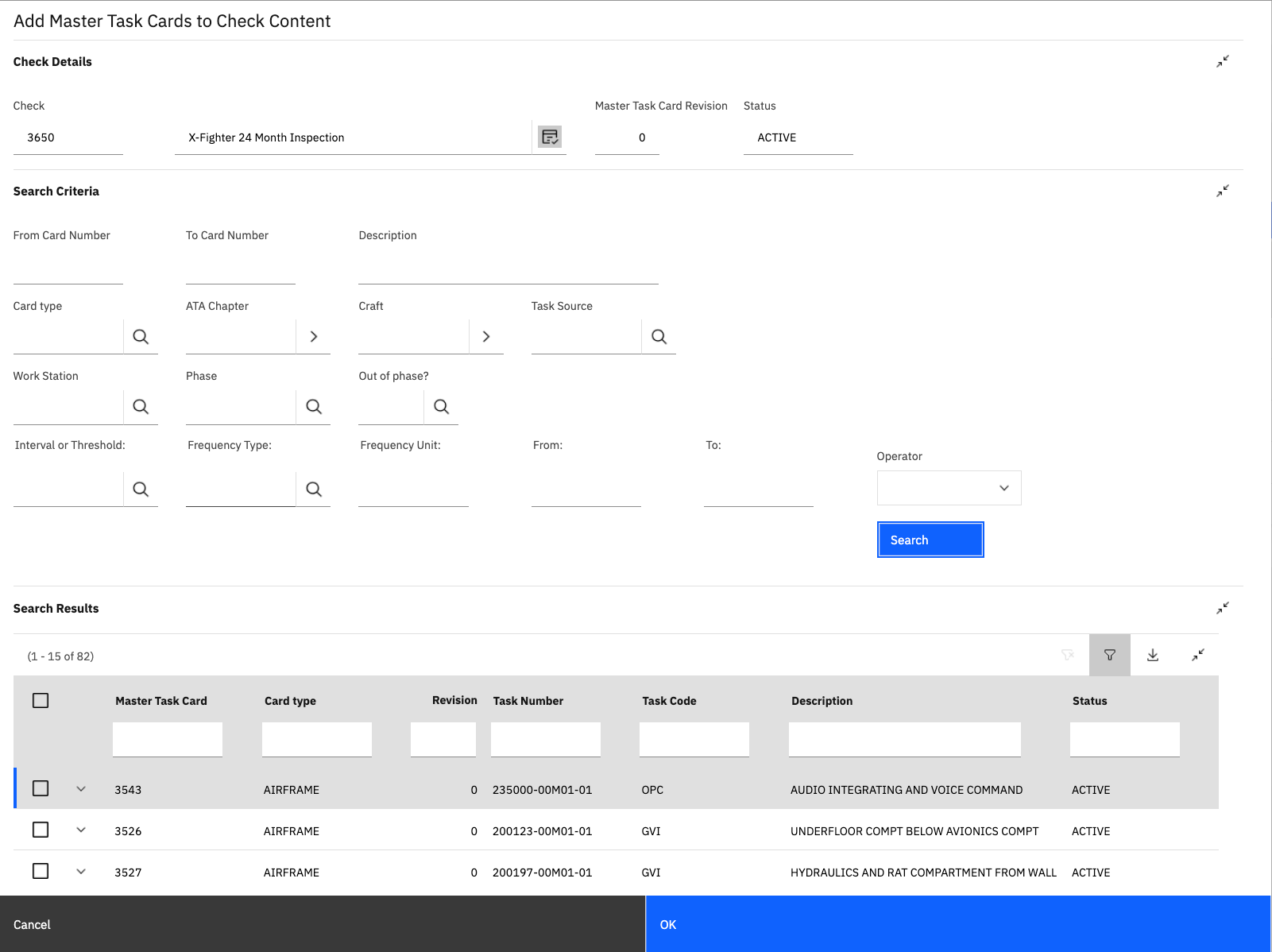
Search Criteria:
| Criterion | Description |
|---|---|
| Task Frequency | Filter by task interval (e.g., 500 FH, 12 MO) |
| Task Type | Filter by maintenance task type |
| Trade | Filter by required maintenance trade |
| Zone | Filter by aircraft zone |
| System | Filter by aircraft system (ATA chapter) |
| Keyword | Search task descriptions for keywords |
| Effectivity | Filter by aircraft applicability |
Adding Tasks to a Check:
- Click Add OMP Tasks to Check button
- Enter search criteria to filter tasks:
- Specify task frequency range (e.g., 400-600 FH)
- Select task types (Inspection, Service, etc.)
- Choose specific trades or zones
- Enter keywords to search descriptions
- Review the filtered list of available tasks
- Select tasks to add to the check (use checkboxes)
- Click Add Selected to add tasks to check content
- Verify tasks were added successfully
- Close the dialog
Using frequency-based filtering when adding tasks to checks ensures that all tasks with similar intervals are grouped together for efficient maintenance planning.
Frequency-Based Task Grouping: When organizing tasks into checks, consider:
- Group tasks with similar intervals (±10% tolerance)
- Include tasks that can be performed simultaneously
- Consider aircraft downtime and resource availability
- Balance workload across different checks
- Coordinate tasks that require similar access or equipment
Check Planning Considerations:
- Task Dependencies - Some tasks must be performed in specific order
- Resource Requirements - Ensure adequate personnel and equipment
- Access Requirements - Group tasks requiring similar aircraft access
- Duration - Balance check duration with operational needs
- Facility Requirements - Some checks require specific facilities or equipment
Best Practices for Check Management:
- Align check intervals with operational schedules
- Group tasks logically by system, zone, or trade
- Minimize aircraft downtime by efficient task grouping
- Review and update check content regularly
- Coordinate with maintenance planning for check scheduling
- Document check structure and rationale
- Consider seasonal or operational factors in check planning
Check Hierarchy: Checks can be organized hierarchically:
- Major Checks (C-Check, D-Check) contain multiple sub-checks
- Sub-Checks (Phase 1, Phase 2) break major checks into manageable segments
- Task Packages group related tasks within sub-checks
- Hierarchical structure supports phased maintenance programs
Integration with Work Packages: Checks are used in the Work Package application to:
- Generate work packages for scheduled maintenance
- Organize tasks into logical work groups
- Estimate resource requirements and duration
- Track check completion and compliance
- Support maintenance planning and scheduling
Related Documentation:
- Master Task Cards Application
- Work Package Application
- Models Application
- Part Number Master
- Technical Records Management
- Preventive Maintenance Overview
Additional Resources:
- OMP configuration guidelines
- Effectivity expression syntax reference
- Check planning best practices
- Regulatory compliance requirements
- Maintenance program development procedures