Master Task Cards
Overview
The Master Task Cards application is a foundational component of Maximo for Aviation that enables the creation and management of master maintenance task definitions.
Master Task Cards serve as templates that define maintenance requirements, frequencies, and procedures for configuration-managed (CM) components and aircraft systems.
Purpose and Function:
Master Task Cards act as the authoritative source for maintenance task definitions that are:
- Linked to one or more configuration-managed (CM) Part Numbers
- Used to automatically generate Task Cards for applicable assets (Aircraft or Equipment)
- Integrated with Operators Maintenance Programs (OMPs)
- Maintained with full revision control and change tracking
- Organized by ATA chapters and maintenance phases
Master Task Cards are the bridge between manufacturer maintenance requirements (imported via MTL) and operational maintenance execution (Task Cards on assets). They ensure consistency and compliance across the fleet.
Key Capabilities:
- Define maintenance tasks with comprehensive frequency criteria
- Link tasks to configuration-managed part numbers
- Support multiple frequency types (calendar, meter-based, iterations)
- Configure task actions that affect related tasks
- Manage task revisions with full change tracking
- Generate Task Cards automatically for applicable assets
- Support check-based maintenance organization
- Enable task extensions and deferrals
- Integrate with OMP and BDI for automated Task Card generation
Integration Points:
- Part Number Master - Links tasks to CM part numbers
- MTL Application - Source for manufacturer task requirements
- OMP Application - Organizes tasks into maintenance programs
- Aicraft and Equipment Application - Displays generated active Task Cards on the Maintenance Plan tab
- BDI (Build Data Interpreter) - Automates Task Card generation
- Work Orders - Execution of maintenance tasks
- Job Cards - Detailed work instructions and resource requirements
Master Task Card Structure
Understanding the structure and fields of a Master Task Card is essential for consultants implementing the system.
Header Information
Core Identification Fields:
| Field | Description | Example | Required |
|---|---|---|---|
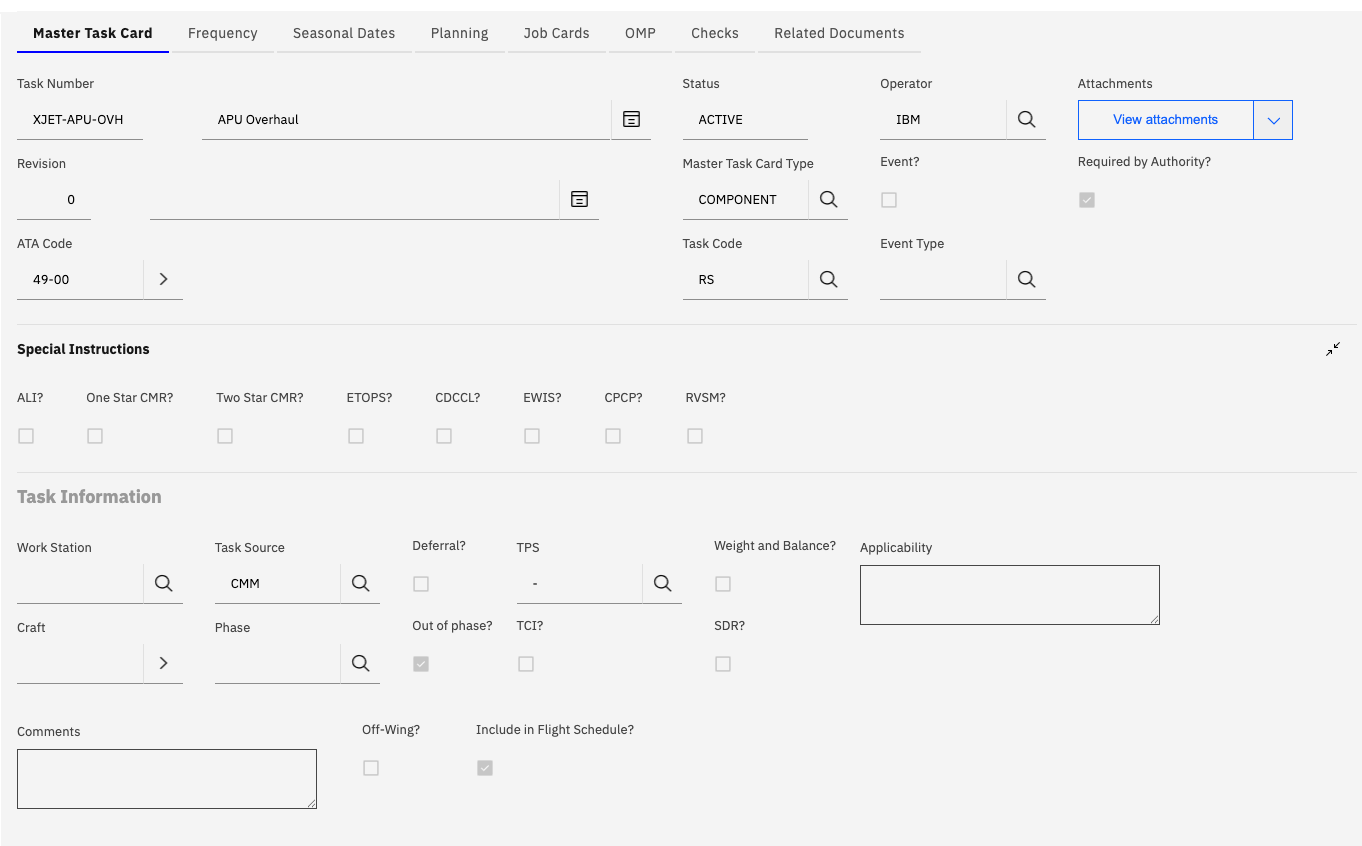
| Task Number | Unique identifier for the Master Task Card | XJET-APU-OVH | Yes |
| Description | Descriptive name of the task | APU Overhaul | Yes |
| Status | Current status of the Master Task Card | ACTIVE, DRAFT, PNDREV, INACTIVE | Yes |
| Revision | Revision number for change tracking | 0, 1, 2 | Yes |
| Operator | Operating organization | IBM | Yes |
| ATA Code | ATA chapter code | 49-00 (APU) | Yes |
| Master Task Card Type | Category of task | COMPONENT, AIRFRAME, CHECK, EVENT | Yes |
| Task Code | Short code for task type | RS, OPC, DET, GVI | Yes |
Master Task Card Type Values:
The Master Task Card Type field categorizes tasks by their nature and purpose:
| Type | Description | Usage |
|---|---|---|
| AIRFRAME | Airframe Task | Tasks performed on the aircraft structure, systems, or zones. Not specific to a removable component. Examples: fuselage inspections, wing structural checks, system functional tests. |
| CHECK | Maintenance Check | Used to group tasks with similar frequencies into larger maintenance events (A-Check, C-Check, etc.). Checks organize multiple tasks for efficient planning and execution. |
| COMPONENT | Component Task | Tasks performed on specific removable components or assemblies. Linked to part numbers and follow the component through its lifecycle (on-wing, in-shop, in-storage). Examples: engine overhaul, landing gear inspection, APU service. |
| EVENT | Event-Based Task | Maintenance tasks triggered by specific events rather than time or usage intervals. Examples: post-lightning strike inspection, after hard landing check, following bird strike. |
Selecting the correct Master Task Card Type is critical as it determines how the task behaves, how Task Cards are generated, and how the task integrates with asset configuration management.
Task Code Examples:
| Code | Description | Typical Usage |
|---|---|---|
| RS | Restoration | Overhaul, major repair, rebuild |
| OPC | Operational Check | Functional verification, system operation test |
| DET | Detailed Inspection | Thorough visual inspection with specific criteria |
| GVI | General Visual Inspection | Basic visual check for obvious defects |
| DIS | Discard | Time-change item, life-limited part replacement |
| SVC | Service | Lubrication, replenishment, routine servicing |
| FNC | Functional Check | System functional test, operational verification |
Special Instructions
The Special Instructions section contains flags that are used for information purposes only. They highlight specific requirements or nature of the task to be performed.
| Field | Description | Impact |
|---|---|---|
| ALI? | Airworthiness Limitation Item. | Indicates that failure to perform the task could result in the aicraft being unfit to fly |
| One Star CMR? | One Star Critical Maintenance Requirement | Regulatory critical task |
| Two Star CMR? | Two Star Critical Maintenance Requirement | Higher level regulatory critical task |
| ETOPS? | Extended Range Twin-engine Operations | Required for ETOPS certification |
| CDCCL? | Critical design configuration control | Indicates whether critical design configuration control limitations apply to this master task card. |
| EWIS? | Electrical Wiring Interconnection System | Indicates whether an electrical wiring interconnection system is associated with this master task card. |
| CPCP? | Corrosion Prevention and Control Program | Corrosion-related task |
| RVSM? | Reduced Vertical Separation Minimum | Required for RVSM operations |
Task Information
Operational Fields:
| Field | Description | Example |
|---|---|---|
| Work Station | Where task is performed | HANGAR, LINE, SHOP |
| Task Source | Origin of task requirement | CMM, MPD, SB |
| Deferral? | Whether task can be deferred | Checked/Unchecked |
| TPS | Temporary Protection System | Reference to standard |
| Weight and Balance? | Affects weight and balance | Checked/Unchecked |
| Applicability | Applicability statement | Free text |
| Craft | Primary maintenance trade that is required to perform the task | AF (Airframe), AV (Avionics) |
| Phase | Maintenance phase | A, B, C, D |
| Out of phase? | Can be done out of phase | Checked/Unchecked |
| TCI? | Tool Calibration Item | Checked/Unchecked |
| SDR? | Service Difficulty Report required | Checked/Unchecked |
| Comments | Additional notes | Free text |
| Off-Wing? | Task performed off-wing | Checked/Unchecked |
| Include in Flight Schedule? | Include in flight planning | Checked/Unchecked |
Relationship with Part Numbers
The relationship between Master Task Cards and Part Numbers is fundamental to Maximo for Aviation's automated maintenance generation and statusing capability.
Part Number Linkage
Master Task Cards are linked to configuration-managed (CM) part numbers through the Part Numbers tab. This relationship enables:
- Automatic Task Card Generation - When an asset with a linked part number is validated by BDI, Task Cards are automatically created
- Component Tracking - Tasks follow components through their lifecycle (installation, removal, shop visit)
- Configuration Control - Ensures correct tasks are applied based on installed components
- Maintenance Planning - Links maintenance requirements to specific components

Part Number Table Fields:
| Field | Description |
|---|---|
| Part Number | CM part number from Part Number Master |
| Description | Part description |
| Vendor | Part manufacturer or vendor |
| Description | Additional description or notes |
The Part Number relationship is what enables "configuration-aware" maintenance
- the system automatically knows what maintenance is required based on what components are installed on each aircraft.
Multiple Part Numbers:
- A single Master Task Card can be linked to multiple part numbers
- Useful for tasks that apply to different variants or alternates
- All linked part numbers will trigger Task Card generation
- Enables fleet commonality and standardization
Frequency Configuration
Frequency configuration is one of the most critical aspects of Master Task Cards, defining when maintenance tasks become due. Maximo for Aviation supports multiple frequency definition methods to accommodate various maintenance philosophies.
Frequency Definition Methods
Master Task Cards support three primary methods for defining when tasks are due:
- Intervals and Thresholds - Traditional fixed-interval maintenance
- Time-Based Iterations - Sequential calendar-based task progression
- Meter-Based Iterations - Sequential usage-based task progression
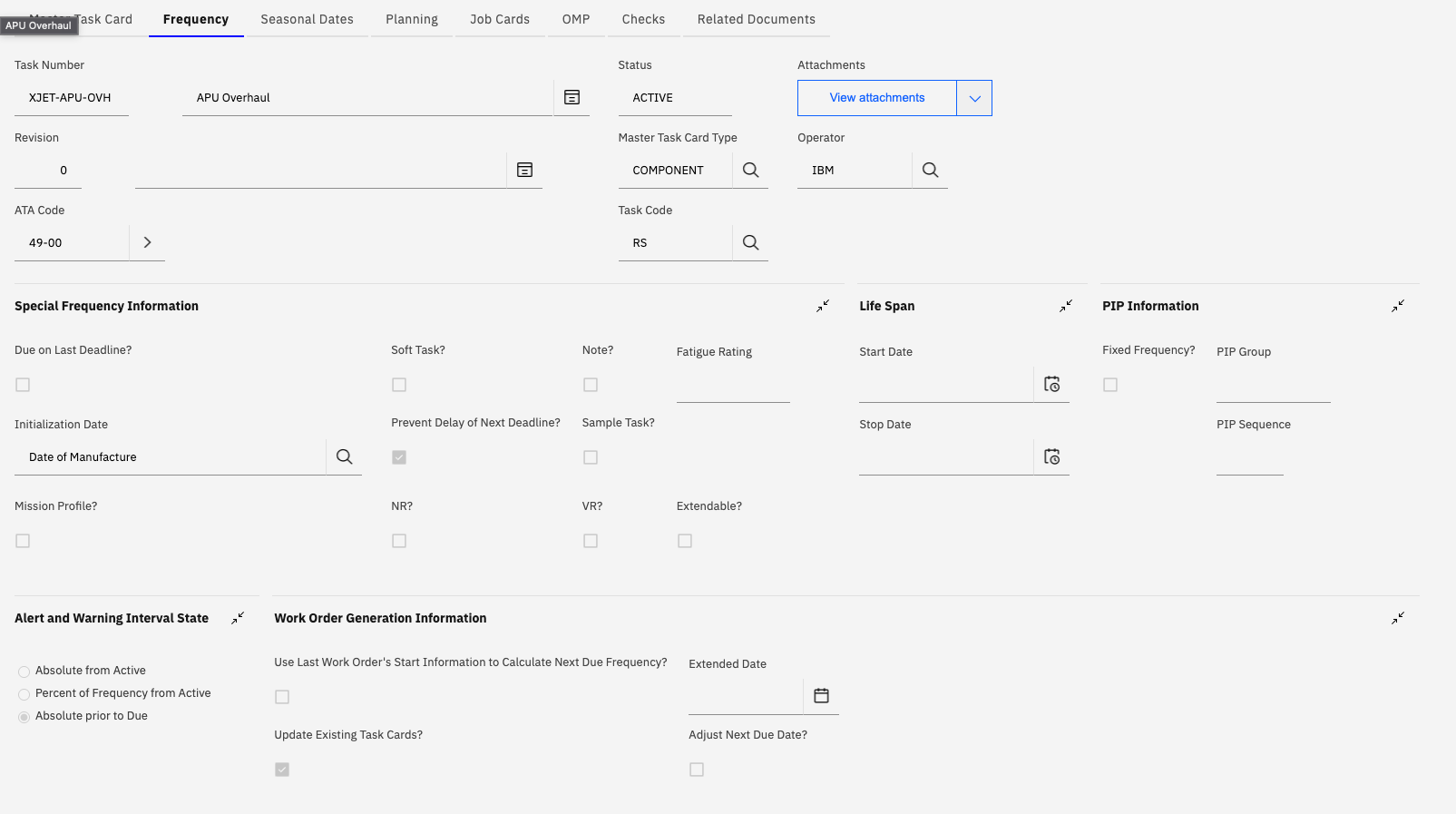
Special Frequency Information
Refer to the Maintenance Task Library topic for an explanation of the fields within this section.
Life Span:
- Start Date - When task becomes active
- Stop Date - When task is no longer required. The BDI will automatically de-activate the associated Task Cards once the date is exceeded.
Alert and Warning Interval State:
Defines when alert and warnings are issued before task becomes due:
| Option | Description | Example |
|---|---|---|
| Absolute from Active | Fixed time from task activation / last completion | 30 days after activation |
| Percent of Frequency from Active | Percentage of interval from activation | 80% of interval after activation |
| Absolute prior to Due | Fixed time before due date / count | 500 FH before due |
Work Order Generation Information:
| Field | Description |
|---|---|
| Use Last Work Order's Start Information to Calculate Next Due Frequency? | Determines if the task is treated as a Fixed or Floating. Fixed tasks are next due based on the prior work orders target start date. Floating Tasks are based on when the previous work order was completed (Actual Finish Date). |
| Extended Date | Date to which task can be extended |
| Update Existing Task Cards? | Update all existing Task Cards when Master Task Card changes |
| Adjust Next Due Date? | Adjust next due date for existing Task Cards |
Intervals and Thresholds
The Intervals and Thresholds method defines fixed-interval maintenance where tasks become due at regular intervals based on calendar time or meter readings.
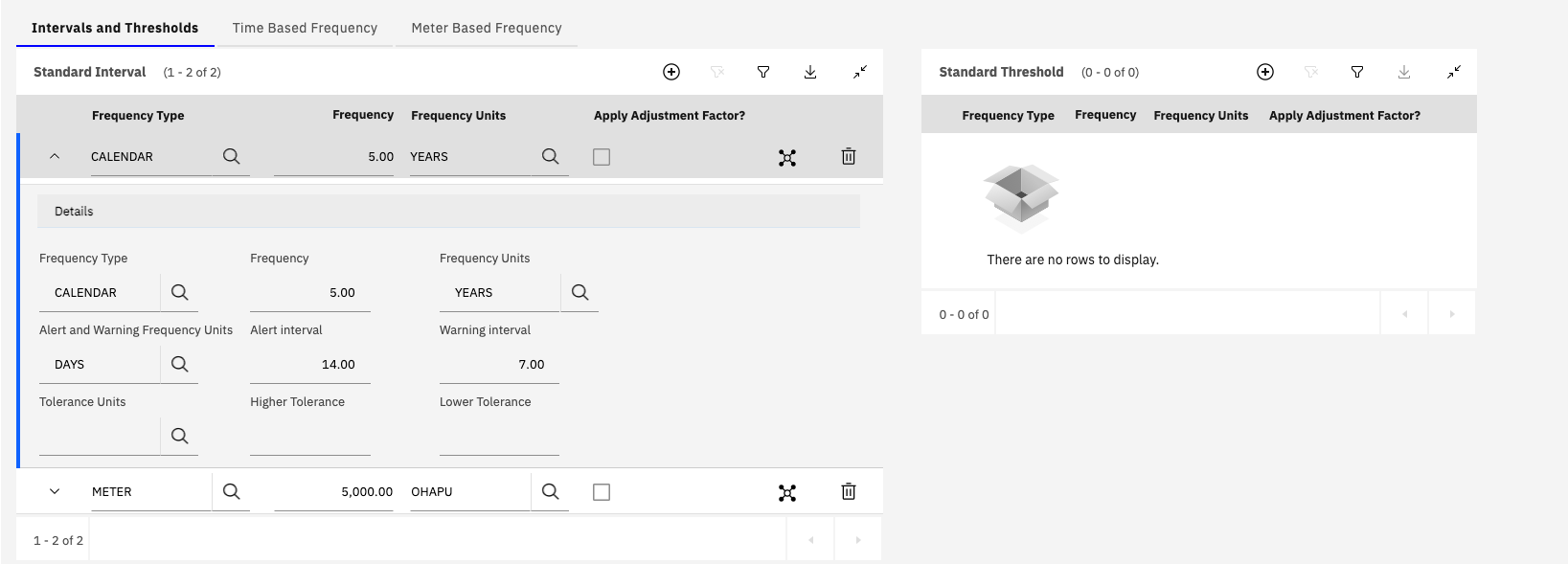
Standard Intervals
Standard Intervals define when the task becomes due:
Interval Definition:
| Field | Description | Example |
|---|---|---|
| Frequency Type | CALENDAR or METER | CALENDAR, METER |
| Frequency | Numeric interval value | 5.00, 5000.00 |
| Frequency Units | Unit of measure | YEARS, OHAPU (APU Hours) |
| Apply Adjustment Factor? | Apply adjustment calculation | Checked/Unchecked |
Interval Details:
When you expand an interval, additional configuration options appear:
| Field | Description |
|---|---|
| Alert and Warning Frequency Units | Unit for alert/warning calculations |
| Alert Interval | How far in advance to alert ("EBA" BDI Problem Code is reported as part of the aircraft configuration status) |
| Warning Interval | How far in advance to warn ("EBW" BDI Problem Code is reported as part of the aircraft configuration status) |
| Tolerance Units | Unit for tolerance |
| Higher Tolerance | Allowable extension beyond due |
| Lower Tolerance | Allowable early completion |
The Alert Interval in combination with the Alert and Warning Interval State determines when the BDI will automatically generate a Work Order from the related Task Card.
Calendar Frequency Examples:
| Frequency | Units | Description |
|---|---|---|
| 5.00 | YEARS | Every 5 years |
| 24.00 | MONTHS | Every 24 months (2 years) |
| 90.00 | DAYS | Every 90 days |
| 1.00 | DAYS | Daily |
Meter Frequency Examples:
| Frequency | Units | Description |
|---|---|---|
| 5,000.00 | OHAPU | Every 5,000 APU operating hours |
| 12,000.00 | FH | Every 12,000 flight hours |
| 10,000.00 | FC | Every 10,000 flight cycles |
| 20,000.00 | EH | Every 20,000 engine hours |
Example Configuration:
Task: APU Overhaul
Frequency Type: CALENDAR
Frequency: 5.00 YEARS
Alert Interval: 14.00 DAYS (alert 14 days before due)
Warning Interval: 7.00 DAYS (warn 7 days before due)
Higher Tolerance: (no extension allowed)
Lower Tolerance: (no early completion allowed)
Standard Thresholds
Standard Thresholds define when the first or initial instance of the maintenance task is due. This is distinct from Standard Intervals, which determine the frequency of all subsequent occurrences after the initial task is completed.
Threshold vs. Interval:
| Component | Purpose | Example |
|---|---|---|
| Threshold | Defines when the FIRST occurrence is due | First inspection due at 1,000 FH after installation |
| Interval | Defines when SUBSEQUENT occurrences are due | Repeat every 5,000 FH after first inspection |
Threshold Configuration:
Thresholds use the same structure as intervals but represent the initial due point:
| Field | Description |
|---|---|
| Frequency Type | CALENDAR or METER |
| Frequency | Initial threshold value |
| Frequency Units | Unit of measure |
| Apply Adjustment Factor? | Apply adjustment calculation |
Threshold Examples:
| Frequency | Units | Purpose |
|---|---|---|
| 1,000.00 | FH | First inspection due at 1,000 flight hours |
| 90.00 | DAYS | First check due 90 days after installation |
| 500.00 | FC | First inspection due at 500 cycles |
How Thresholds and Intervals Work Together:
Example: Engine Borescope Inspection

Threshold: 1,000.00 FH (First inspection)
Interval: 5,000.00 FH (Recurring inspections)

Timeline:
0 FH: Engine installed
1,000 FH: First borescope inspection due (THRESHOLD)
6,000 FH: Second borescope inspection due (1,000 + 5,000 INTERVAL)
11,000 FH: Third borescope inspection due (6,000 + 5,000 INTERVAL)
16,000 FH: Fourth borescope inspection due (11,000 + 5,000 INTERVAL)
Thresholds are particularly useful for break-in inspections, initial service checks, or any maintenance that has a different first-time interval compared to recurring intervals.
Multiple Intervals and Thresholds:
A Master Task Card can have multiple intervals and thresholds:
- Multiple Intervals - Task becomes due when ANY interval is reached (whichever occurs first)
- Multiple Thresholds - Multiple warning points for different planning horizons
- Combined - Mix of calendar and meter-based intervals
Example: Combined Frequency
Task: C-Check Inspection
Interval 1: 12,000.00 FH (flight hours)
Interval 2: 72.00 MONTHS (calendar)
Threshold 1: 500.00 FH (warn at 11,500 FH)
Threshold 2: 14.00 DAYS (warn 14 days before calendar due)

Result: Task becomes due at 12,000 FH OR 72 months, whichever occurs first
        Warnings issued at appropriate thresholds for each frequency type
Time-Based Frequency Iterations
Time-Based Iterations provide a sequential, calendar-based approach to maintenance where tasks progress through a defined sequence of intervals. This method is ideal for progressive inspections, calibrations, or maintenance programs that require different actions at different intervals.
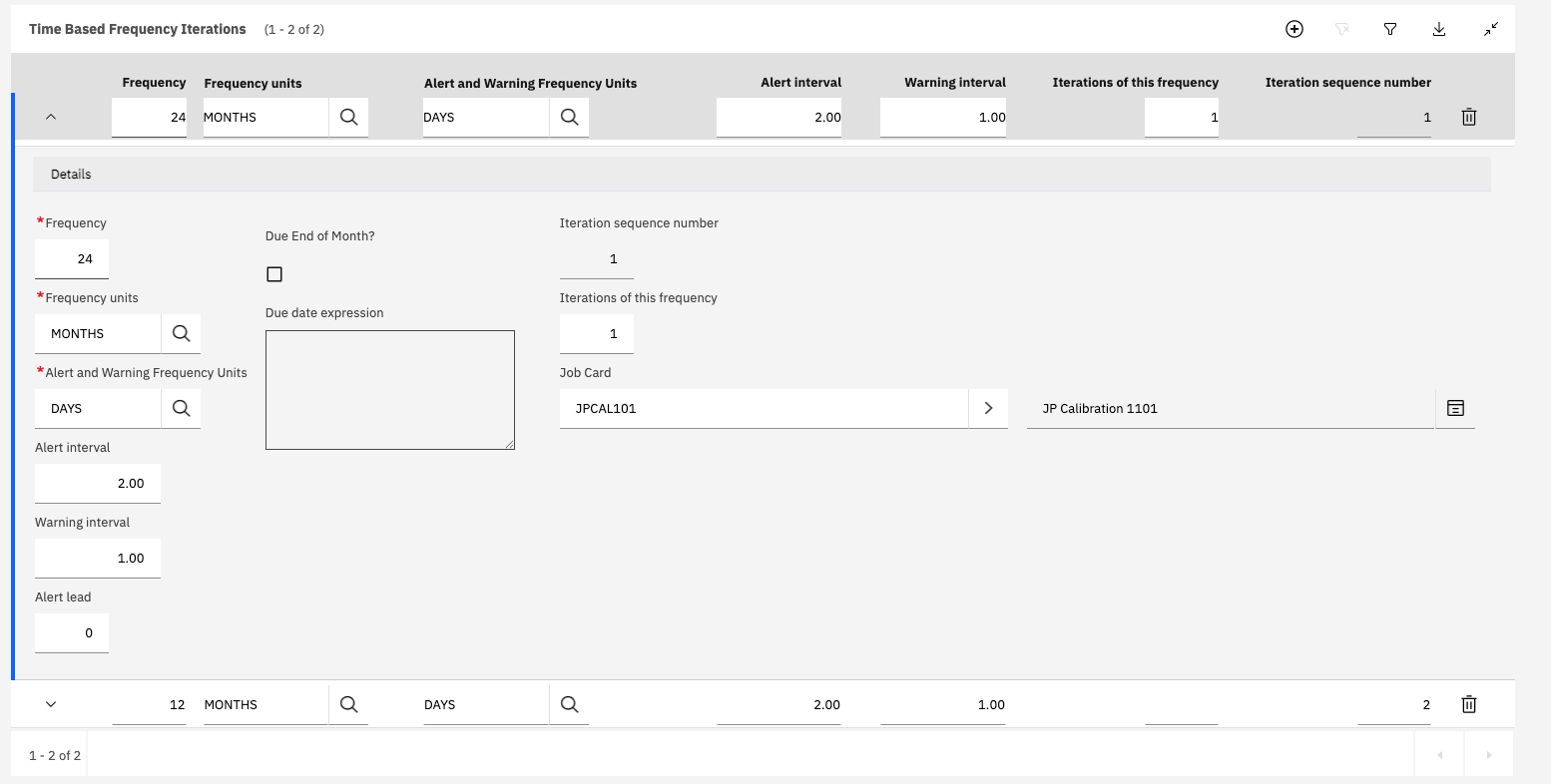
Time-Based Iteration Concept
Instead of a single repeating interval, Time-Based Iterations define a sequence of calendar-based frequencies. Each iteration can have:
- Different interval lengths
- Different job cards
- Different alert and warning intervals
- Sequential progression through the iteration cycle
Key Features:
- Sequential Progression - Task moves from iteration 1 to 2 to 3, etc.
- Variable Intervals - Each iteration can have a different frequency
- Iteration-Specific Job Cards - Different work instructions for each iteration
- Loop Capability - Option to return to first iteration after completing the sequence
Configuring Time-Based Iterations
Iteration Table Fields:
| Field | Description |
|---|---|
| Frequency | Calendar interval value |
| Frequency units | MONTHS, DAYS, YEARS |
| Alert and Warning Frequency Units | Unit for alerts/warnings |
| Alert interval | Advance alert time |
| Warning interval | Advance warning time |
| Iterations of this frequency | Number of times this iteration occurs |
| Iteration sequence number | Position in the sequence |
| Job Card | Specific job card for this iteration |
Time-Based Iteration Examples
Example 1: Progressive Calibration Program
Equipment: Precision Test Equipment
Requirement: Calibration intervals that increase with equipment maturity

Iteration 1:
- Frequency: 6 MONTHS
- Iterations: 2 (occurs twice)
- Sequence: 1
- Job Card: JPCAL101 (Initial Calibration)

Iteration 2:
- Frequency: 12 MONTHS
- Iterations: 2 (occurs twice)
- Sequence: 2
- Job Card: JPCAL102 (Standard Calibration)

Iteration 3:
- Frequency: 24 MONTHS
- Iterations: 1 (occurs once)
- Sequence: 3
- Job Card: JPCAL103 (Extended Calibration)

Progression:
Month 0: Equipment becomes operational
Month 6: Iteration 1, Occurrence 1 (JPCAL101)
Month 12: Iteration 1, Occurrence 2 (JPCAL101)
Month 24: Iteration 2, Occurrence 1 (JPCAL102)
Month 36: Iteration 2, Occurrence 2 (JPCAL102)
Month 60: Iteration 3, Occurrence 1 (JPCAL103)
Month 84: [Depends on Loop Iterations setting]
Example 2: Phased Inspection Program
Task: Structural Inspection Program
Requirement: Different inspection depths at different intervals

Iteration 1:
- Frequency: 24 MONTHS
- Iterations: 1
- Sequence: 1
- Job Card: JPBI001 (Basic Inspection)

Iteration 2:
- Frequency: 12 MONTHS
- Iterations: 1
- Sequence: 2
- Job Card: JPDI001 ( Detailed Inspection)

Progression:
Month 0: New component installed
Month 24: Iteration 1 (Basic Inspection)
Month 36: Iteration 2 (Detailed Inspection)
Month 48: [Depends on Loop Iterations setting]
Loop Iterations Checkbox
The Loop Iterations checkbox controls what happens after the final iteration in the sequence is completed:
Loop Iterations = Checked (Enabled):
- After completing the final iteration, the task returns to Iteration 1
- The cycle repeats indefinitely
- Useful for ongoing maintenance programs
- Example: Calibration program that cycles through inspection depths
Loop Iterations = Unchecked (Disabled):
- After completing the final iteration, the task stops and the Task Card is made inactive
- No further work orders are generated
- Useful for one-time progressive programs
- Example: Break-in inspection program for new equipment
The Loop Iterations setting is critical for determining whether your maintenance program is cyclical (repeating) or finite (one-time). Choose based on your maintenance philosophy and regulatory requirements.
If the "Iterations of this Frequency" field is left empty for the last iteration in the sequence then the associated task card will continue indefinitely at the last iteration frequency.
Meter-Based Frequency Iterations
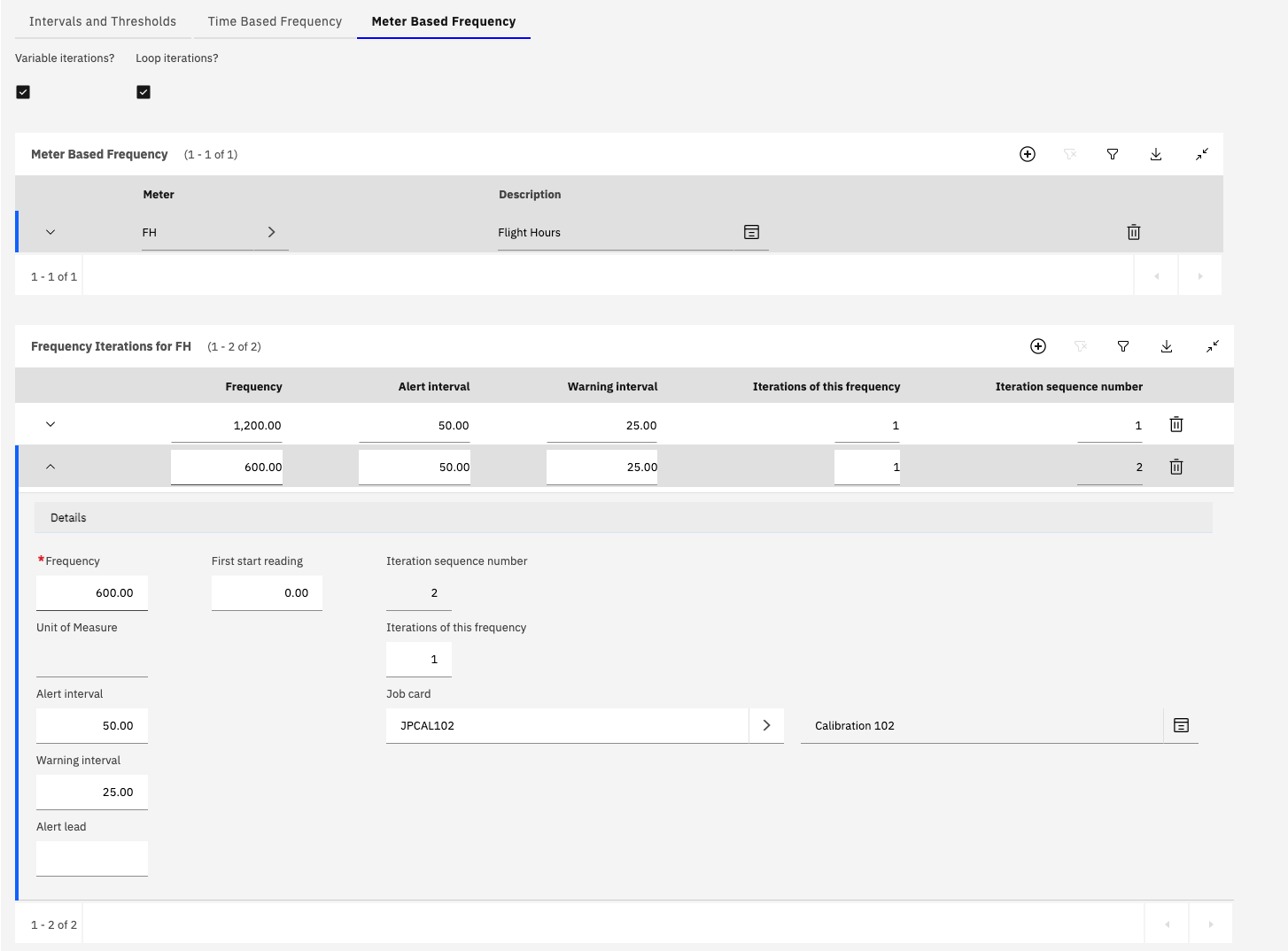
Meter-Based Iterations provide a sequential, usage-based approach to maintenance where tasks progress through a defined sequence of meter intervals. It operates in an almost identical manner to the time based iterations.
This method is ideal for progressive inspections based on operating hours, cycles, or other usage metrics.
Meter-Based Iteration Concept
Similar to Time-Based Iterations, but driven by meter readings rather than calendar time. Each iteration can have:
- Different meter interval lengths
- Different job cards
- Different alert and warning thresholds
- Sequential progression through the iteration cycle
- Variable iterations (different number of occurrences per iteration)
Configuring Meter-Based Iterations
Step 1: Select Meter
First, define which meter drives the iterations:
| Field | Description |
|---|---|
| Meter | Meter code (FH, FC, EH, etc.) |
| Description | Meter description |
Step 2: Configure Iteration Flags
| Field | Description |
|---|---|
| Variable Iterations? | Allow different iteration counts per frequency |
| Loop Iterations? | Return to first iteration after completing sequence |
Step 3: Define Frequency Iterations
For each iteration in the sequence:
| Field | Description |
|---|---|
| Frequency | Meter interval value |
| Alert interval | Advance alert threshold |
| Warning interval | Advance warning threshold |
| Iterations of this frequency | How many times this iteration occurs |
| Iteration sequence number | Position in the sequence |
| Job card | Specific job card for this iteration |
Meter-Based Iteration Examples
Example 1: Engine Borescope Inspection Program
Component: Turbine Engine
Meter: EH (Engine Hours)
Requirement: Progressive borescope inspections with increasing intervals

Variable Iterations: Checked
Loop Iterations: Checked

Iteration 1:
- Frequency: 600.00 EH
- Alert interval: 50.00 EH
- Warning interval: 25.00 EH
- Iterations: 1
- Sequence: 2
- Job Card: JPBORO001 (Initial Borescope)

Iteration 2:
- Frequency: 1,200.00 EH
- Alert interval: 50.00 EH
- Warning interval: 25.00 EH
- Iterations: 1
- Sequence: 1
- Job Card: JPBORO002 (Standard Borescope)

Progression:
0 EH: Engine installed
600 EH: Iteration 2, Occurrence 1 (Initial Borescope - JPBORO001)
1,800 EH: Iteration 1, Occurrence 1 (Standard Borescope - JPBORO002)
3,000 EH: Iteration 2, Occurrence 1 (Initial Borescope - JPBORO001) [Loop back]
3,600 EH: Iteration 1, Occurrence 1 (Standard Borescope - JPBORO002)
...continues cycling
Meter-Based Iterations with Variable Iterations and Loop Iterations provide maximum flexibility for complex maintenance programs that need to adapt to component usage patterns and maturity.
Master Task Card Actions
Master Task Card Actions provide powerful automation capabilities that allow one task (the "primary" task) to trigger actions on other related tasks (the "secondary" tasks). This feature enables sophisticated maintenance logic and workflow automation.
Actions Concept and Purpose
What Are Master Task Card Actions?
Master Task Card Actions define automated responses that occur when specific events happen with a primary task. These actions affect secondary tasks on the same asset, enabling:
- Coordinated Maintenance - Link related tasks so they work together
- Workflow Automation - Automatically activate, deactivate, or complete related tasks
- Maintenance Logic - Implement complex maintenance rules and dependencies
- Event-Driven Maintenance - Trigger tasks based on component installation/removal
Master Task Card Actions are limited to primary and secondary Task Cards for the same CM Item or configuration-managed asset. Actions cannot affect Task Cards on different assets.
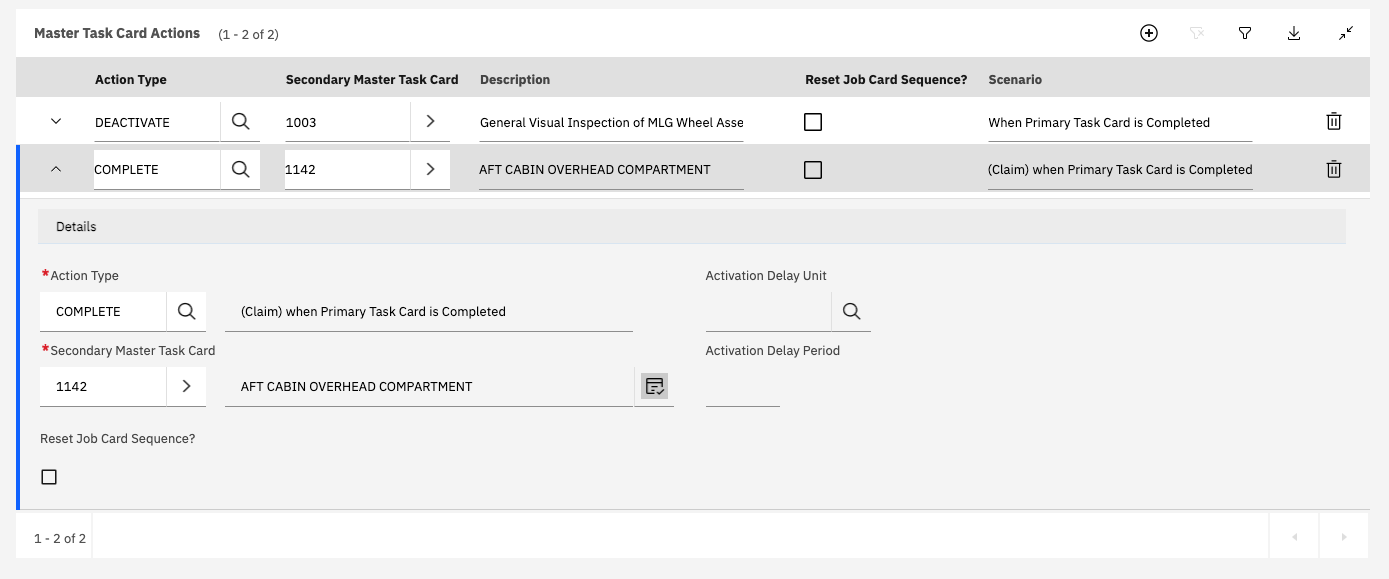
Action Configuration
Action Table Fields:
| Field | Description |
|---|---|
| Action Type | Type of action to perform |
| Secondary Master Task Card | Target Master Task Card for the action |
| Description | Description of the secondary task |
| Reset Job Card Sequence? | Whether to reset job card sequence |
| Scenario | When the action is triggered |
Action Details:
When you expand an action:
| Field | Description |
|---|---|
| Action Type | Type of action to perform |
| Description | Scenario description |
| Secondary Master Task Card | Target Master Task Card |
| Reset Job Card Sequence? | Reset job card sequence flag |
| Activation Delay Unit | Unit for activation delay |
| Activation Delay Period | Delay period value |
Action Types and Triggers
Master Task Card Actions support multiple action types, each triggered by specific events:
Work Order Completion Actions:
These actions are triggered when a work order generated from the primary Task Card is completed:
| Action Type | Effect | Use Case |
|---|---|---|
| ACTIVATE | Changes secondary Task Card status to ACTIVE | Enable a task after another task is completed. Example: Activate operational checks after installation task is complete. |
| COMPLETE | Marks secondary Task Card as complete and resets next due date | Claim completion of a related task when primary task is done. Example: Complete follow-up inspection when main inspection is complete. |
| CREATE WO | Generates a work order from the secondary Task Card | Automatically create work for a related task. Example: Generate calibration work order after equipment installation. |
| DEACTIVATE | Changes secondary Task Card status to INACTIVE | Disable a task after another task is completed. Example: Deactivate temporary inspection after permanent fix is complete. |
Component Installation Actions:
These actions are triggered when the asset associated with the primary Task Card is installed into a parent assembly:
| Action Type | Effect | Use Case |
|---|---|---|
| ON-ACTIVATE | Changes secondary Task Card status to ACTIVE when component is installed | Enable tasks when component is installed. Example: Activate operational checks when engine is installed on aircraft. |
| ON-DEACTIVATE | Changes secondary Task Card status to INACTIVE when component is installed | Disable tasks when component is installed. Example: Deactivate storeroom maintenance tasks when component goes on-wing. |
Component Removal Actions:
These actions are triggered when the asset associated with the primary Task Card is removed from a parent assembly:
| Action Type | Effect | Use Case |
|---|---|---|
| OFF-ACTIVATE | Changes secondary Task Card status to ACTIVE when component is removed | Enable tasks when component is removed. Example: Activate shop inspection when engine is removed from aircraft. |
| OFF-DEACTIVATE | Changes secondary Task Card status to INACTIVE when component is removed | Disable tasks when component is removed. Example: Deactivate on-wing tasks when component is removed. |
Reset Job Card Sequence
The Reset Job Card Sequence checkbox controls whether the job card sequence for the secondary Task Card is reset when the action is triggered:
Reset Job Card Sequence = Checked:
- Job card sequence is reset to the beginning
- Useful when you want to restart a job card progression
- Example: After overhaul, reset calibration job card sequence to start from first calibration
Reset Job Card Sequence = Unchecked:
- Job card sequence continues from current position
- Useful when you want to maintain progression
- Example: Continue with next job card in sequence after completing related task
Activation Delay
Actions can be configured with a delay before they take effect:
| Field | Description |
|---|---|
| Activation Delay Unit | Unit for delay (DAYS, HOURS, etc.) |
| Activation Delay Period | Numeric delay value |
Use Cases for Activation Delay:
- Allow time for post-maintenance stabilization
- Coordinate with operational schedules
- Implement mandatory waiting periods
- Stagger related maintenance activities
Master Task Card Actions provide powerful automation but should be carefully designed and tested. Incorrect action configuration can lead to unexpected Task Card status changes or maintenance gaps.
Status and Revisions
Maximo for Aviation introduces enhanced status management and revision control for Master Task Cards, providing better change tracking and configuration control.
Status Management
Status Field:
Master Task Cards have a status field (MASTERPM.PLUSASTATUS) that controls their lifecycle:
| Status | Description | Task Card Generation |
|---|---|---|
| DRAFT | Master Task Card is being developed | No Task Cards generated |
| ACTIVE | Master Task Card is approved and operational | Task Cards generated automatically |
| INACTIVE | Master Task Card is no longer in use | No new Task Cards generated. Existing Task Cards are deactivated |
| PNDREV | Pending revision (revision in progress) | Changes are not put into effect into the new revision is activated |
| REVISED | Previous revision (superseded) | Historical reference only |
Status Workflow:
- Create - New Master Task Card created with DRAFT status
- Configure - Set up frequencies, part numbers, actions, etc.
- Activate - Change status to ACTIVE when ready for use
- Revise - Create revision (status becomes PNDREV for new revision)
- Supersede - Previous revision changes to REVISED status
Task Cards cannot be created from Master Task Cards unless they are in ACTIVE status. This ensures only approved, validated tasks are used for maintenance generation.
Revision Control
Revision Benefits:
- Full change tracking (what changed, when, by whom)
- Audit trail for regulatory compliance
- Controlled change management process
- Prevents accidental modifications to active tasks
- Maintains historical record of all revisions
Updating Associated Task Cards:
Revising Master Task Cards in OMPs
Master Task Cards that are part of an Operators Maintenance Program (OMP) have special revision requirements. The revision creation process and activation of the new revision must be performed within the OMP application itself, not directly in the Master Task Cards application.
OMP-Based Revision Process:
When a Master Task Card is included in an OMP:
- Navigate to OMP Application - Open the OMP that contains the Master Task Card
- Locate Task - Find the Master Task Card in the OMP Tasks list
- Initiate Revision - Use the OMP's revision action for the task
- Make Changes - Applink to the Master Task Card to make modificiations to it and save. Return to the OMP once changes are made
- Activate Revision - Activate the new master task card revision using the change status icon on the OMP Task row within the OMP
- Propagate Changes - The system automatically triggers the update to the associated Task Cards by triggering BDI validation for the affected Aircraft.
Be aware that the update of associated Task Cards is not immediate. The time taken for changes to be propagated depends on a numnber of factors including: number of aircraft and how the BDI and asynchronous job crontasks are configured.
When a Master Task Card revision is activated:
- Automatic Update - BDI updates Task Cards during next asset validation
- Manual Update - Use "Update Associated Task Cards?" action for immediate update
Extendable Task Cards
The Extendable checkbox on a Master Task Card indicates that associated Task Cards can have their due dates or due counts extended through a controlled process.
Extendable Checkbox:
- When checked, Task Cards generated from this Master Task Card can be extended
- Extensions are created through Task Card Extension records
- Extensions can be subject to approval workflow
- Provides controlled flexibility for operational needs
Task Card Extension Process:
- Identify Need - Task Card approaching due date but cannot be completed
- Create Extension - Create Task Card Extension record
- Justify Extension - Document reason and new due date/count
- Approval - Submit for approval (if workflow configured)
- Apply Extension - Extension updates Task Card due date/count
- Track Extension - Extension history maintained for audit
Use Cases for Extensions:
- Aircraft grounded for unrelated issues
- Parts availability delays
- Operational schedule conflicts
- Weather or facility constraints
- Regulatory approval for extension
Task Card extensions must comply with regulatory requirements and manufacturer limitations. Some tasks (especially CMR tasks) may not be extendable or may require regulatory approval.
Additional Tabs
The Master Task Card application includes several additional tabs for comprehensive task documentation:
Planning Tab
Contains Master Task Card Actions (covered in detail above) and planning information:
- Master Task Card Actions configuration
- Planning notes and considerations
- Resource requirements
- Scheduling preferences
Job Cards Tab
Links detailed work instructions to the Master Task Card:
- Associates Job Cards with the task
- Job Cards define detailed work procedures and steps and resources required to peform the task (see separate guide on Job Card usage)
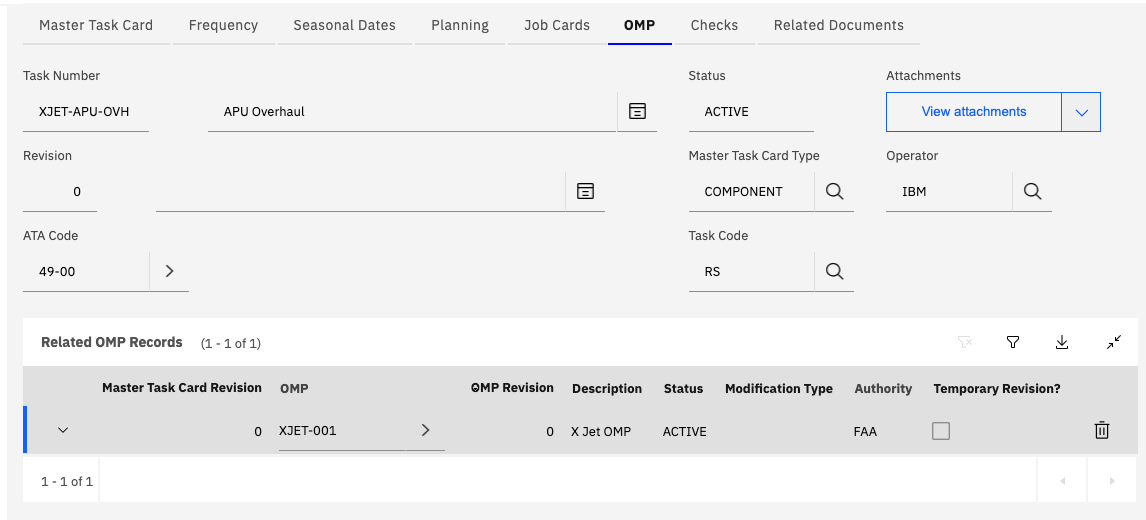
OMP Tab
Shows which Operators Maintenance Program includes this Master Task Card:
- Lists OMPs that reference this task
- Shows task applicability within each OMP
Checks Tab
Defines which maintenance checks include this task:
- Associates task with check-based maintenance
- Supports A-Check, C-Check, etc. organization
- Enables check-based work packaging
Related Documents Tab
Links supporting documentation to the Master Task Card:
- Technical manuals
- Service bulletins
- Engineering orders
- Illustrated parts catalogs
- Training materials
- Safety documentation
Related Documentation:
- Maintenance Task Library (MTL)
- Operators Maintenance Program (OMP)
- Part Number Master
- Task Cards Application
- Build Data Interpreter (BDI)