Configurations
Overview of Configurations
One of the main elements of a Model are its "Configurations". The primary configuration type for every model is referred to as a "Variant".
When a Model is created a default "Base Variant" is created automatically. Additional variants may be added as children of the based variant.
A Variant is a way to define and manage structured deviations from a base Model. The Variants can be used to specify differences in configuration that are known, planned, and allowed.
Variants allow organizations to model different configurations of the same asset type without duplicating the entire Model, which keeps the model definitions reusable, clean, and scalable.
The Variants are used as part of the defintion of specific types of "Configuration Rules" configured within the Model. For example specific Positions or CM Items within the Model can be marked as not applicable to a particluar Variant.
In the screenshot shown below we see a 4 and 6 car variant of the Model: Rapid Transit Metro Train (RTMT).
The specific positions within the train are marked as applicable (and mandatory) in relation to each of the 4 and 6 car variants (how this is done is described in the following sections).
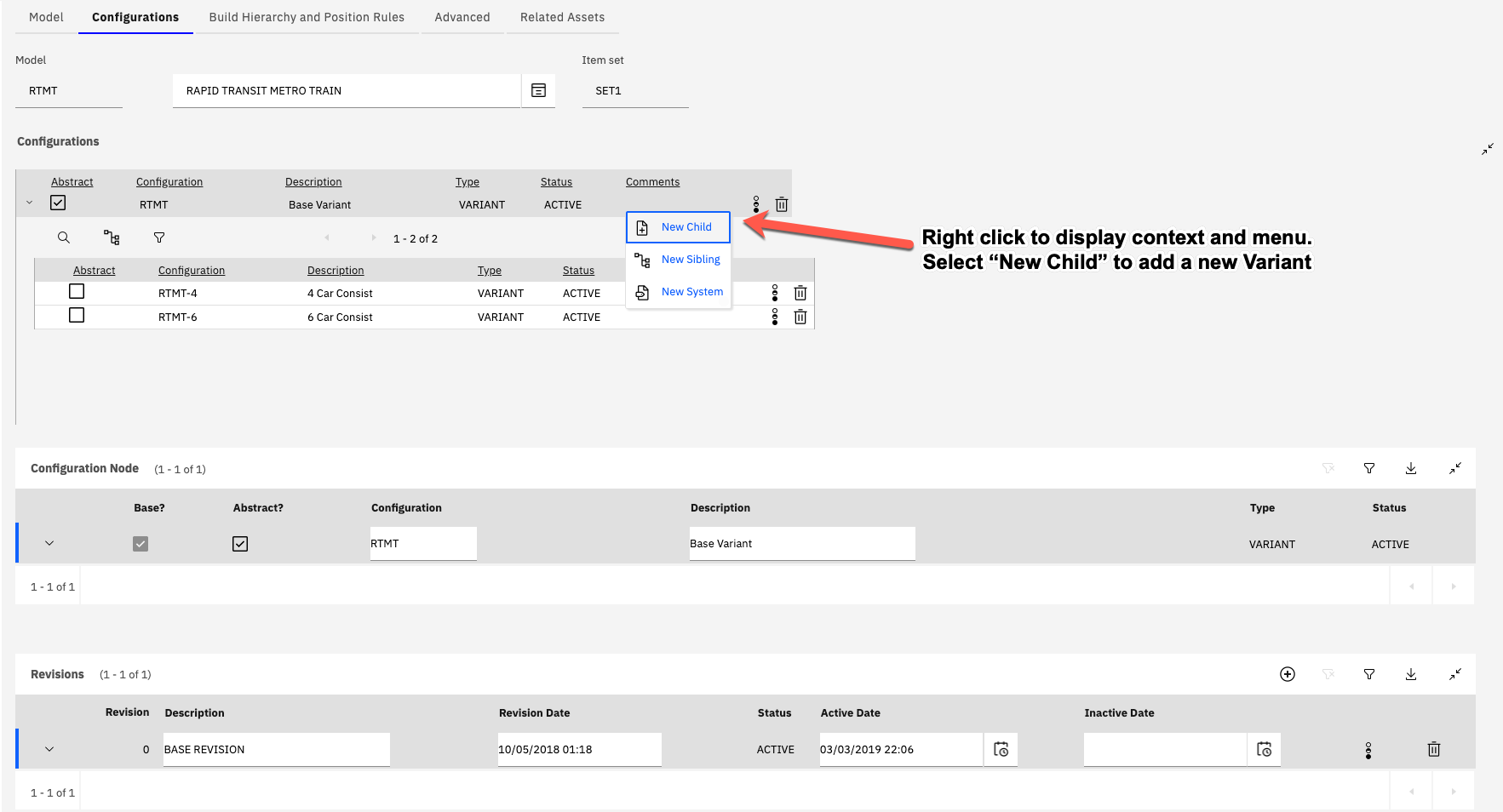
In order to create an Asset, from a specific Model and Variant, the Variant must be set to be non-abstract (Abstract checkbox=N), and its status must be ACTIVE.
A description and comment can also be given to each Variant.
To add a new Variant to the Model the user can right click an existing Variant and in the context menu displayed, chose the option "Add Child" (Highlighted in the screenshot above). This will open a dialog where details of the new Variant can be entered and confirmed.
Revisions
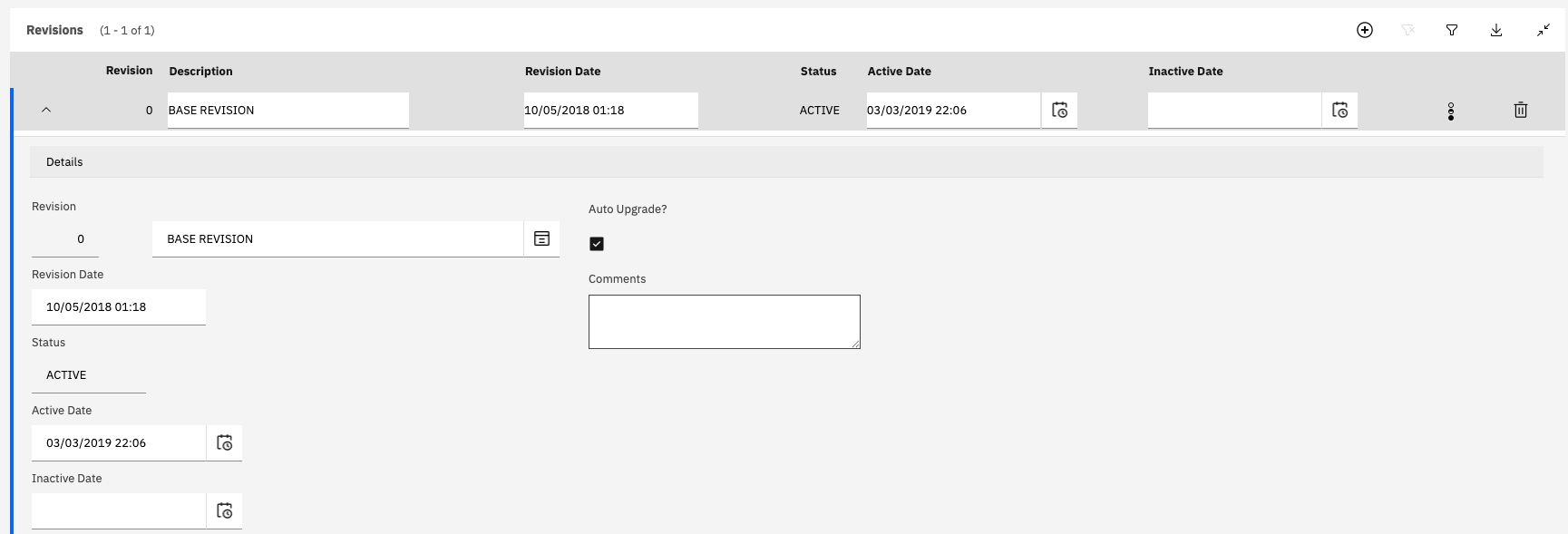
The Revisions table allows for the definition of one or more revisions. A "BASE REVISION" is created automatically for each new Model.
Explanation of Revisions
The main impact of a Model Revision is its relationship to Congfiguration Rules.
When a Configuration Rule is defined, it is done so in relation to a specific revision of the Model.
A configuration rule will only be applied to an Asset if the Revision applied to the Asset is equal to or greater than the revision defined on the configuration rule record.
For example if there are two Revisions defined for the Model:
Revision 0 (BASE REVISION) and
Revision 1 (FIRST REVISION)
If a configuration rule is created with the "Revision Context" = 1 then this will only apply to Assets which also have Revision 1 or greater applied to them. Assets created from the Model which remain at Revision 0 will not be subject to the rule. Note that a later revision of the same rule can be created to override prior revisions of the same rule type for a specific build position.
If the "Auto Upgrade?" checkbox is set to Y, for a Revision, then the BDI will automatically upgrade the associated assets to the latest revision which is set to auto-upgrade.
BDI Map Codes
The BDI Map Codes (sometimes referred to as Problem Codes) contains a list of every code which can be returned by the BDI to indicate a problem with the configuration of an Asset. A Map Code is a 3 letter code which indicates the type of problem together with a Description indicating under which conditions the code will be raised.
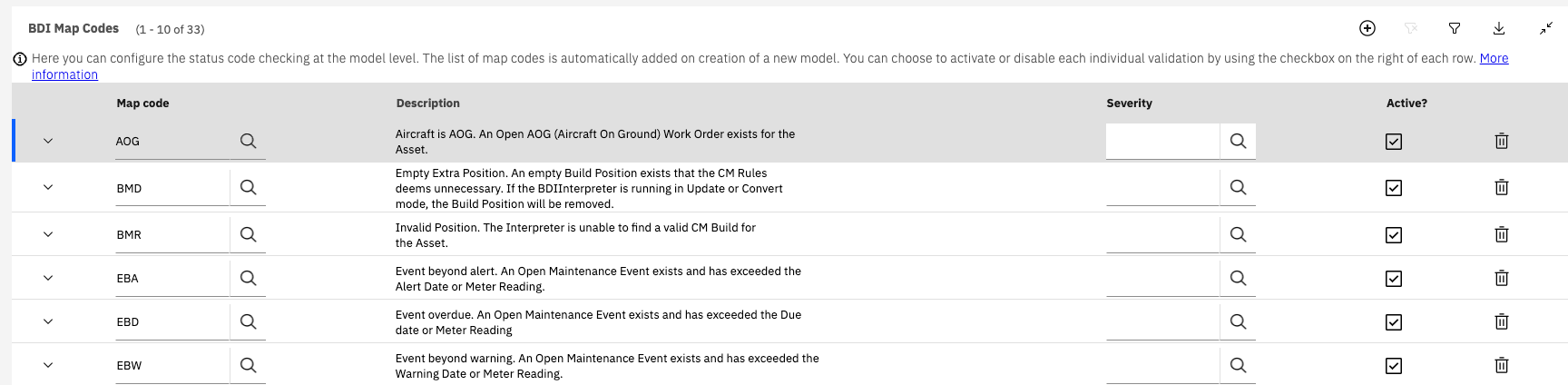
Each code can be either active or inactive. If the code is marked as inactive, the BDI will skip executing the logic required to determine if the problem exists when validating the asset.
In addition a Severity can be set for each Problem code. This will override the default Severity for that particular code. The default severity of each code is detailed in the BDI topic: Status and Problem Codes.
Configuring Map Code Values
The Map Code itself can be changed to a different 3 letter code if desired. Note that this change only effects the Model it is made against.
To do this the following steps should be performed:
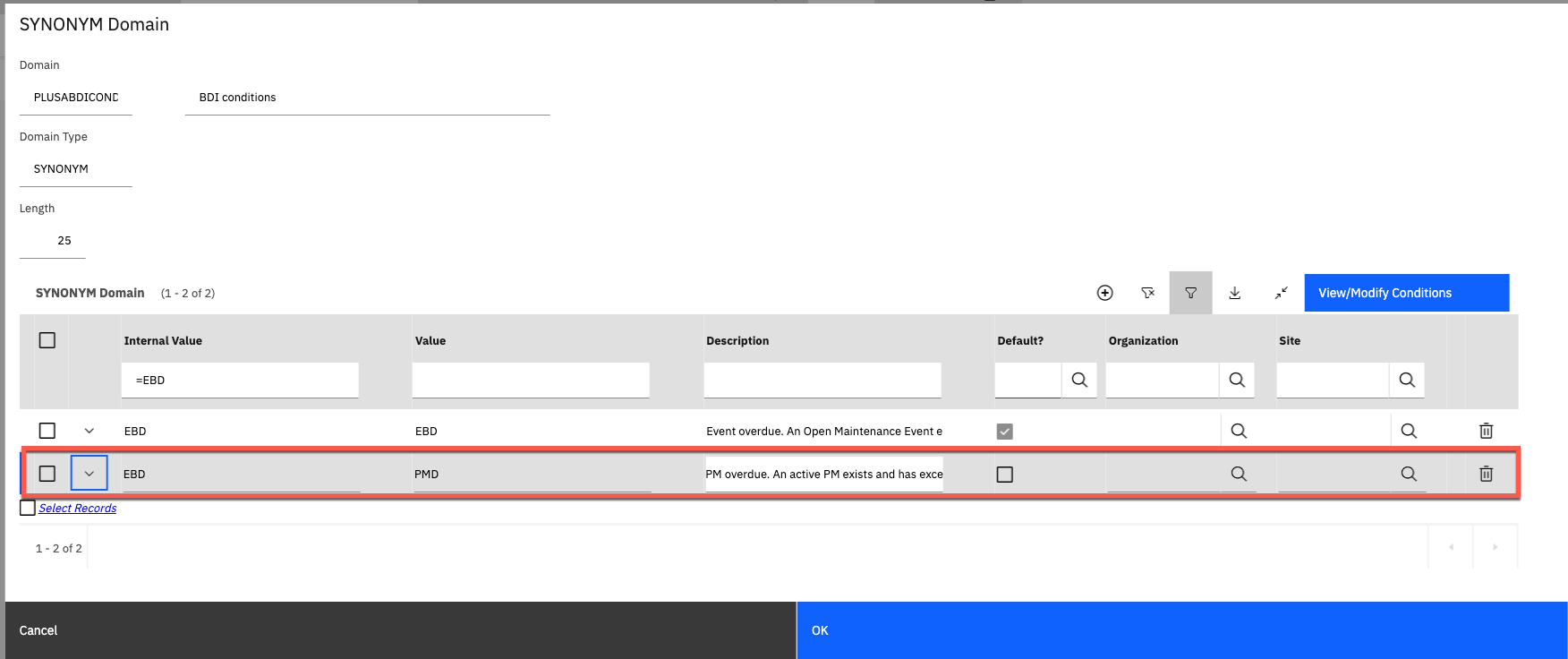
- In the Domains application, open the domain with name: PLUSABDICOND
- Add a new Synoym to the domain with the three letter code that should be used in replacement of the default code.
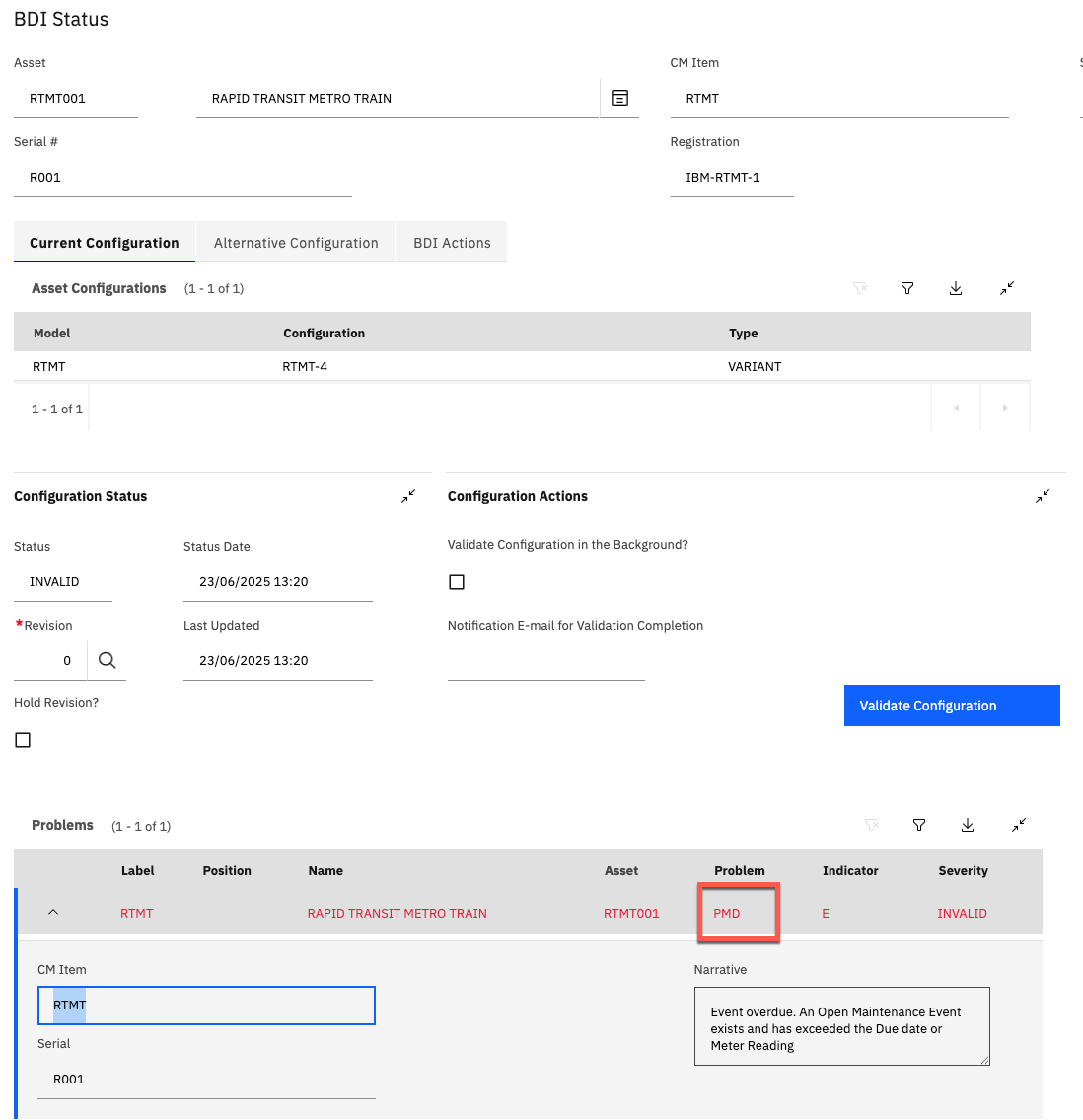
The Internal Value sould be set to the original code. For example if the EBD code (Overdue Maintenance Event/PM) should be replaced with the code: PMD
The Description is only used in the dispay of the Map Codes in the Models application:
- In the Models application delete the original code from the BDI Map Codes and save.
- Add a new row to the BDI Map Codes table and specify the replacement code, ensure the Active checkbox is set to true, and save again.
The new replacement Map Code will then be active against the Assets where this Model is applied: