BDI Queue Status
Overview
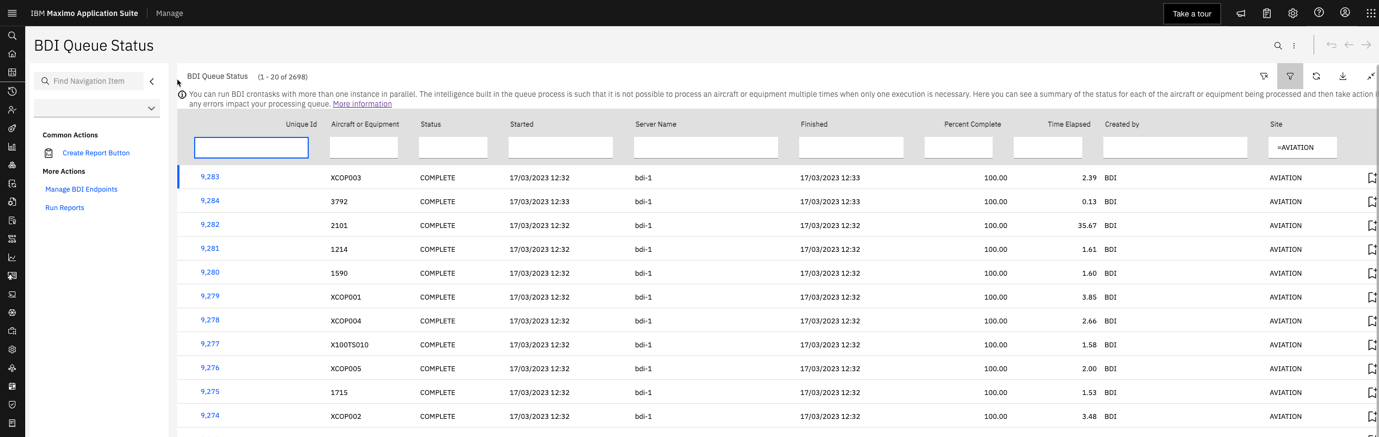
The BDI Queue Status application gives visibility on the BDI Queue and a history of the processing of Aicraft and Equipment (Assets) by the BDI.
The application provides a list of all BDI Queue records, together with a status, how long they took to process and if there was an error.
BDI Queue records are persisted in the database table: PLUSAANTRAN
BDI Queue Status List Page
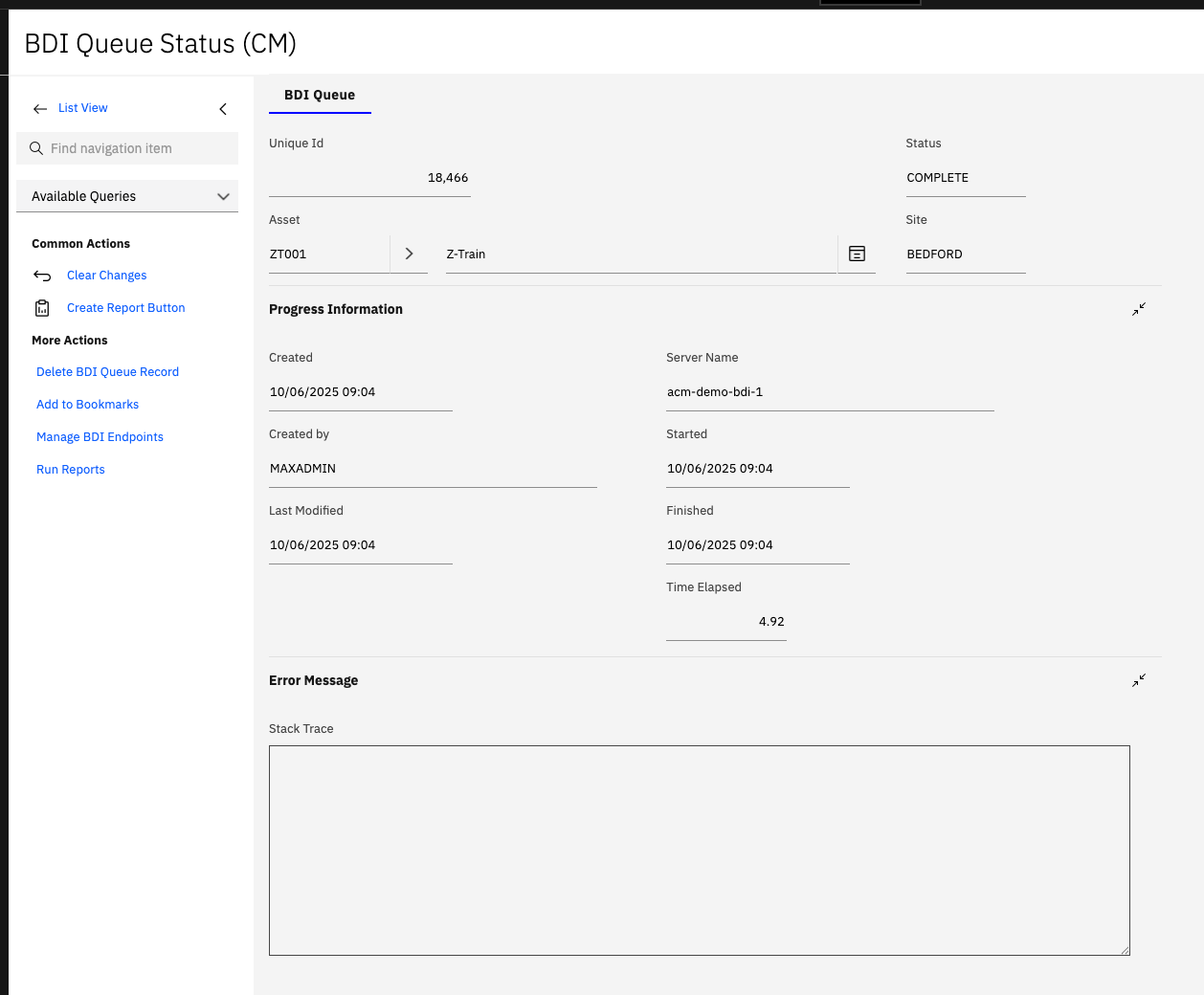
BDI Queue Status Detail Page
Information about errors are displayed in the the "stack trace" field which is displayed conditionally only when the status of the record is ERROR.
This can be useful in helping to expedite the resolution of BDI errors when provided to a system administrator or as part of an IBM support case.
BDI Queue Status Values
| Status | Description |
|---|---|
| PENDING | The BDI queue record is awaiting processing. |
| INPROGRESS | The validation of the Asset by the BDI is inprogress. |
| QUEUEUD | The asset is currently being processed by the BDI but a configuration change has resulted in the need to process it again. |
| COMPLETE | Validation of the Asset by the BDI is complete. |
| ERROR | An error occurred during the validation of the asset. Consult a system administrator to report details of the error. |
If BDI queue records remain in a PENDING state for an unreasonable amount of time this could indicate a bottleneck in the queue processing component of the BDI application. The number of queue workers (threads) maybe increased or a dedicated BDI instance responsible for processing queue records can be created. The BDI Configuration topic gives more details on these options.
Managing BDI End Points
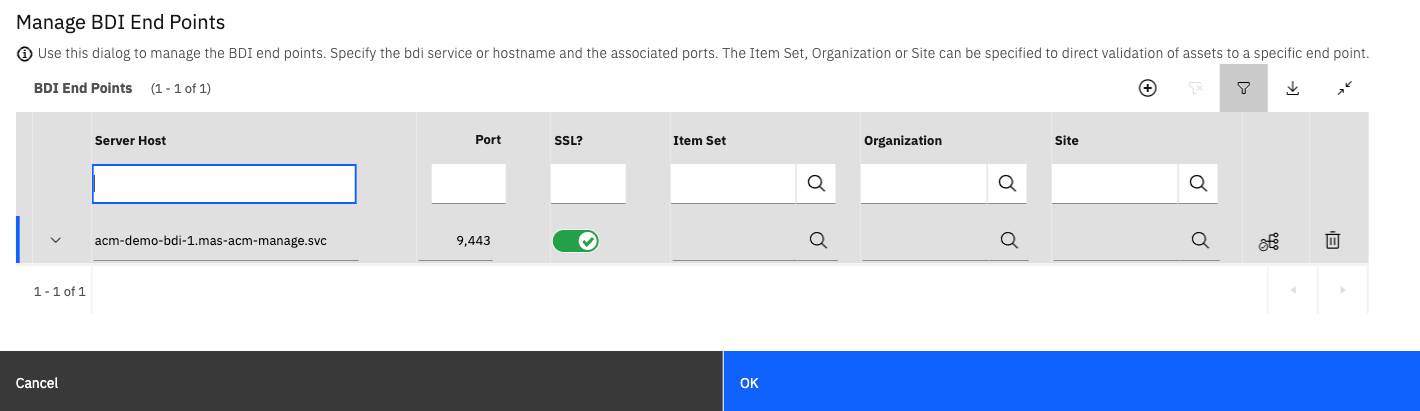
The BDI Queue Status Application contains an action "Manage BDI End Points" which opens a dialog containing the settings used to determine the service used for BDI API calls.
A record is created in this table by default, on Maximo Aviation installation, assuming there are no existing records in the table.
If more than one BDI instance has been configured the dialog can be used to add these additional instances such that they will be candidates for BDI API requests.
This can be useful if the number of simultaneous BDI requests, made from the BDI Status dialog by Maximo users, becomes too large for a single BDI instance to handle.
A Maximo Item Set, Organization or Site can be associated with each End Point definition to cause requests for Assets, which match those values, to be routed to that instance.
This can be useful for load balancing API requests.
The port should always be configured as 9443 and the SSL toggle box set to "ON".
The service host takes the form of:
{ instanceId }-{ workspaceId }-{ bdi-instance-name }.mas-{ instanceId }-manage.svc
Configuring Escalations for Stuck BDI Queue Records
In certain scenarios, BDI queue records may become stuck in an INPROGRESS state and fail to update to ERROR status when validation issues occur. This can happen when database connectivity issues or other system problems prevent the BDI from properly updating the PLUSAANTRAN record status after encountering an error during asset validation.
Problem Scenario:
- The BDI encounters an error during asset validation
- Under normal circumstances, the BDI should update the PLUSAANTRAN record STATUS to ERROR
- If a database connectivity issue (e.g., DB2 connection problem) occurs, the status update may fail
- The record remains stuck in INPROGRESS state indefinitely
- There is no built-in BDI monitoring to detect and correct this situation once the database issue is resolved
If the BDI pod is restarted, it will automatically delete any PLUSAANTRAN records with STATUS=INPROGRESS. However, this is not a recommended solution as it requires manual intervention.
Recommended Solution: Maximo Escalation
The recommended approach to handle stuck BDI queue records is to configure a Maximo Escalation that automatically detects and corrects records that have been in INPROGRESS state for an excessive period of time.
Escalation Configuration Benefits
A properly configured escalation provides:
- Automated Monitoring - Continuously checks for stuck queue records
- Configurable Frequency - Define how often the escalation runs (e.g., every 30 minutes)
- Configurable Threshold - Set the time period before a record is considered failed (e.g., 1 hour)
- Automatic Remediation - Updates stuck records to ERROR status with appropriate timestamps
- Notification Capability - Sends alerts to specific roles or recipients when issues are detected
- Audit Trail - Maintains complete processing history for troubleshooting
Example Escalation Configuration
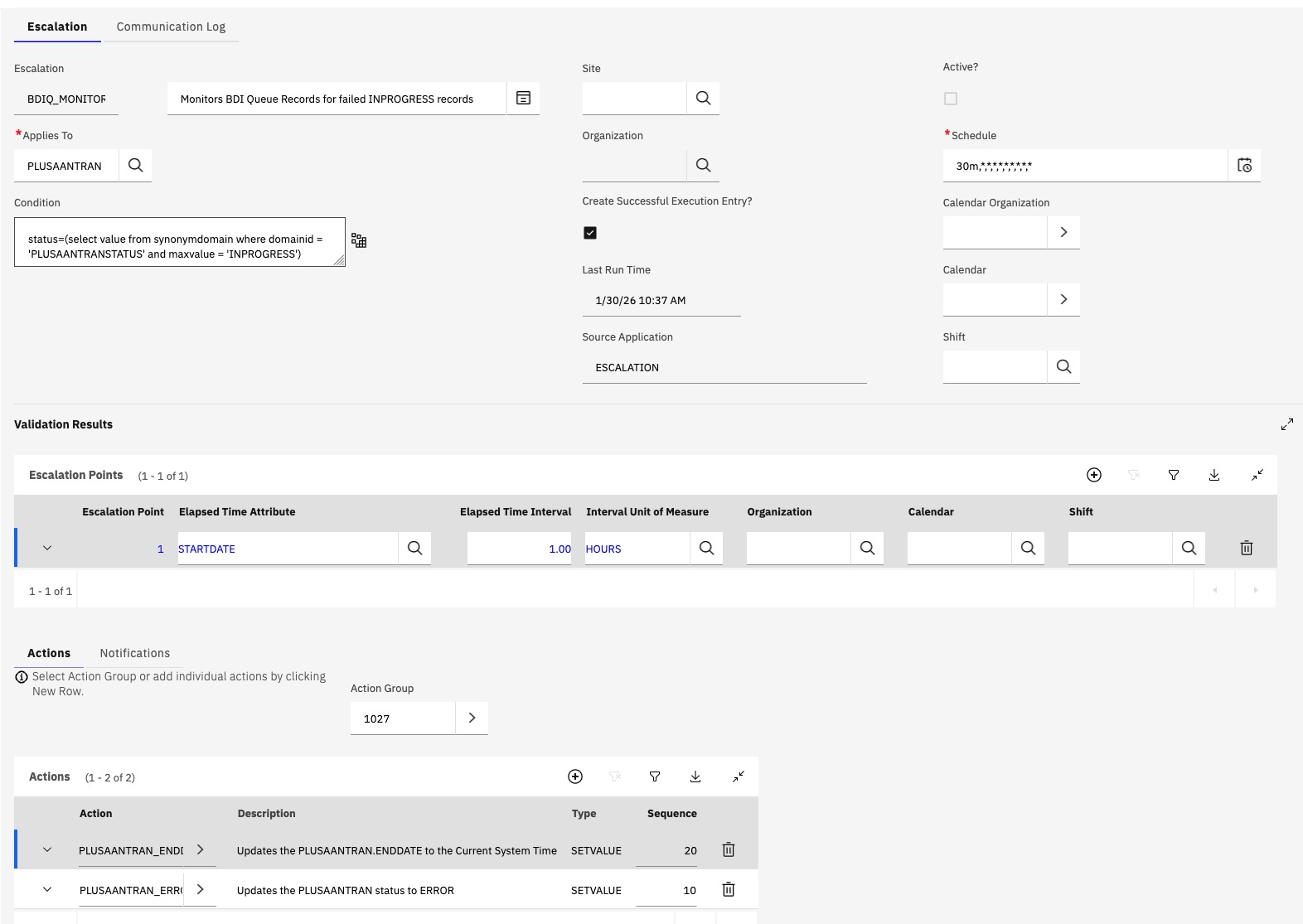
The following example demonstrates a typical escalation configuration for managing stuck BDI queue records:
Escalation Settings:
- Runs every: 30 minutes
- Monitors: PLUSAANTRAN records with STATUS=INPROGRESS
- Threshold: Records in INPROGRESS for over 1 hour
- Action: Set STATUS to ERROR and ENDDATE to current system date and time
- Notification: Alert designated roles/recipients
Escalation Point Configuration
The escalation point defines the conditions that trigger the escalation:
Key Escalation Details:
- Applies To: PLUSAANTRAN (BDI Queue Status table)
- Condition:
status=(select value from synonymdomain where domainid = 'PLUSAANTRANSTATUS' and maxvalue='INPROGRESS')
- Schedule: 30m (minutes)
- Active: Enabled
Escalation Points
- Elapsed Time Attribute: STARTDATE
- Elapsed Time Interval: 1
- Elapsed Time Unit: Hours
Escalation Action Configuration
The escalation action defines what happens when the conditions are met:
Action Details:
- Action: PLUSAANTRAN_ERROR
- Description: Updates the PLUSAANTRAN status to ERROR
- Object: PLUSAANTRAN
- Type: Set Value
- Value : 'ERROR'
- Accessible From: Escalation
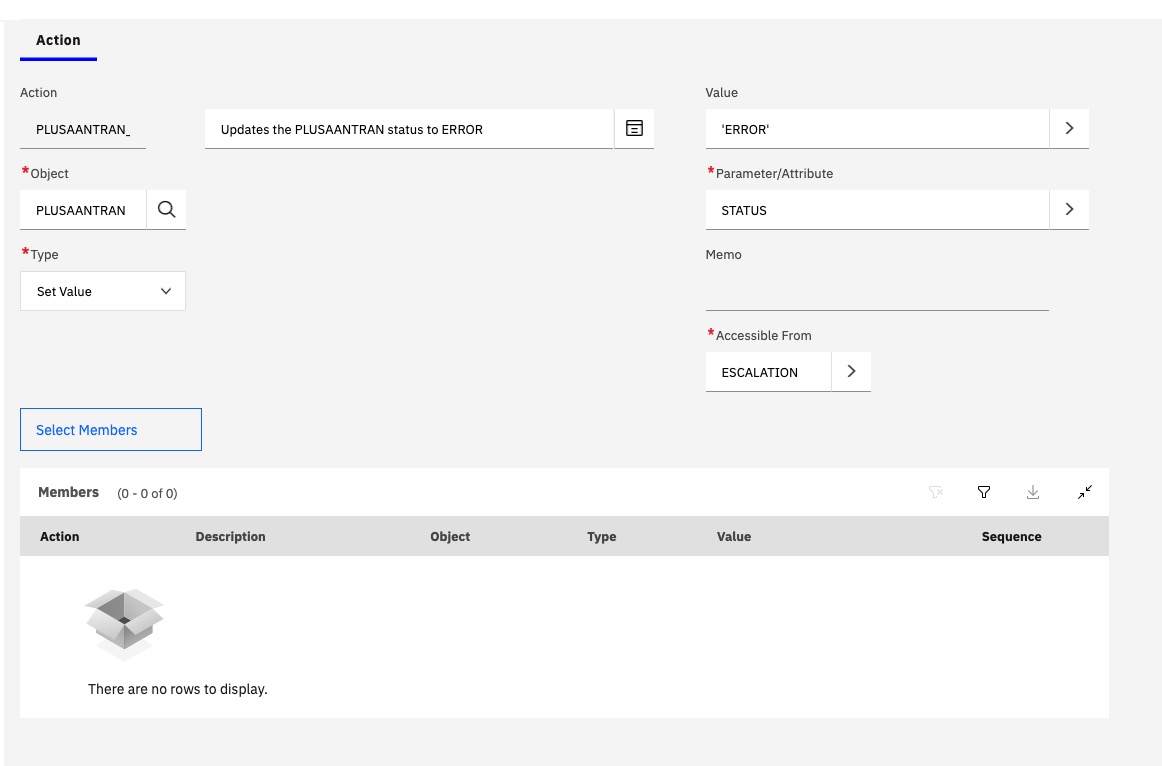
Action Details:
- Action: PLUSAANTRAN_ENDDATE
- Object: PLUSAANTRAN
- Type: Set Value
- Value :
:&DATETIME& - Accessible From: Escalation
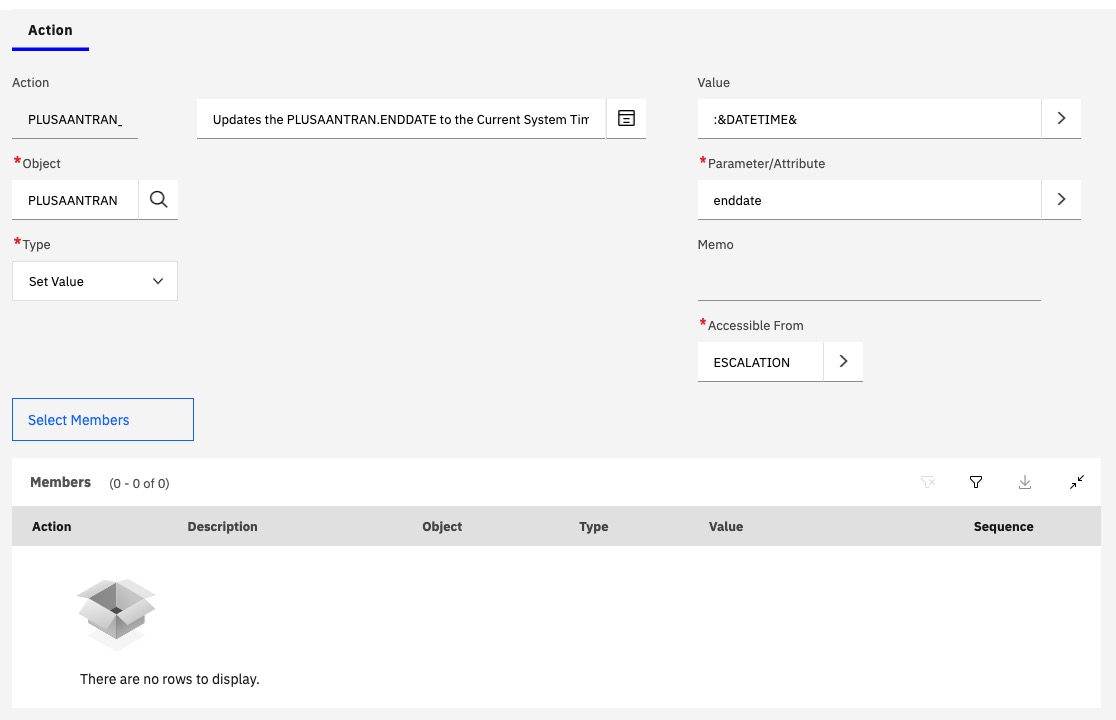
Implementation Steps
-
Navigate to Escalations Application
- Open the Escalations application in Maximo
- Create a new escalation record
-
Configure Escalation Point
- Set "Applies To" to PLUSAANTRAN
- Define the condition to identify stuck records
- Set the schedule interval (e.g., 30 minutes)
-
Configure Escalation Action
- Add action to set STATUS to ERROR
- Add action to set ENDDATE to current timestamp
- Optionally configure notifications
- Save the escalation action
-
- Activate the Escalation
-
Test the Escalation
- Create a test scenario with a stuck INPROGRESS record
- Wait for the escalation to run
- Verify the record is updated correctly
- Confirm notifications are sent (if configured)
-
Monitor and Adjust
- Adjust threshold timing if needed
- Refine notification recipients
Best Practices
Threshold Timing:
- Set the threshold based on typical BDI processing times
- Consider the complexity of your aircraft configurations
- Allow sufficient time for legitimate long-running validations
- Start with a conservative threshold (e.g., 1-2 hours) and adjust based on experience
Escalation Frequency:
- Run frequently enough to catch issues promptly (e.g., every 30 minutes)
- Balance between responsiveness and system load
- Avoid running too frequently to prevent unnecessary database queries
Notification Strategy:
- Notify system administrators and BDI support team
- Include relevant details in notification (Asset ID, Start Time, Duration)
- Use notification groups rather than individual email addresses
- Consider escalating to IBM support if issues persist
Monitoring and Maintenance:
- Regularly review escalation execution logs
- Track the frequency of stuck records to identify systemic issues
- Investigate root causes when escalations trigger frequently
- Update escalation configuration as system behavior changes
A properly configured escalation ensures that stuck BDI queue records are automatically detected and corrected, maintaining system reliability and providing visibility into processing issues without requiring manual intervention.
Troubleshooting
If the escalation is not working as expected:
- Verify the escalation is active and enabled
- Check the escalation schedule is configured correctly
- Confirm the condition logic correctly identifies stuck records
- Review Maximo logs for escalation execution errors
- Ensure the escalation has appropriate permissions to update PLUSAANTRAN records
- Test the condition query manually in the database to verify it returns expected records