Assets (CM) - View Tab
Overview
The "View" tab is used to understand the as maintained configuration data for a configuration managed asset. It is hidden (using Maximo conditional UI) for assets which are not configuration managed.
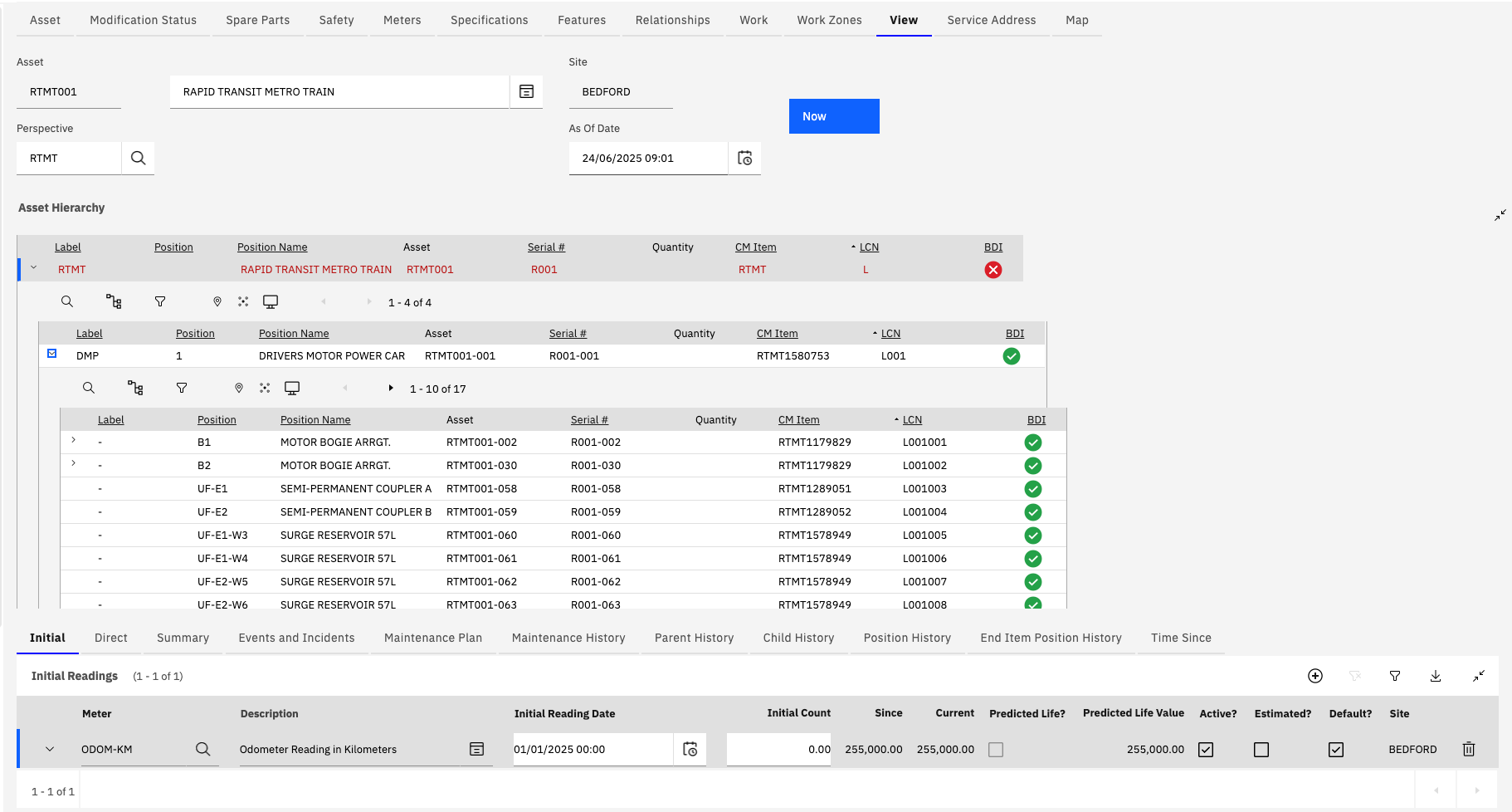
The top section of the screen contains the following fields, buttons and UI components:
Asset Hierarchy
The Asset Hierarchy UI component provides a hierarchical view of a configuration managed asset assembly.
It displays key information, taken from the corresponding build postions within the related Model, such as Label, Position, Position Name and LCN.
In addition each node in the hiearchy displays information about the Asset installed into the position: Asset Number, Serial Number and CM Item.
Clicking on the BDI Status icon at the far right of each node in the hierarchy opens the BDI Status dialog for the asset in the position.
As of Date
The "As of Date" field defaults to the current system date and time when the user enters the application. The user can change this date to a point in time in the past to understand what the configuration status of the Asset was at this point in time.
When a user changes the "As of Date" field value, and tabs out of the field, the Asset Hierarchy will be updated to display the Asset Hierarchy as it was at this date and time.
Now Button
Clicking the "Now" button updates the "As of Date" field to the current system date and time. It then automatically refreshes the Asset Hierarchy view so that it displays the current as maintained configuration of the asset assembly.
Perspective
The Perspective field contains a list of Systems which have been defined in the associated Model.
The default Perspective is the physical Asset Hierarchy corresponding to the main Build Hierarchy in the Model.
Systems can be used to define functional system views within the Model to aid users in understanding which assets form part of particular functional systems within the Asset assembly.
Asset Hierarchy View Actions
Right clicking a node in the Asset Hierarchy opens a context menu with a list of actions that can be performed against the selected position.
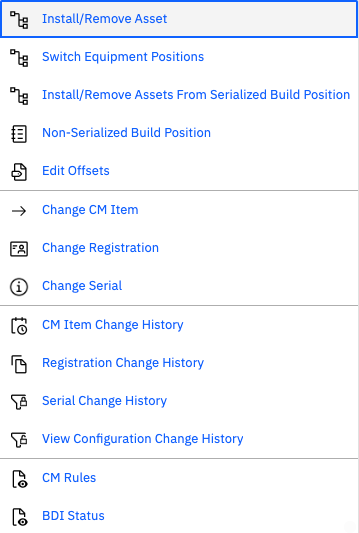
The actions provided by each item in the menu are listed below. Each action opens a dedicated dialog for the specific action:
| Action | Description |
|---|---|
| Install/Remove Asset | Provides the ability to install / removal of a child asset from the selected position. It is used from installing removing assets from Sub Assembly positions or Installation Point positions. |
| Switch Equipment Positions | Provides the ability to "switch" multiple assets between positions within the current asset assembly. The positions must be created from the same Build Item in the Model to allow the switch to take place. |
| Install/Remove Assets From Serialized Build Position | Provides the ability to installed/remove assets ina multiple serialized quantity position. |
| Non-Serialized Build Position | Provides the ability to update the quantity of CM Items associated with a non-serialized build position. |
| Change CM Item | Provides the ability to change the CM Item associated with a CM Managed asset. |
| Change Registration | Provides the ability to change the Registration of a CM Managed asset. This action can only be performed against end item assets. |
| Change Serial | Provides the ability to change the Serial number of a CM Managed asset. |
| CM Item Change History | Displays the history of changes to the CM Item of a CM Managed Asset. |
| Registration Change History | Displays the history of changes to the Registration of a CM Managed End-Item Asset. |
| Serial Change History | Displays the history of changes to the Serial Number of a CM Managed Asset. |
| View Configuration Change History | Displays the history of changes to the Configuration of a CM Managed Asset End-Item Asset |
| CM Rules | Displays the CM Rule information for the selected position. |
| BDI Status | Opens the BDI Status dialog for the selected position. |
Asset Hierarchy Sub Tabs.
A series of sub tabs is displayed at bottom of the Assets (CM) View tab.
The information displayed in each tab relates to the node in the Asset Hierarchy that is currently selected. In addition the information displayed in the tab also reflects the current "As of Date" value.
Intial
The "Initial" tab displays the CONTINUOUS type meters (ASSETMETER records) associated with the CM Asset.
Note that GAUGE and CHARACTERISTIC type meters are managed on the main "Meters" tab.
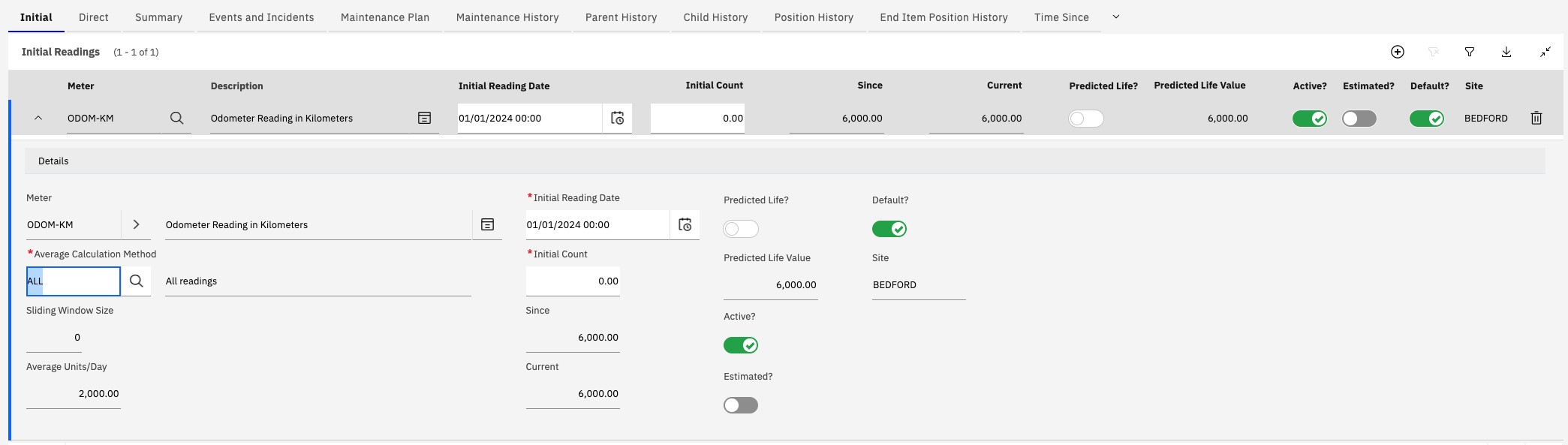
Each Meter has to have an Initial Reading Date and Initial Count. These are used to initialise the point from which we wish to track the life of the asset within the Maximo system.
All meter readings entered against the asset must have a Meter Reading Date later than the Initial Reading Date.
The Initial Count should reflect the life of the meter at the Intial Reading Date.
The Meter which is marked as the "Default" is used to calculate "TS Install" (Time Since Install) values displayed on the Parent, Child and Position History tabs.
Explanation of Fields:
- "Current" : Displays the total for the Meter at the "As of Date".
- "Since" : Displays the number of meter units accumulated since the Initial Count (Since = Current - Initial Count).
- "Estimated?" : Indicates if the Intial Count for the Meter was estimated.
Direct
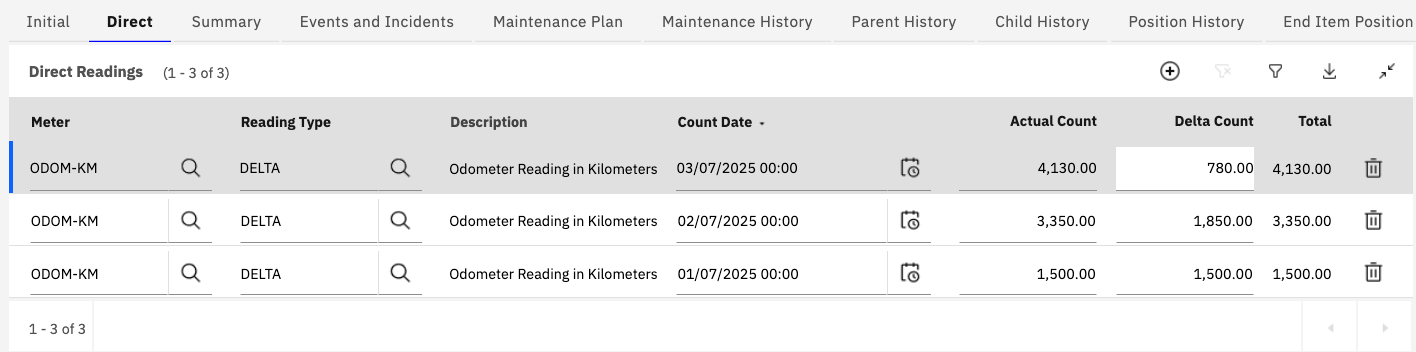
The "Direct" tab displays the CONTINUOUS type Meter Readings (METERREADING) that have been created directly against the asset selected in the Asset Hierarchy.
Meter readings can be added, deleted or updated on this tab.
Note that the meter reading date cannot be modified once a record is saved (only the meter value, either delta or actual depending on reading type). If a mistake is made with the reading date then the meter reading should be deleted and a new reading added with the correct date.
Summary
The "Summary" tab displays up to three rows for each continuous type meter for the selected asset. The "Type" for each row indicates what the count signifies:
Initial Reading: The intial reading (taken from the ASSETMETER.PLUSANCHORCOUNT) for the asset. Direct: The total of the meter reading records created for the select asset. Indirect: The total number of meter units calculated for the asset based on readings against a higher assembly (during a period where the asset was installed into the higher assembly).
Maintenance Plan
The "Maintenance Plan" tab displays any active Preventive Maintenance records for the selected asset. In addition it displays any open Work Orders (including both PM and corrective maintenance work orders).
Together these records are termed "Maintenance Events".
Due to the importance of the information contained within this tab the next topic is dedicated solely to this.

Maintenance History
Coming Soon
Parent History
Coming Soon
Child History
Coming Soon
Position History
Coming Soon
End Item Position History
Coming Soon
Time Since
Coming Soon